
You may choose any fields from your database, including group fields, for use with Subscriber. The fields you choose here will be seen on the web page people will visit when signing up for your messages. All of the fields you would like to use must be defined before you can choose your Subscriber fields. If your system is already running with data in the database and you wish to modify field definitions, you should contact support services before attempting to change anything. This feature is only visible if your system includes the Subscriber feature. Subscriber allows your recipients to sign up for messages on a simple web page. For more information regarding the Subscriber feature, please call 1-800-920-3897.
Modifying data field definitions after users have begun using your system can cause unexpected results. Please contact support services for assistance before modifying your field definitions. Call 1-800-920-3897.
Configuring Subscriber Fields
-
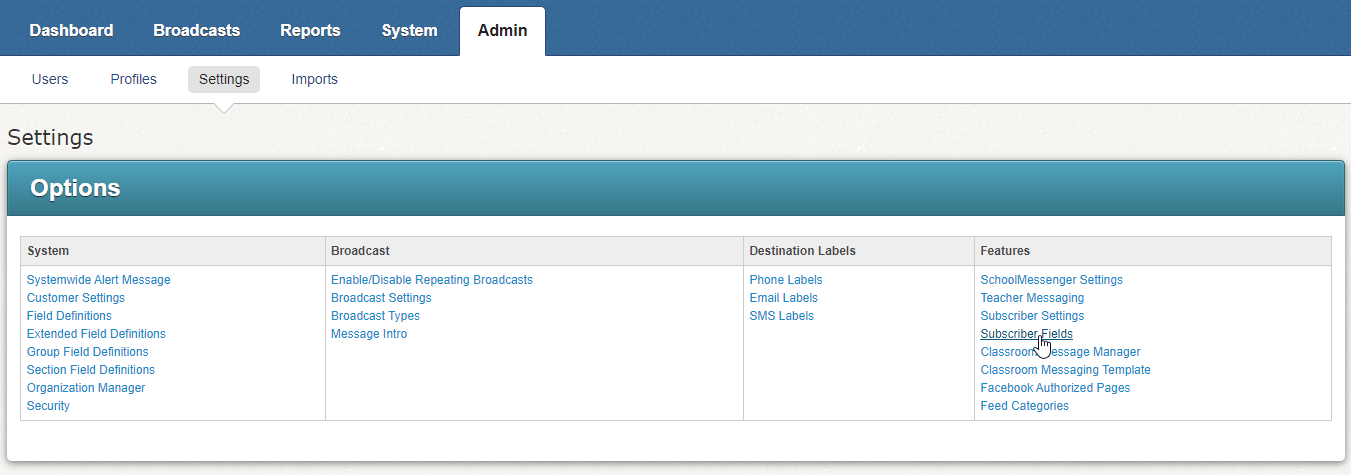
Navigate to the Settings page by clicking the Admin Tab followed by the Settings sub tab.
-
Click the Subscriber Fields link on the right side. You will be taken to the Subscriber Fields page.
-
Click the Add Field button at the bottom of the screen to add a field.
-
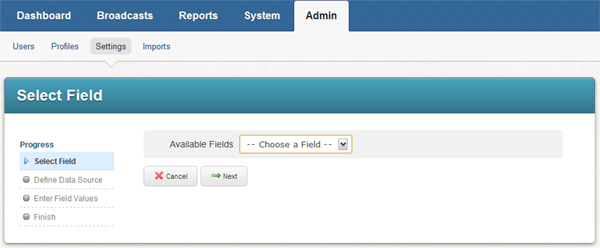
You'll be brought to the Select Field screen where you can select a field from a drop-down menu containing all of the available fields.
-
Choose the field you'd like to configure, then click Next.
Once you've selected a field, you will be able to choose a data source for the field. The Data Source screen is shown below. Depending on the type of data the field allows (text or list).
If the field was of the List type, the options are:
-
Manually Entered List of Values: Choose this if you want to specify the field's options by entering a list of values. When you click Next, you will be brought to a text box to enter the list.
-
Dynamically Generated by Imported Data: This option lets you use an import to generate the options.
For fields of the Text type, the options are:
-
Set by Admin: Select this if you would like to set a default value which will be assigned to all subscribers as they sign up.
-
Set by Subscriber: Select this if you like subscribers to be able to type anything in the field.