
Use the Hotspot question type to upload an image and define specific clickable areas (hotspots) for students to select as their answer. Students respond by clicking one or more of these predefined areas on the image.
Unlike Highlight Image questions—where students freely mark the image—Highlight Hotspot questions require the question author to set the selectable regions in advance. Because the correct hotspots are predefined, this question type supports automatic grading.
Question setup
-
Enter your question into the Question Setup field.
-
Use the Rich Text Editor to format text or insert images and tables.
-
Hover over icons to display tooltips.
-
-
Click Upload Image and search for an image from your files. Alternatively, from Image link, add a direct link to the image.
-
Set the image width and height in pixels.
-
The uploaded image will be displayed in the Areas section, where you will define validation areas for the question.
-
-
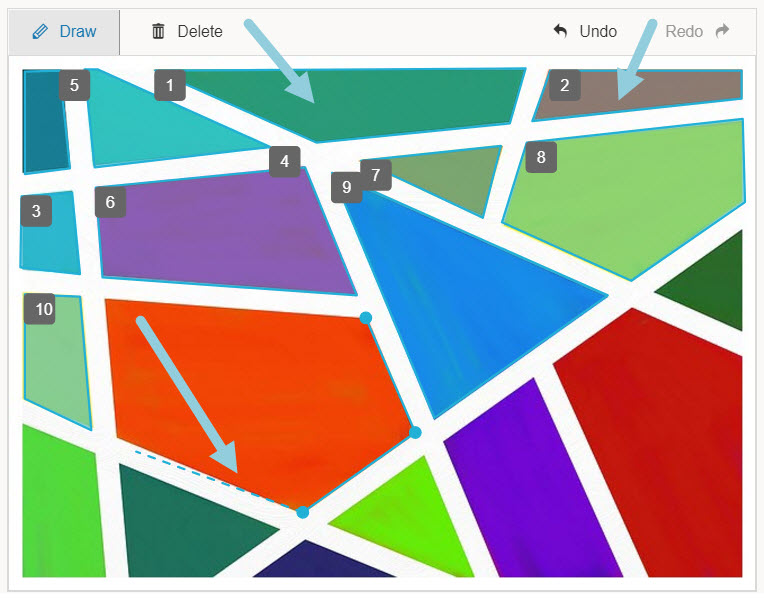
Click the image to begin outlining the hotspot areas.
-
Close the shape by clicking near its starting point.
-
The outlined area is labeled Area 1.
-
Create as many areas as needed.
-
-
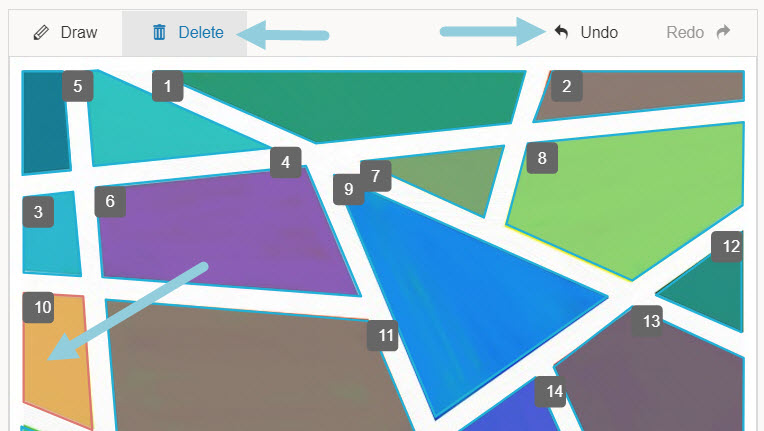
Optionally, click Delete to remove an existing area by hovering over the area to delete. When it turns red, click it to delete it. Alternatively, click Undo to undo your last click if you need to remove the last dot you made around an area.
Correct answer setup
The image displays in the Correct Answer Setup area, with each hotspot shown. Click the areas the student must select for a correct answer.
Select Multiple Responses if more than one area is the correct answer.
Optionally, add alternate correct answers:
-
Click the + button at the beginning of the Correct Answer Setup area to set up an additional set of acceptable responses to the question.
-
In the percentage field, set partial credit and the percentage of possible points students can earn for this answer.
Author notes
Enter Author Notes to explain why certain choices are incorrect, or why partial credit was given for alternate answers. This field only displays to authors with edit access. This information will not display to students.
Align learning objectives
-
Click + Learning Objectives to display the Learning Objectives browser.
-
From the available learning objectives, select a category and choose from the objectives.
-
Click Align to add the objectives.
Preview and edit the question
-
Click Preview Question to review how the question will display to students.
-
Click Edit Question to return to the question editor. Alternatively, click X to close the question.