
Use the Number Line question type to allow students to drag points or other content on a number line. Number lines work well for traditional math questions, as well as for other subjects (for example, ordering historical events or science steps).
Question setup
-
Enter your question into the Question Setup field.
-
Use the Rich Text Editor to format text or insert images and tables.
-
Hover over icons to display tooltips.
-
-
Enter a Title for the question.
-
Set the number line’s Minimum and Maximum values.
-
In Possible Responses, list the items students can drag onto the number line.
-
Click +Add to add more responses.
-
Responses can include numbers, characters, or fractions.
-
Click X to delete a response.
-
Correct answer setup
In the Correct Answer Setup field, drag the Possible Responses to their correct locations on the number line.
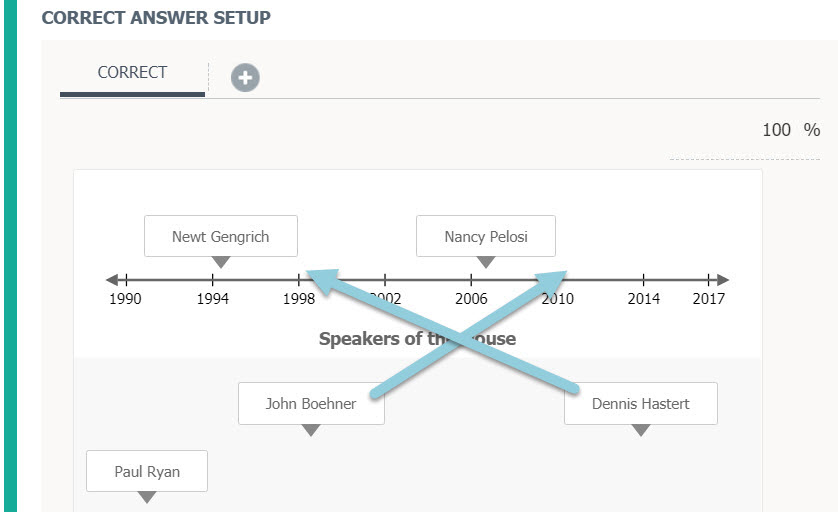
Optionally, add alternate correct answers:
-
Click the + button at the beginning of the Correct Answer Setup area to set up an additional set of acceptable responses to the blanks in the question.
-
In the percentage field, set partial credit and the percentage of possible points students can earn for this answer.
-
Optionally, enter a Correct Answer Threshold to define how close a response must be to the correct value to receive credit. For threshold examples, refer to Correct answer thresholds.
Additional setup options
Ticks
Use the Ticks section to configure ticks – marks at regular intervals on the number line.
-
Select Show Ticks to display marks on the number line.
-
Select Snap to ticks to have responses snap to the nearest tick on the number line when a student drags the option.
-
Set Tick Distance using whole numbers, standard or decimal fractions, or mixed numbers.
-
If you use fractions as the distance, also select a Fractions format to define how fractions are rendered on the number line:
-
Not normalized and mixed fractions - displays only not normalized and mixed fractions.
-
Normalized and mixed fractions - displays only normalized and mixed fractions.
-
Improper fractions - displays only improper fractions.
-
-
-
Set the Rendering base (zero or line minimum) if the label frequency is greater than 1.
Labels
In the Labels section, you can set number line labels options.
-
In Show specific labels, enter specific points that should be included in the line, including fractions, decimals, and mixed numbers. Separate multiple numbers with commas.
-
Set the Frequency to determine how often to show a label on the number line. For example, set the frequency to 1 to display labels at every tick, set to 2 to display labels every second tick, and so on.
-
Select Show first to display the first value in the number line.
-
Select Show last value to display the last value in the number line.
-
Select Show left arrow to add an arrow pointing left to the beginning of the number line.
-
Select Show right arrow to add an arrow pointing right to the end of the number line.
Author notes
Enter Author Notes to explain why certain choices are incorrect, or why partial credit was given for alternate answers. This field only displays to authors with edit access. This information will not display to students.
Align learning objectives
-
Click + Learning Objectives to display the Learning Objectives browser.
-
From the available learning objectives, select a category and choose from the objectives.
-
Click Align to add the objectives.
Preview and edit the question
-
Click Preview Question to review how the question will display to students.
-
Click Edit Question to return to the question editor. Alternatively, click X to close the question.