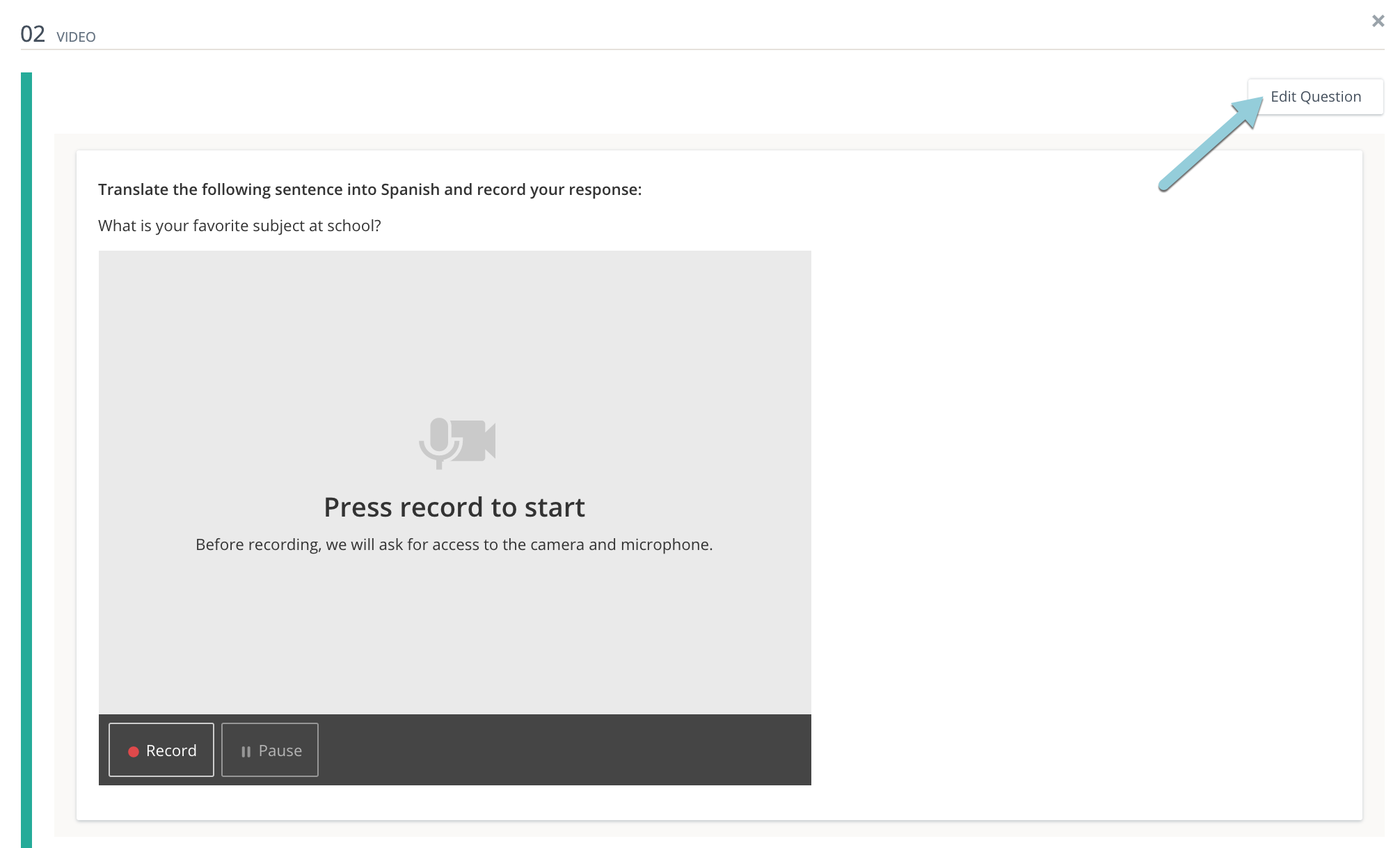
Use the Video question type to allow students to record video submissions and support a range of accommodations and learning needs.
-
To access audio files uploaded to questions, you must add the following domains to your network's allowed list:
-
*.learnosity.com
-
s3.amazonaws.com/assets.learnosity.com
-
s3.amazonaws.com/learnositymediaprocessed
If your organization has a policy that prevents you from using a wildcard, download the full list of URLs to be added to the allowed list. If you are unable to access media content, reach out to the Support Contact at your organization to confirm the URLs have been added to the allowed list.
-
-
Recording in assessments is not supported on the Schoology mobile apps. Students should submit video recordings via the mobile browser or desktop.
Question setup
From Question Setup, enter your question or instructions.
-
Use the Rich Text Editor to format text or insert images and tables.
-
Hover over icons to display tooltips.
Maximum length
Enter a Maximum length (seconds) to set the time limit for student responses. The default is 600 seconds or 10 minutes.
The recording limit for video submissions is 10 minutes.
Author notes
Enter Author Notes to explain why certain choices are incorrect, or why partial credit was given for alternate answers. This field only displays to authors with edit access. This information will not display to students.
Align learning objectives
-
Click + Learning Objectives to display the Learning Objectives browser.
-
From the available learning objectives, select a category and choose from the objectives.
-
Click Align to add the objectives.
Align a rubric
-
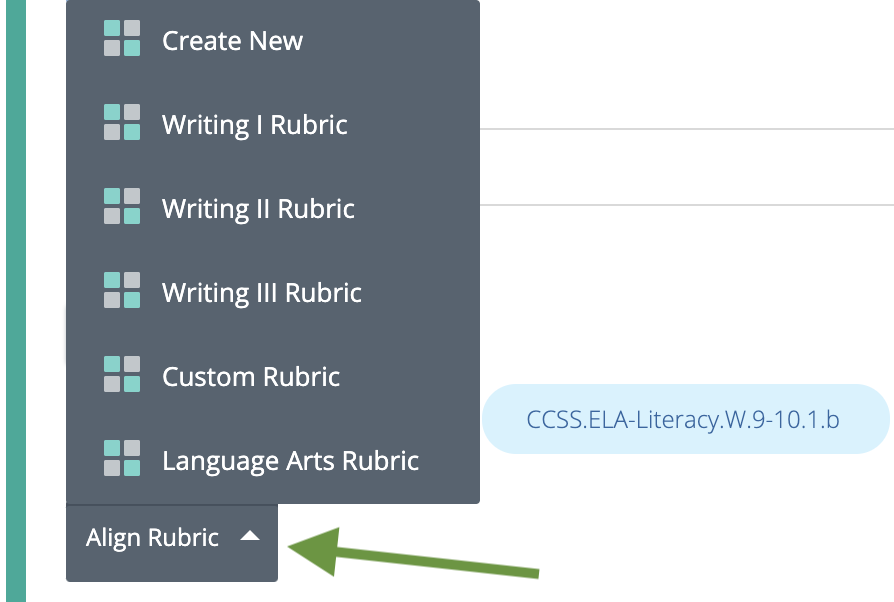
Click Align Rubric to create a new rubric or select one from your Resources.
-
After a rubric has been aligned, select the rubric icon (four squares) to preview the rubric or click X to remove the rubric from the question.
-
Select Show to students to display the rubric to students when they are taking the test.
If you set the rubric to Show to students, the rubric does not display in the question preview. However, students can review the rubric during the assessment.
Preview and Edit Question
-
Click Preview Question to review how the question will display to students.
-
Optionally, edit the question and click Save.
-
Click Edit Question to return to the question editor. Alternatively, click X to close the question.