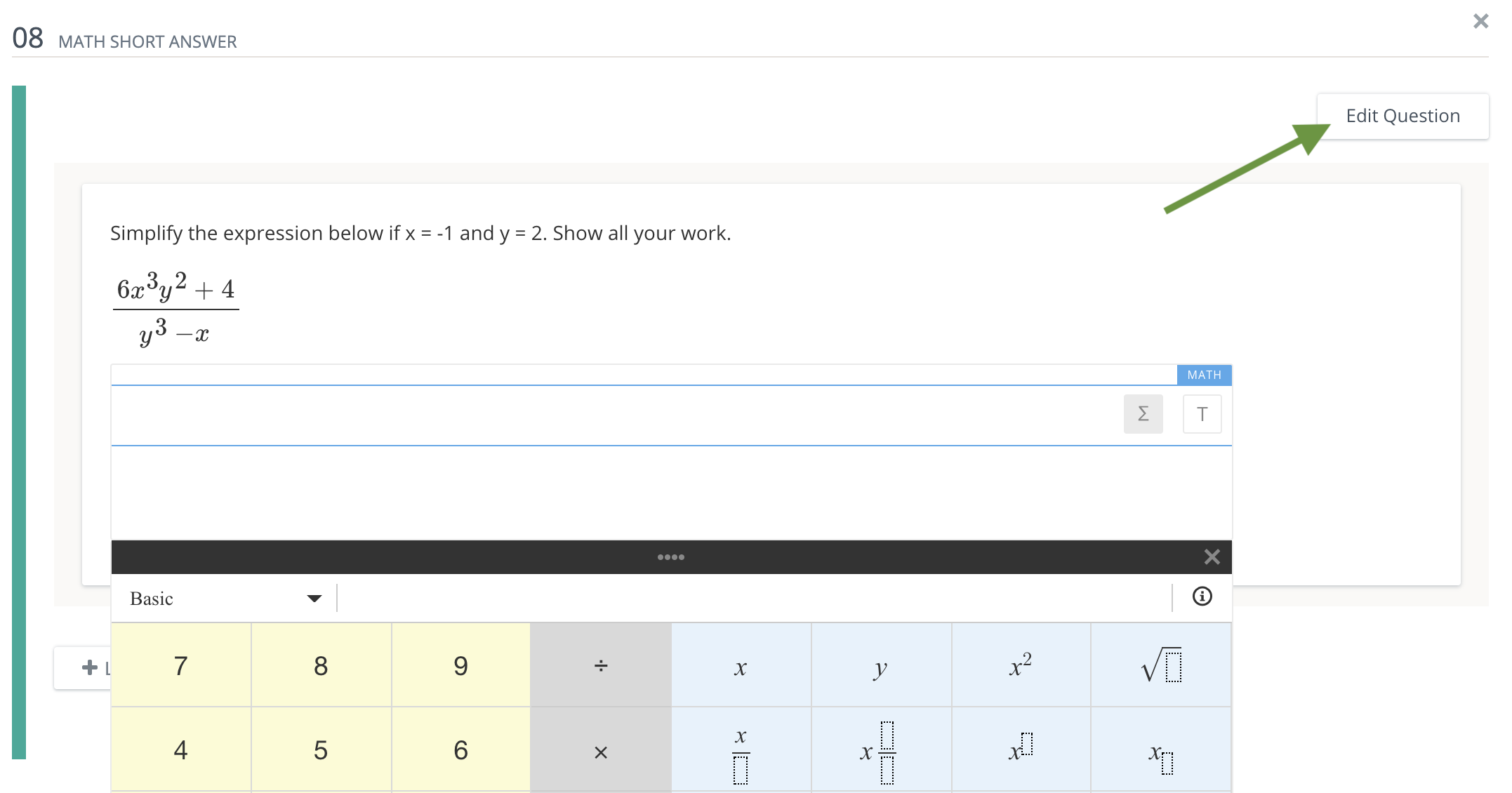
Add a Math Short Answer question to create an open-ended question that may require mathematical symbols in the response.
-
If administering the question with a text-to-speech reader, refer to Create questions for accessibility (text-to-speech) for further instruction.
-
Math Short Answer questions do not support rubrics. To attach a rubric to a question, use the Short Answer/Essay question type.
Question setup
-
Enter your question in the Question Setup field.
-
Use the Rich Text Editor to format text or insert images and tables.
-
Hover over icons to display tooltips.
-
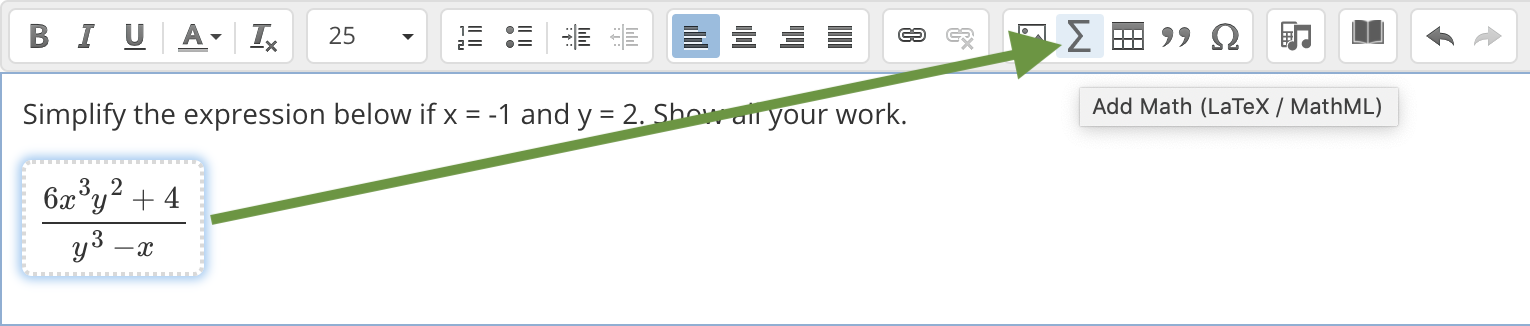
Click the sigma icon to enter a math equation in the Question Setup field.
-
-
From Text Formatting Options for Students area, choose rich text options for students.
-
Click + Option to add additional text formatting.
-
Click X to remove a rich text option.

-
-
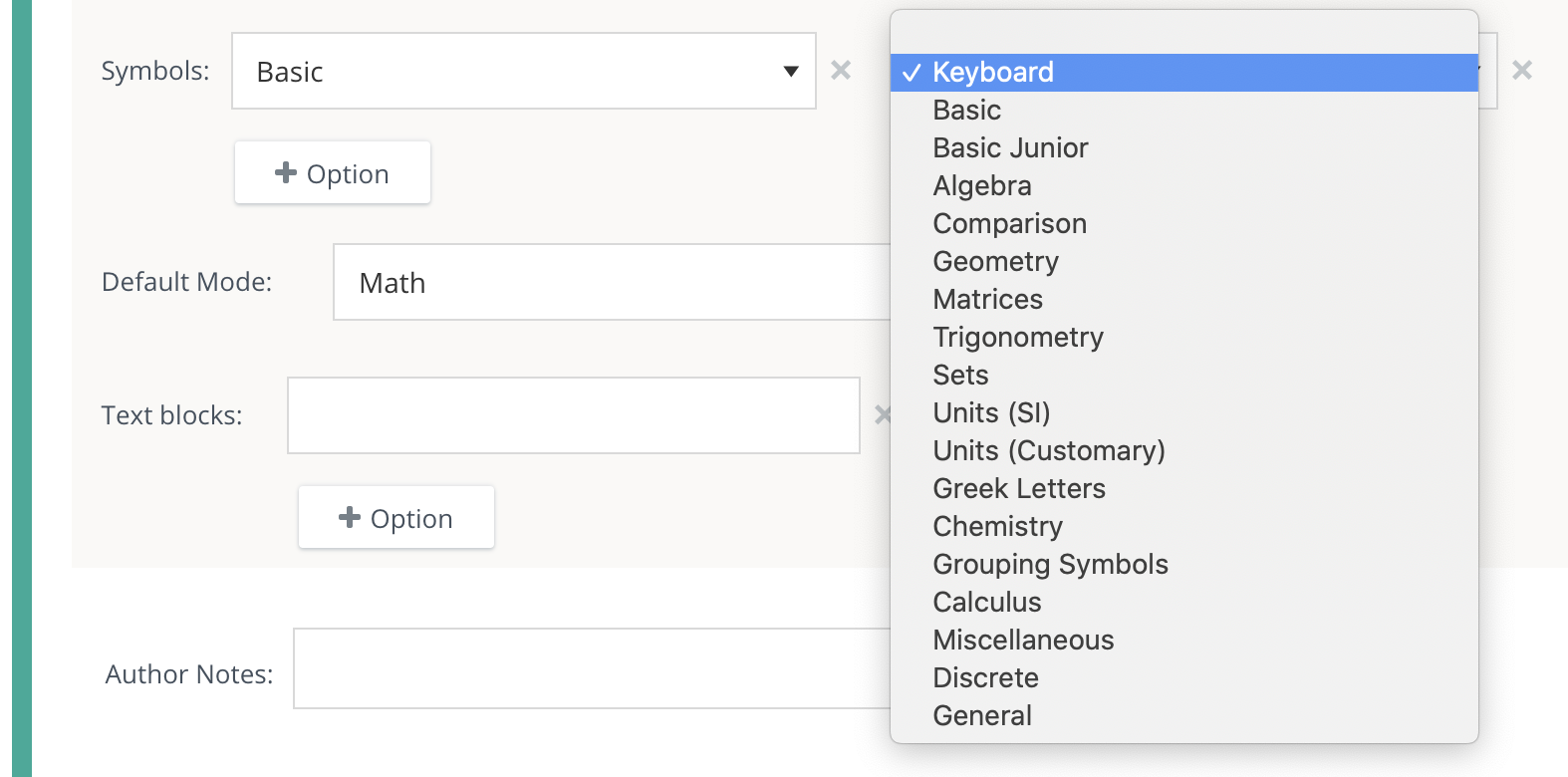
From Symbols, give students access to an unlimited number of mathematical symbol keyboards. Students can select the option they prefer to use when answering the question.
-
Click + Option to add additional symbol keyboards.
-
Click X to remove a symbol keyboard.
-
-
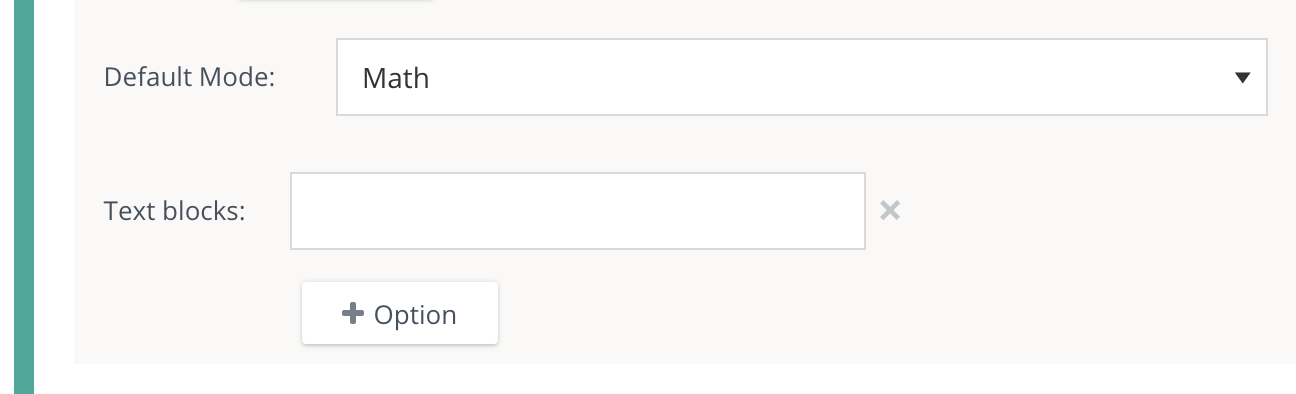
From Default Mode, select an option.
-
Text displays the regular text keyboard by default.
-
Math displays the math equation keyboard by default.
-
Students can toggle between these keyboards regardless of the default mode.
-
-
Add Text blocks to define a list of custom units, such as g, kg, cm, oz, and more, that will not be rendered as LaTeX. Students can enter the units in a text block while answering a question with a numerical answer without having to switch back to the text keyboard.
-
Click +Option to add additional text blocks.
-
Click X to remove a text block.
-
Author notes
Enter Author Notes to explain why certain choices are incorrect, or why partial credit was given for alternate answers. This field only displays to authors with edit access. This information will not display to students.
Align learning objectives
-
Click + Learning Objectives to display the Learning Objectives browser.
-
From the available learning objectives, select a category and choose from the objectives.
-
Click Align to add the objectives.
Preview and edit the question
-
Click Preview Question to review how the question will display to students.
-
Click Edit Question to return to the question editor. Alternatively, click X to close the question.