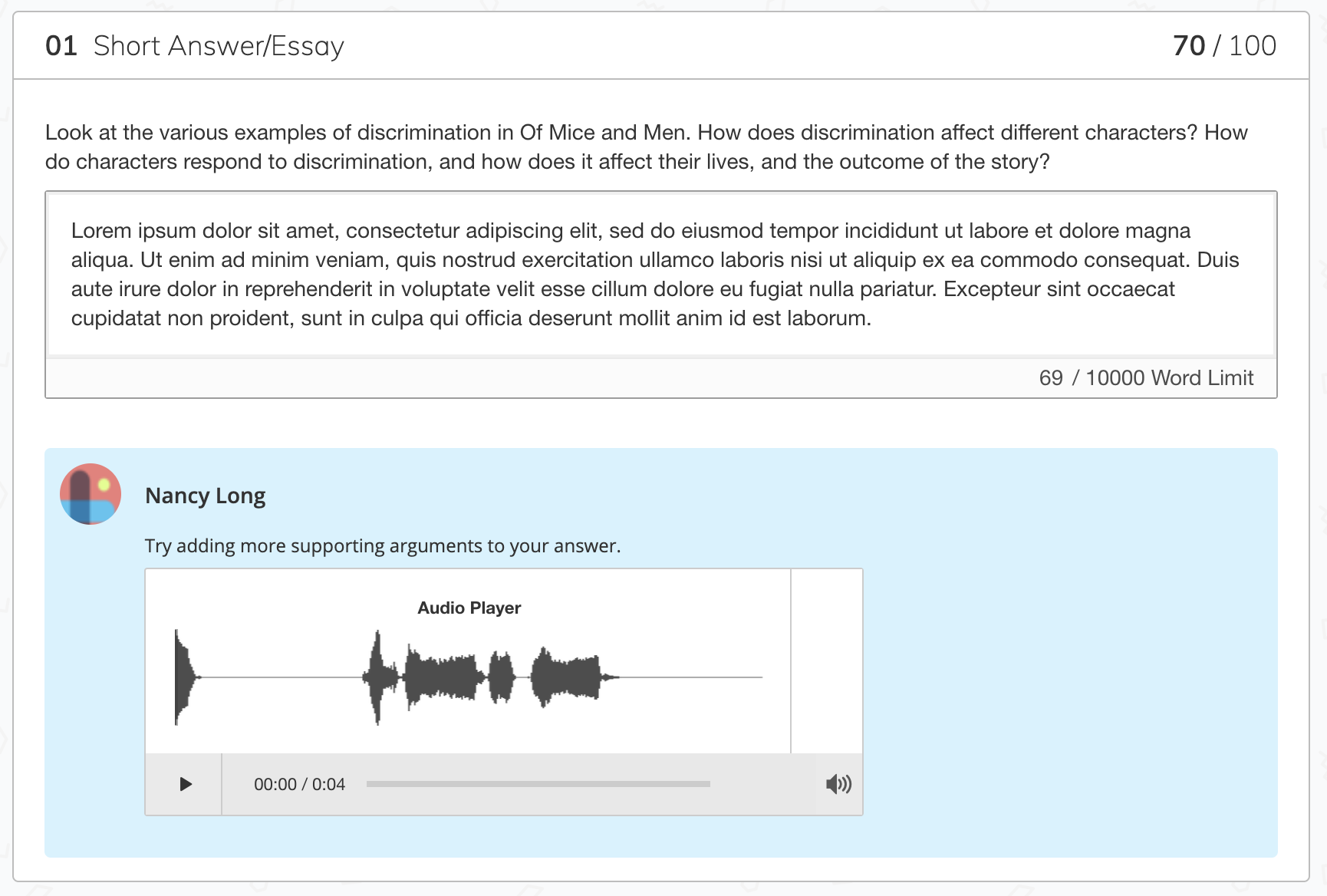
Grade by question
-
Navigate to a course.
-
Click the assessment name.
-
Select Grading and ensure By Question is active.
-
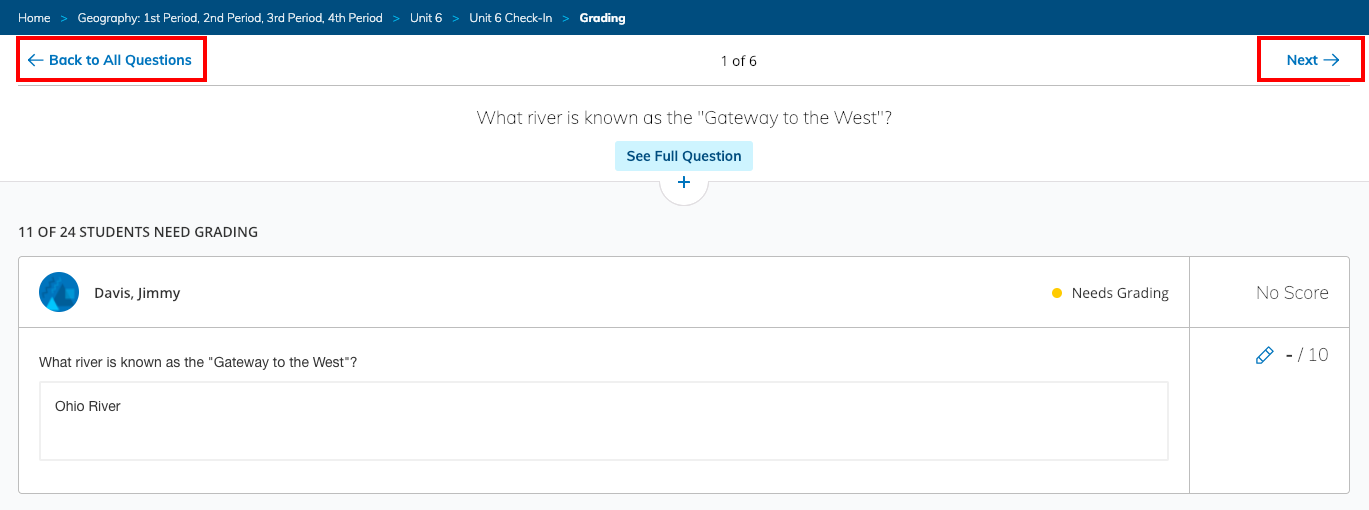
Click Needs Grading for the question you want to grade. No Score will be displayed for each student whose attempt for that question needs grading.
-
Click the submission’s pencil icon and enter the points earned on the question.
-
Click Next to navigate to the next question. Optionally, click Back to All Questions to return to the Grading summary.
Give feedback
You can provide feedback on each student’s responses to help students improve their outcomes.
-
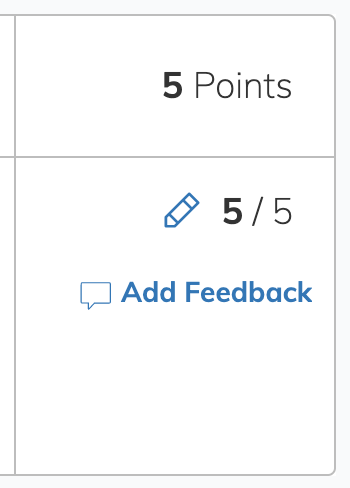
Click Add Feedback for the item to enter your comments.
-
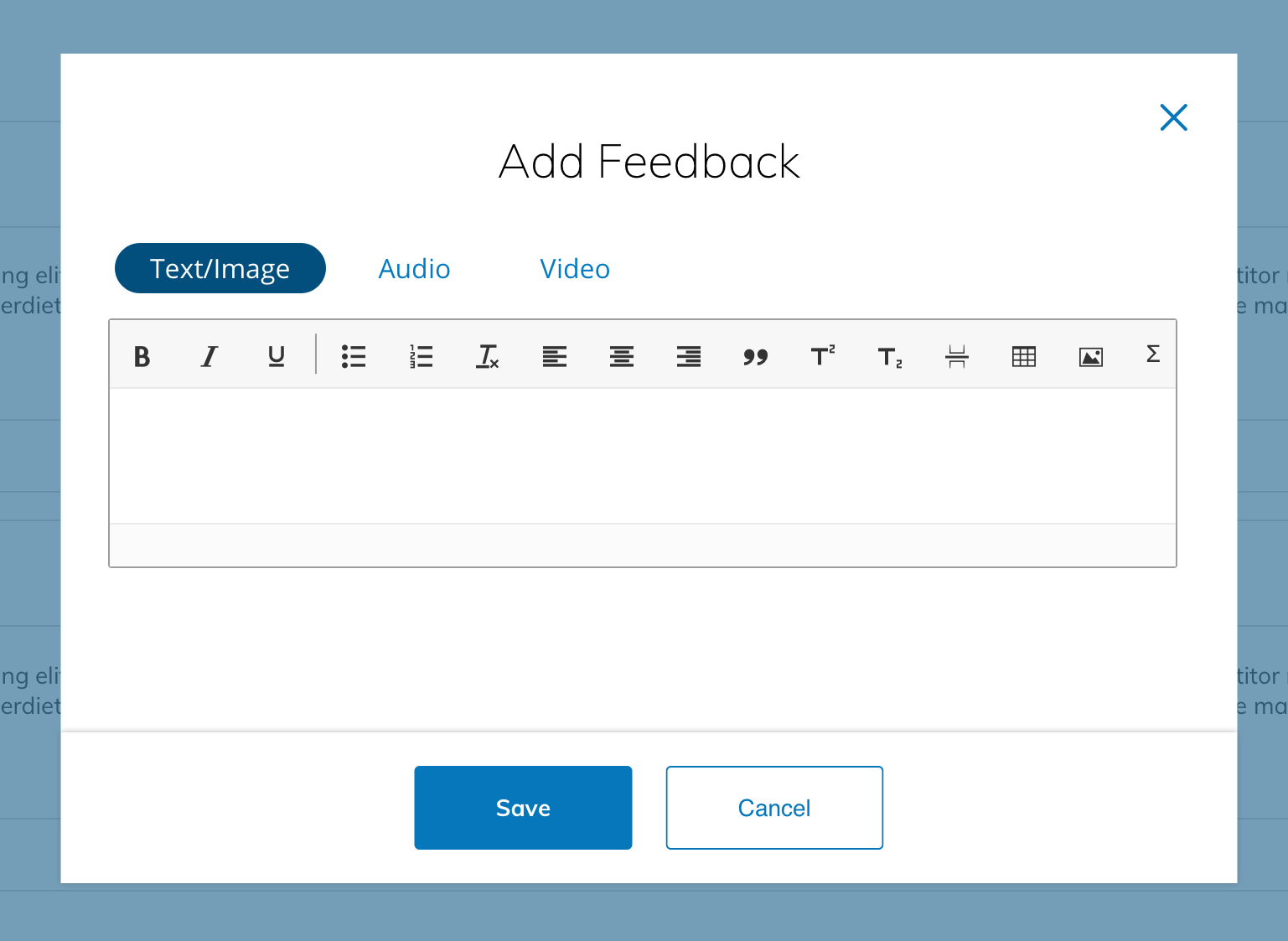
Select a feedback option, add your comment, and then click Save.
-
To add text or images, use the Rich Text Editor in the Text/Image area.
-
To add audio to your feedback, click Audio and then the record icon to begin recording.
-
To add video, click Video, and then Record to begin recording.
-
-
Click the pencil or trash can icon for your feedback to edit your comment or delete it entirely.
Student view
Students can review the feedback directly from their submission after Allow students to view results after an attempt is submitted is enabled in Student Settings.