
The Student Analytics dashboards provide demographic characteristics about students, such as enrollment, attendance, academics, behavior, and more.
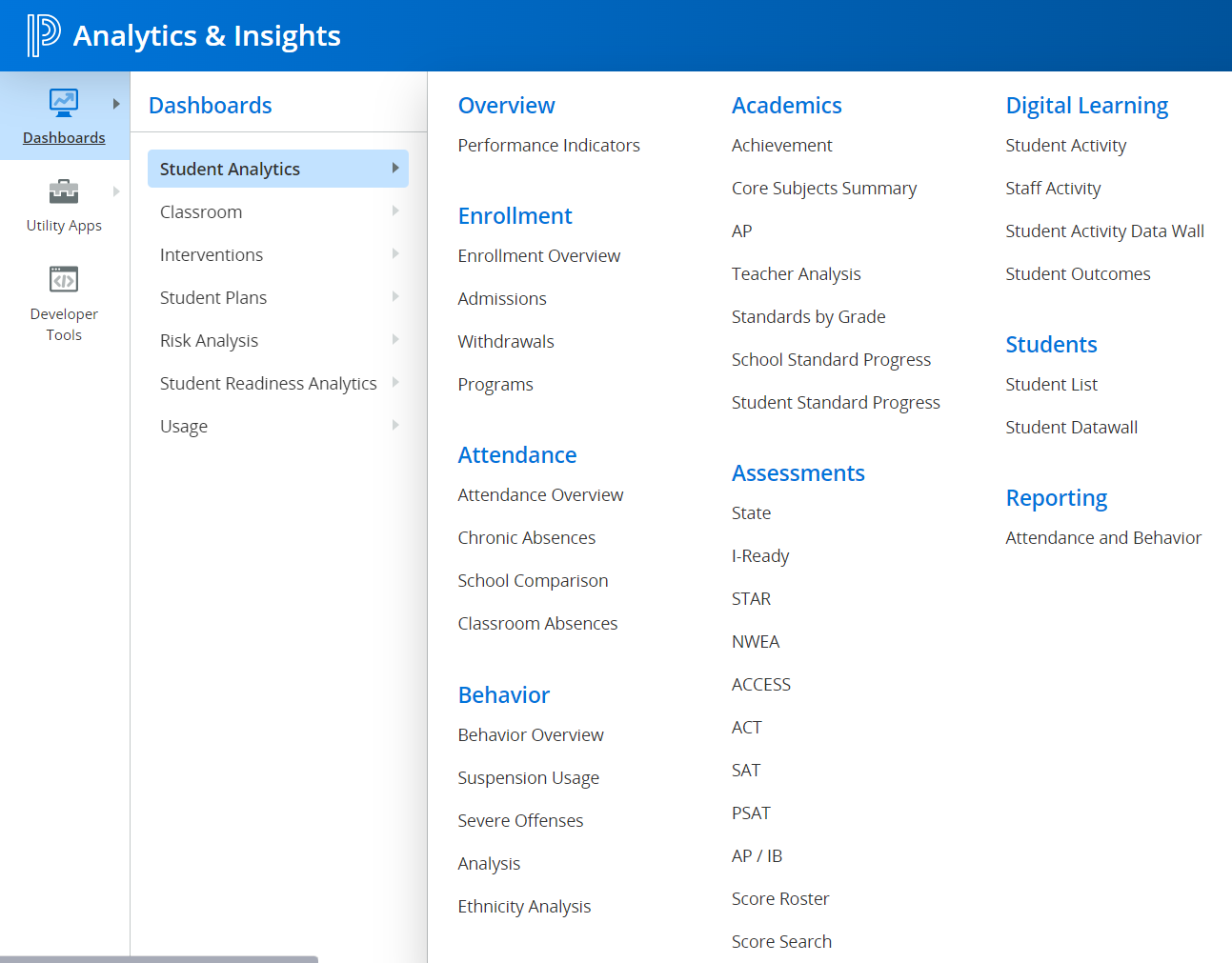
From the main menu, choose Dashboards, Student Analytics, then select a dashboard.
Standard Product Offering
This page includes information on standard out-of-the-box functionality and lists optional modules not included in the standard product.
Dashboards, Student Analytics
Overview
Analytics & Insights - Student Analytics is comprehensive analytics solution that includes nightly SIS data updates from academic and non-academic domains, roster information, LMS usage data, and state and national assessment data sources.
Performance Indicators
The Performance Indicators dashboard provides a high-level overview of students based on the user’s login permissions. This initial dashboard displays metrics for active and enrolled students covering the following areas:
-
Geo-visual neighborhood address mapping (Supporting North America and planned support for international customers in 26.3.0.0)
-
Demographics (Gender, Ethnicity, Student Groups)
-
Attendance (30-day Attendance, YTD, Attendance, Chronic Absenteeism, & Absent Yesterday)
-
Core Course Grades
-
Incidents (3-year trends)
-
Assessments both Benchmark/Interim assessment types for ELA & Math subjects
Enrollment
The Enrollment dashboards provided both current and trending analysis of student enrollment, admissions, withdrawals, and program membership recorded in the SIS.
-
Enrollment Overview: Overview of enrollment data: number of students enrolled in district, number of students in each school and their current grades.
-
Admissions: New Admissions who receive Special educational services, lunch, free or reduced lunch and the most frequent admission reasons.
-
Withdrawals: Schools with the highest number of withdrawals and their withdrawal reasons
-
Programs: High level special program membership/ participation that includes List of students receiving program services
Attendance
Attendance data is captured from the SIS on a nightly basis. If the customer is a PowerSchool SIS customer, a student is considered absent per the ADA/ADM report, then they will show as absent in the Analytics & Insights dashboards. Otherwise, attendance data is taken from the nightly updates from the SIS provider’s configuration.
-
Attendance Overview: Provides metrics around student attendance that display:
-
Attendance rates by time intervals: yesterday, last 5 days, last 30 days, and year to date
-
Year to date attendance broken down by ethnicity/race and absent types
-
Year over Year attendance rates by school year
-
Most frequent daily and period absence types/reasons
-
A week-by-week rate of attendance comparing current year data with provided previous years of history
-
-
Chronic Absence sub-dashboards provides metrics based on the following default attendance criteria:
-
Chronic = less than 90%
-
Nearly Chronic= 90%-92.5%
-
Trending Chronic = <92.5%->95%
-
No Absence Issues = >=95%
-
-
School Comparison: Provides analysis of multiple schools for attendance by subgroups.
-
Classroom Absences: Displays a crosstab of staff name and course name to compare period absences and period tardies by period and semester.
Behavior
Behavior dashboards bring over all incidences recorded in the SIS and display that information in a variety of ways. Both log entries and incident management can be pulled into the data warehouse.
-
Behavior Overview: Provides insights into diverse incidents and changes in incidents ranging from weekly to yearly basis.
-
Suspension Usage: Provides a deep dive into trends of suspensions i.e. type and probes into whether the use of suspensions has been responsive over time.
-
Severe Incidents: Provides an overview of the occurrence of incidents Annually (Offense group, Year and number of incidents occurred)
-
Analysis: Provides an analysis of the type and number of incidents that occur by measure of Days, Time, Grade and Race for a particular school.
-
Ethnicity Analysis: A YTD metric on the percentage of students and percentage of incidents that occurs for each Ethnic group (both males and females).
Academics
Academics dashboards provide analysis and distribution of grades across core subjects, analysis of AP courses taken, teachers analysis, progress in the skills of individual schools, and an overview of performance of student skills
-
Achievement: Current school year grade distributions expressed over time, GPA of students and the grades students are receiving in core courses, including number of students in each grade and their current GPA.
-
Core Subjects Summary: Summary of pass rates of all core subjects and how the grades of the core subjects are distributed by their grade levels.
-
AP: Metric of all AP Courses, Number of students scheduled in AP courses, proportion of subgroups scheduled for AP courses and the number of students schedules on multiple AP Courses
-
Teacher Analysis: Teachers’ A-F Grade distributions broken down into periods, subject and grading periods.
-
School Skill Progress: Expression of the number of students at each skill level for all schools in district and all skills associated with it.
-
Student Skill Progress: Gives details of each student’s skill and skill level.
Assessments
Covers assessments of all subjects including which ones have been passed, disproportioned, and the ethnicity of students and their assessment scores across multiple assessment periods and school years.

State assessment analytics.
-
Subject Analysis: Student’s proficiency in Math, ELA (English Language Arts), and Science. It provides a detailed view of the score distribution of all subjects.
-
Passing Analysis : Passing rates and grades for subjects, schools involved, and races involved.
-
Disproportionality : A measure of disproportionality in passing rates for math, reading science and social studies shown by student race.
-
Gainers Stickers Sliders : Gives a measurement of who gained, stuck and slid in ELA, and the percentage as a comparison between last year and. this year’s assessment
-
Math-Reading Plot : Overview of Number of Students belonging to each Race and the rate of students who passed reading and Math.
National Assessments
A district may have one, many, or none for these national assessments loaded. See link to supported National Assessments PDF file provided by Randy Langton for more details on the complete list of supported national assessments. Below are just examples of national assessments which are displayed as individual tabs.
-
ACT: Gives insight to Average ACT and Subject Scores, Subject ACT College Readiness and overall ACT College Readiness.
-
ACCESS: Gives insight to ACCESS assessments with
-
AP/IB: Separated
-
I-Ready: Has two (2) components
-
Diagnostic ELA – Brings meaning to diversity of scores on I-Ready ELA be it overall score or by Schools, Vocabulary, Score by Student Group, Phonics Score, Phonological Awareness, etc.
-
Diagnostic Mathematics – Focuses on Math as the name suggests; measurement and data scores, Geometry & Algebra, Overall Score by Schools, by Student Group as well as the Overall Score.
-
-
NWEA: Gives an account of Average Scores, Student Proficiency Bands, Students at or above Grade Level 50th percentile, % Students Keeping Pace on NWEA Math & Reading.
-
SAT: Encompasses SAT Percentiles along with the number of students taking SAT by year plus SAT college-ready benchmark performance.
-
STAR: Separated into two areas STAR Mathematics & STAR ELA. On one side it seeks to know if these scores are improving year over year and on another hand it looks into proficiency.
Score Roster
-
Score Roster : List out Student ID’s, Names, Year, Period Test Names, Test Result of students in order to assess if students proficiency has changed over time?
Score Search
-
Score Search : Grants access to Student list from which user can access individual student profiles.
Digital Learning
Provides usage of Schoology LMS account activities for both Student and Staff by delving into how frequent they access the LMS, no activity vs. activity times, average sessions etc.
-
Student Activity: Focus activities of Students for instance are Students accessing the LMS? What is the average session time per Student/ Day, Student logins decreasing weekly? Others – Activity or no activity by School/ Grade Level/ Sub Group etc. and % of Courses Active In.
-
Staff Activity: Focuses on Staff activities to determine if Staff are accessing the LMS or is the Logins decreasing week over week? Another important is being able to tell % of activity vs. no activity per day, session times as well as % of Students activity or no activity by Staff
-
Student Activity Data Wall: A data wall comprising of Name, Student ID, Grade, Total Days, Total Logins, LMS # and % of Days and % Attendance.
-
Student Outcomes: Seeks to find out if LMS participation of unique Student count has any effect on Students grades? Is there is a correlation between LMS logins measure and the grades of students.
Student Profile
Student dashboards provided both current and trending analysis of individual students through drill-through actions to see a student’s analytics for enrollment, admissions, withdrawals, and program membership recorded in the SIS.
-
Overview: Summary of individual details providing narratives, tardiness, trends, historical accounts of enrollment & program membership as well as academic standard mastery.
-
Schedule: Provides details of the student’s current and historic schedule in m.
-
Attendance Detail: Student specific attendance details with daily absence history with analytics of absence reasons, whether it was authorized or not, date on record, school’s full name and the type. Eg. FD = Full Day) with values provided by the SIS.
-
Behavior Detail: Individual student narrative, discipline incident and action history. Behavior incidents provide analytics of the offense group where as the discipline action reveals the type of action assigned in response to the incident.
-
Academic Detail: displays into student narrative, academic history and academic standards progress. Both academic history and academic standards progress share similar attributes like course name, core subjects, types, credits, grade, terms, school etc.
-
Assessment Detail: Provides narrative of student assessment score history. For instance, the assessment score history sheds insight into which vendor processes this test – (NWEA, OSPI, Pearson etc. ), product, test class be it composite (SAT, ACT) or component like English Language Arts, Mathematics, other subjects.
-
Student Plans: Provides the ability to review available student plans and provides the ability to create new plans and/or manage existing plans of individual students.
-
Student Plan Details: Provides individual student narrative on the student plans metrics and for historic and current participation with student plans of individual students.
Dashboards, Classroom
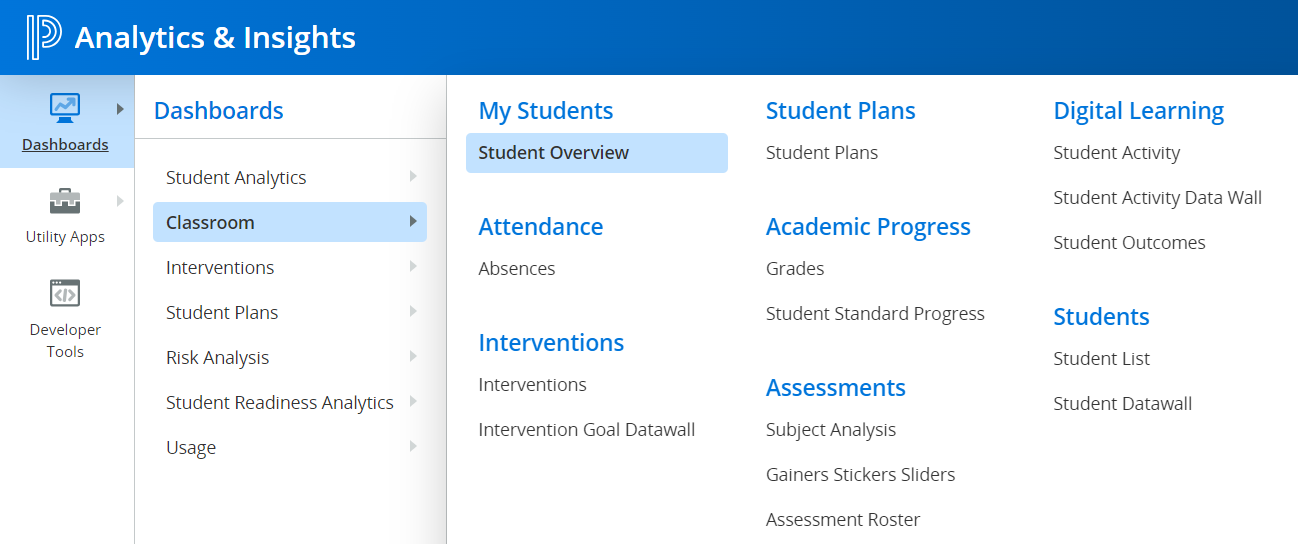
From main menu user has options to choose from either Student Analytics, Risk Analysis, Usage, Profiles or Classroom. This expands on what goes into classroom, see below for all that it encompasses;
My Students
-
Overview: Deals with absences, tardiness, distribution of grades in my courses, Students in special programs and what are the different demographics and most common referrals in my classroom
Attendance
-
Absences: Drills down to discover the primary reason for tardiness (repeat offenders inclusive), absences in class including Students who are trending towards chronic absenteeism.
Academic Progress
-
Grades: Accounts for Students who are failing in the course, grades received and trends of grades in the classroom.
-
Student Skill Progress: With progress in mind this examines whether Students mastering the set academic standards and if they are how are they progressing judging the number of Students, their skill and respective Skill Level.
Assessments
-
Subject Analysis: Analyzes three (3) main subject areas on State Achievement i.e. Mathematics, English (Reading & Literature) & Science.
-
Grow, Maintain, Slide: Identifies percentage of Students as well as individual Students who grew, maintained and slid between ELA testing years.
-
Assessment Roster: Attempts to assess changes in Students assessment proficiency over time?
Digital Learning
-
Student Activity: Focus activities of Students for instance are Students accessing the LMS? What is the average session time per Student/ Day, Student logins decreasing weekly? Others – Activity or no activity by School/ Grade Level/ Sub Group etc. and % of Courses Active In.
-
Student Activity Data Wall: A data wall comprising of Name, Student ID, Grade, Total Days, Total Logins, LMS # and % of Days and % Attendance.
-
Student Outcomes: Seeks to find out if LMS participation of unique Student count has any effect on Students grades? Is there is a correlation between LMS logins measure and the grades of students.
Search
-
Student Search: Expands on students list. Dimensions recorded includes but not limited to ELL, Grade, Name, Student ID, Photo, Race, School and SPED.
Dashboards, Usage Analytics
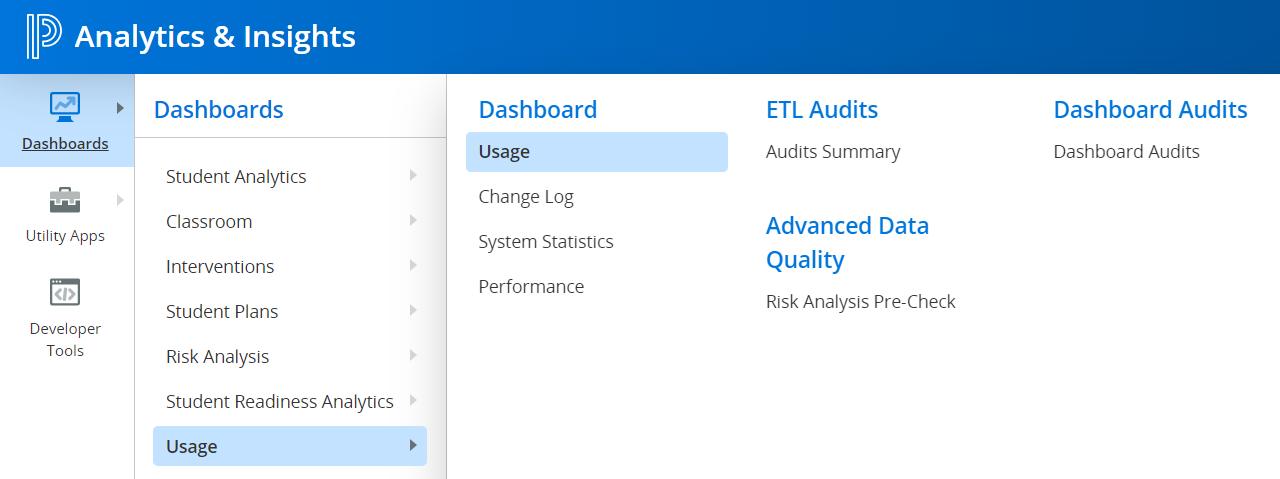
Usage analytics is an overview of the use of dashboards over a certain period which includes how frequent dashboards have been used and number of user logins .
-
Usage: Includes measures of unique users, dashboard usage, group usage most frequently used dashboards and the number of user logins and dashboard viewers
-
Change Log: This is a report of change log including object that was modified, the time, old and new value and the path to parent dashboard
-
System Statistics: Dashboard operations statistics (Portal Admin only)
-
Performance: summation of performance and metric performance details (Portal Admin only)
Detailed specs for each Usage dashboard available in the PDFs below:
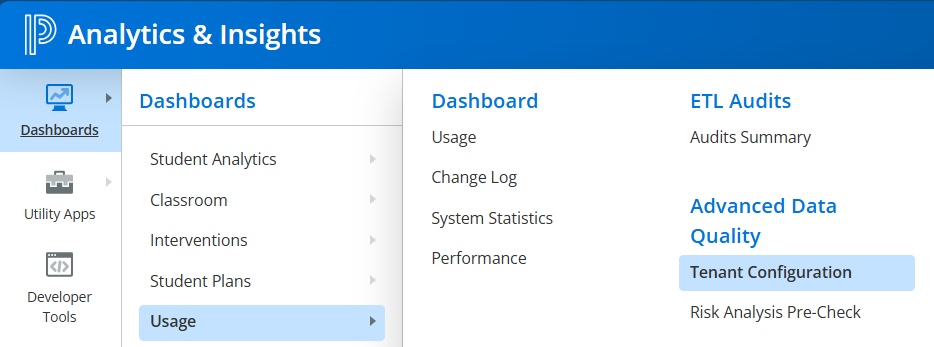
Dashboards, Advance Data Quality, Tenant Configuration
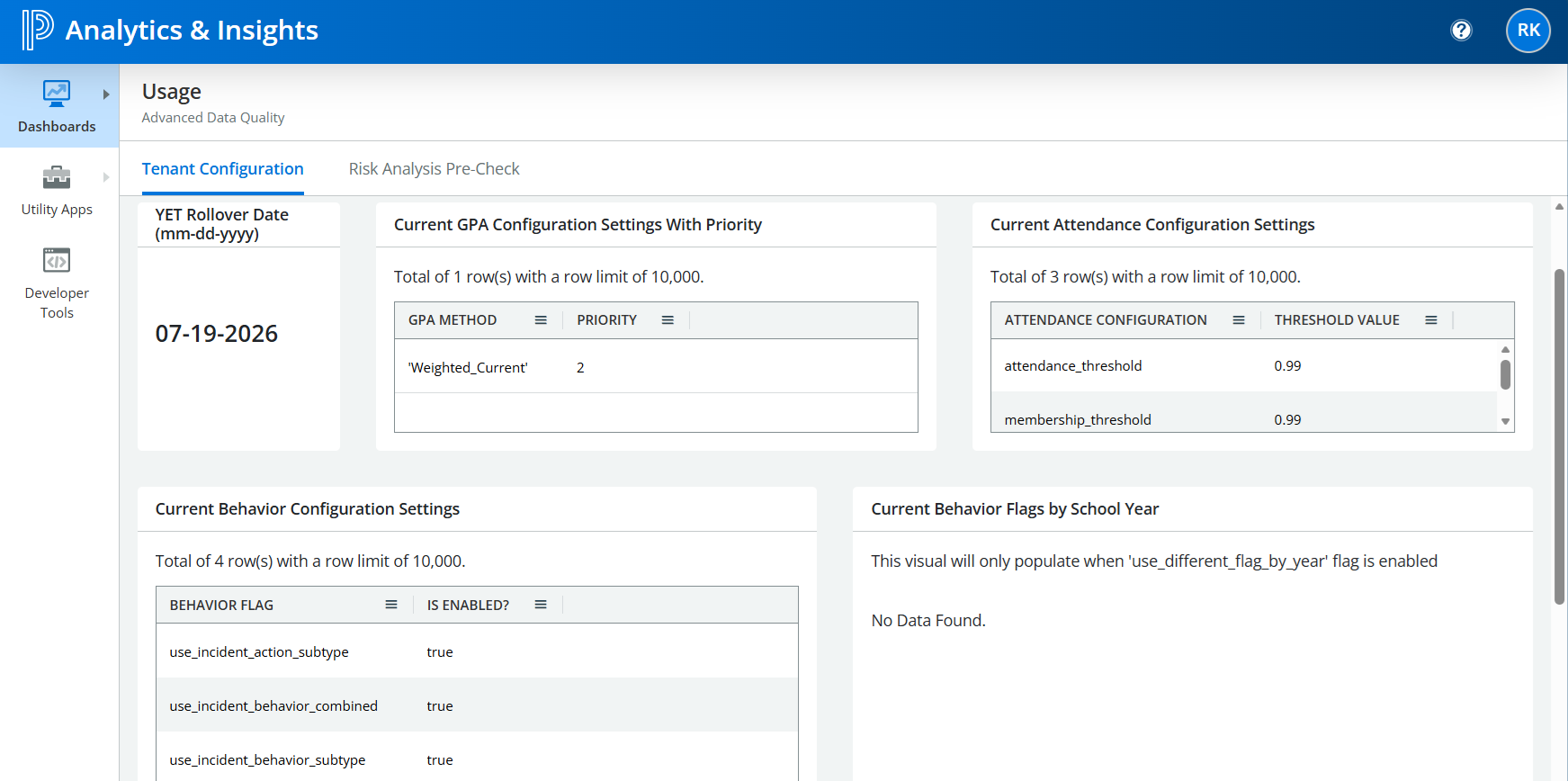
Tenant Configuration dashboard, providing access to configuration details for the following:
-
YET Rollover Date
-
Current GPA Configuration Settings with Priority
-
Current Attendance Configuration Settings
-
Current Behavior Configuration Settings
-
Current Behavior Flags by School Year
Utility Apps
District Configuration
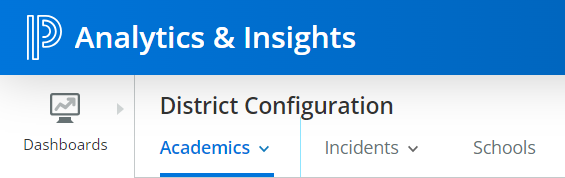
The District Configuration section provides customers with the ability to map data and determine which schools are included with the dashboards in relation to the Academics, Behavior, and Schools included within the dashboards.
-
Academics Comprised of Core Subjects, Scale Abbreviation & Scale Description.
-
Core Subjects: User can reset/ update to standard Course Names; English or Language Arts, Mathematics, Science, or Social Studies
-
Scale Abbreviation: User can reset/ update to Standard Groups; A, B, C, D, F, 1, 2, 3, or 4. E.g. 90-100 is grouped as an A.
-
Scale Description: User can reset/ update to Standard description; Above Average, Average, Below Average, Exceeding Standard, Excellent, Fail, Incomplete, No Grade, Pass, Withdrew, or NG.
-
-
Incidents: Comprises Action & Behavior Types.
-
Action Type: Actions are mapped to Action Type & Action Group and both have to be the same. E.g. Suspension – In School or Suspension – Out of School.
-
Incident Types: Indicates the type of behavior and whether it is considered Major or not Major. E.g. “Aggressive Behavior” is flagged as Y implying major where as “Disrespectful Behavior towards others” is flagged N not major.
-
Incident Groups: Allows users to create custom groups of Incidents based on their Incident Types
-
-
Schools: Provides the configuration to display or not to display a School’s Report Status. “N” excludes a school from display, where as a “Y” includes the School in the dashboards displays.
User Security Roles
Below are new features and functionality added from our latest release of our our configurable Security Models for PS SIS – Analytics & Insights current security model supports the following roles from the SIS and the two custom roles to extend beyond the standard SIS roles, shown below:
-
UIHN - District Admin - Access to Developer Tools and Student Analytics, including all drilldowns for the district.
-
UIHN - School Admin - Access to Student Analytics, including all drilldowns for the school.
-
UIHN - School Admin without Drill Role - Access to Student Analytics but does not include drilldowns to the student level data.
-
UIHN - Primary School Admin - Access to Student Analytics, including all drilldowns for the primary schools, with the following exceptions:
-
Final marks
-
Assessment data that correlates to the in-scope grade levels
-
-
UIHN - Secondary School Admin - Access to Student Analytics, including all drilldowns for the secondary schools, with the following exceptions:
-
Curriculum data.
-
Assessment data that correlates to the in-scope grade levels
-
-
UIHN - Limited Student Analytics - Access to Student Analytics, with the following exceptions:
-
F&R data
-
Behavior data
-
-
Custom Role 1 – First customer-configurable role on the SIS to give specific access not met by the other roles listed above
-
Custom Role 2 – Second customer-configurable role on the SIS to give specific access not met by the other roles listed above
-
Teacher
Multi-District Support
Analytics & Insights PS-SIS 2.0 platform provides multi-district support for analysis of across n+1 districts based on roles and permissions by district, location, and staff. Multi-district/Multi-PS-SIS instance support can be utilized for regional education agencies, multi-state or multi-region charter schools, and more to analyze their multiple PS-SIS data within a single analytics warehouse and maintain security within each district instance as well.
Supported Data Sources
-
Standard SIS data domains - Standard content is sourced from multiple data domains from their PS-SIS as part of our standard ETLs, including the following domains:
-
Attendance
-
Behavior (Incidents or Logs)
-
Demographics (Student)
-
Enrollment
-
Grades
-
Roster
-
Standards (if used)
-
-
Schoology LMS usage data - Current support for Schoology is limited to event data only and do not include assignment data from Schoology. Therefore we do not currently support non-activity vs. activity times, average session time metrics within the standard content.
-
Assessments - Standard deployments include up to three (3) national assessments based on the list of current list of supported National assessments shared in PS Community article.
-
Auto Loading of Assessments - Assessment loading can be automated based on working with our Assessment Services to configure for specific assessment files.
-
-
All state assessments for customer’s home state.
Data Volumes and Longitudinal Data Support
-
By default, standard Student Analytics subscription supports 5 years of longitudinal data
-
As the data warehouse starts to accumulate sixth years' data, the oldest data will be removed (rolling window), unless customer has bought subscription to persist data for up-to 10 years
-
Student Analytics warehouse will include the above “Supported Data Sources”. Any additional data sets are outside the scope of the standard subscription
Customization Framework
Analytics & Insights supports two types of customization frameworks:
1.Dashboard customizations such as the following:
· Customer-specific Dashboards
· Customized Filters
· Custom Metrics
-
Extract Load Transform (ETL) customization. These customizations can be performed by customer’s technical teams or PowerSchool Services team or other 3rd party vendors with deep knowledge of Analytics & Insights customization framework.
· ETL customizations are only supported for “single-tenant” customers and need to follow the customization guidelines outlined in the “customization document” (We need to come up with the name for this document)
· Dashboard customizations to add new dashboards and KPI’s. Standard content cannot be changed / updated. A copy of the standard content can be made to make changes
Unsupported Items in Standard Product as of December 2025 with UIHN_25.10.0.0 Release
-
Rooftop geo visual maps - No support for rooftop maps. All the maps in the product support neighborhood maps. This capability does not distinctly capture student living in a household
-
Visualization / BI Tools - Tableau, Power BI, SSRS, Qlik, and other Business Intelligence tools are not embedded into Analytics & Insights are supported on a case by case basis and not included by default in the standard product.
-
Canvas integration - The Digital Learning dashboards do not support Canvas integration with our SIS 2.0 deployments
-
Schoology Integration - Assignment level data is not integrated (Only Schoology usage data supported at this time)
Note: All documentation was written for the Standard Content metrics. The documentation may not apply to any metrics that were created by the customer as part of the custom metric configuration process.