Overview
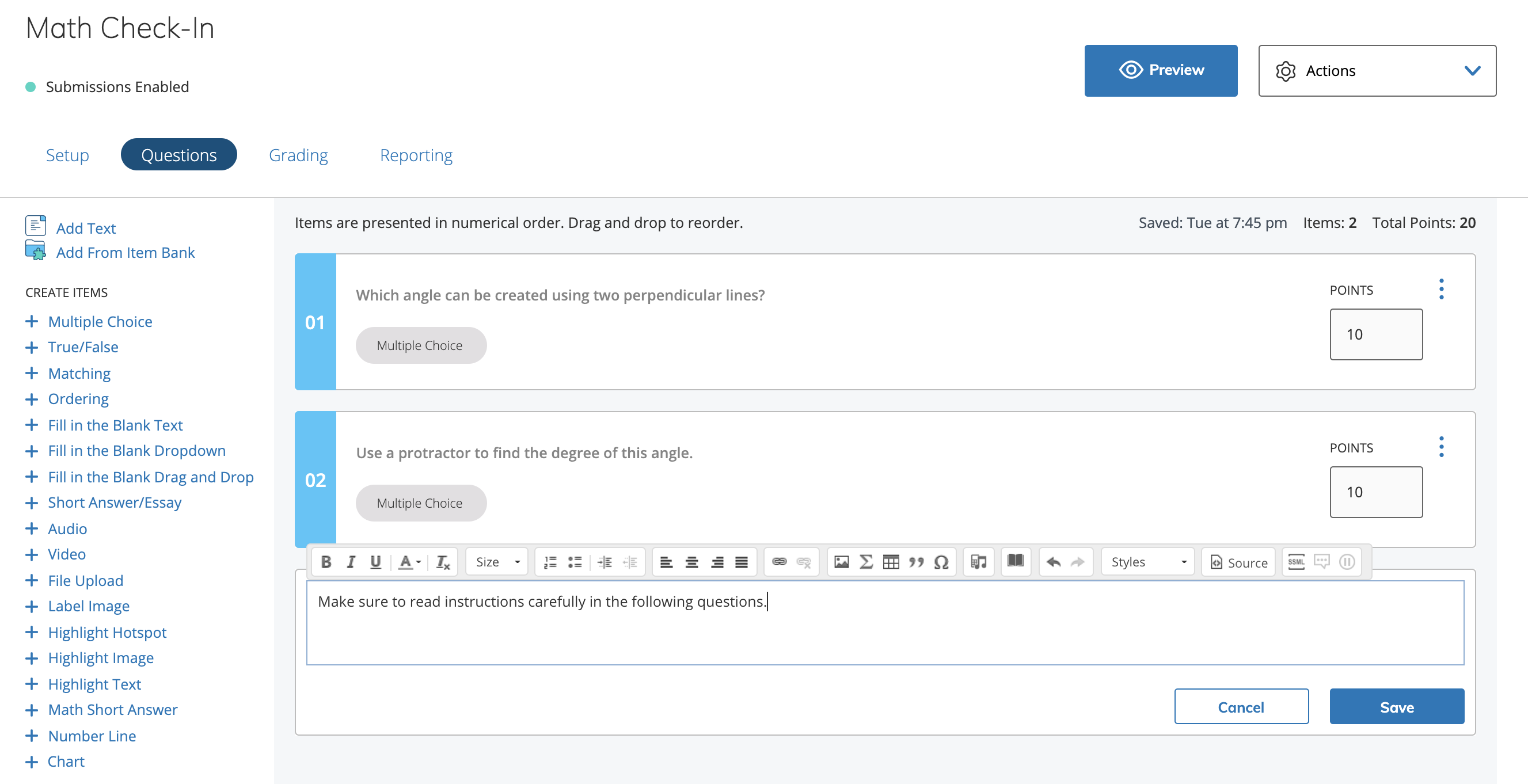
Use the Questions area to add questions to the assessment and manage question settings.
Each assessment can include up to 200 questions.
If you use a grading rubric, set it to Show to students. This allows students to review the rubric with their submission after they begin the assessment, since each attempt uses a specific version of the assessment.
Create a question
-
From Create Item, select a question type.
Refer to the Assessment question type article for detailed information about each question type. -
Enter the Question Setup and Correct Answer Setup details.
-
Optionally, enter Author Notes to explain scoring decisions or why certain answer choices are incorrect. This information will not display to students.
-
Optionally, add a Learning Objective to the question.
-
Click Save.
Add questions from an item bank to an assessment
After you create an item bank in Schoology, you can use it to build assessments. You can add individual questions or create a randomized block from one or more item banks.
Questions added from item banks are copied, not linked. Changes made to items in a bank do not update questions already added to an assessment.
-
From your course, create an assessment or open an existing assessment.
-
Select Questions.
-
Choose Add From Item Bank.
-
Navigate to the item bank you want to use.
-
Select each item to import. Alternatively, choose Select all to add all items.
-
Enter the Set Points for each item. If none is set, it defaults to 1.
-
Selected items are highlighted for easy reference.
-
Use the links to explore multiple item banks and select items from several banks.
-
-
Click Add Items.
-
Optionally, drag and drop any item to reorder it.
Add a random selection of items from one or more item banks to an assessment
You can add a random selection of items from one or more item banks so that each student receives a unique set of questions.
-
In your course, create a new assessment or open an existing assessment.
-
Select Questions.
-
Choose Add From Item Bank.
-
Navigate to the item bank you want to use.
-
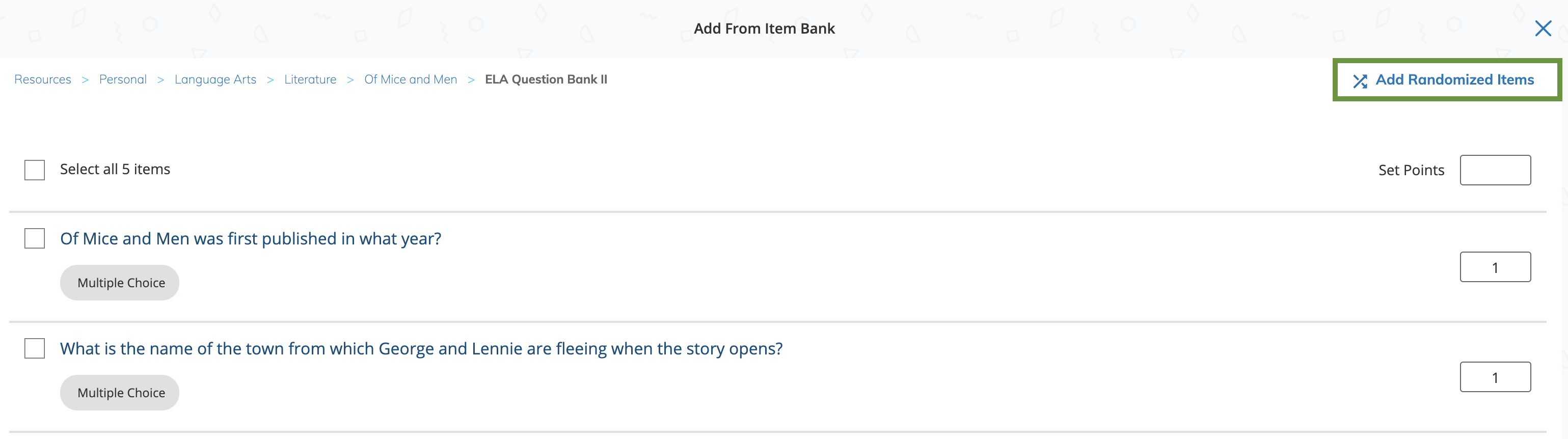
Click Add Randomized Items.
-
From Add Randomized Items, enter:
-
The number of items to generate from the bank.
-
The point value for each item.
-
-
Click Add Items.
-
After adding randomized items, you cannot add individual questions in the same selection sequence. To add individual items, complete the randomized selection first, then follow the steps to add individual questions.
-
You can include both randomized items and individual items from the same item bank. Individually added items are excluded from the randomized set.
-
Selected items are highlighted for ease of reference. Use the navigation links to select items from multiple banks.
-
-
Click Add Items to complete. Each set of randomized items is displayed as a single block in the Questions area.
Each student receives a unique set of items, displayed in random order, so no two assessments are identical—even if some items overlap.
Manage assessment questions
After adding questions to your assessment, review them in the Questions area.
-
Enter the points for each question.
-
A tally of the total number of questions and points is displayed at the top of the assessment.
If the total points set for the assessment don’t match the sum of all question points, the system adjusts each question’s points for students during the attempt.
Alternatively, if students can review their submissions, they will see the point value you set for each question, not the gradebook-adjusted points.
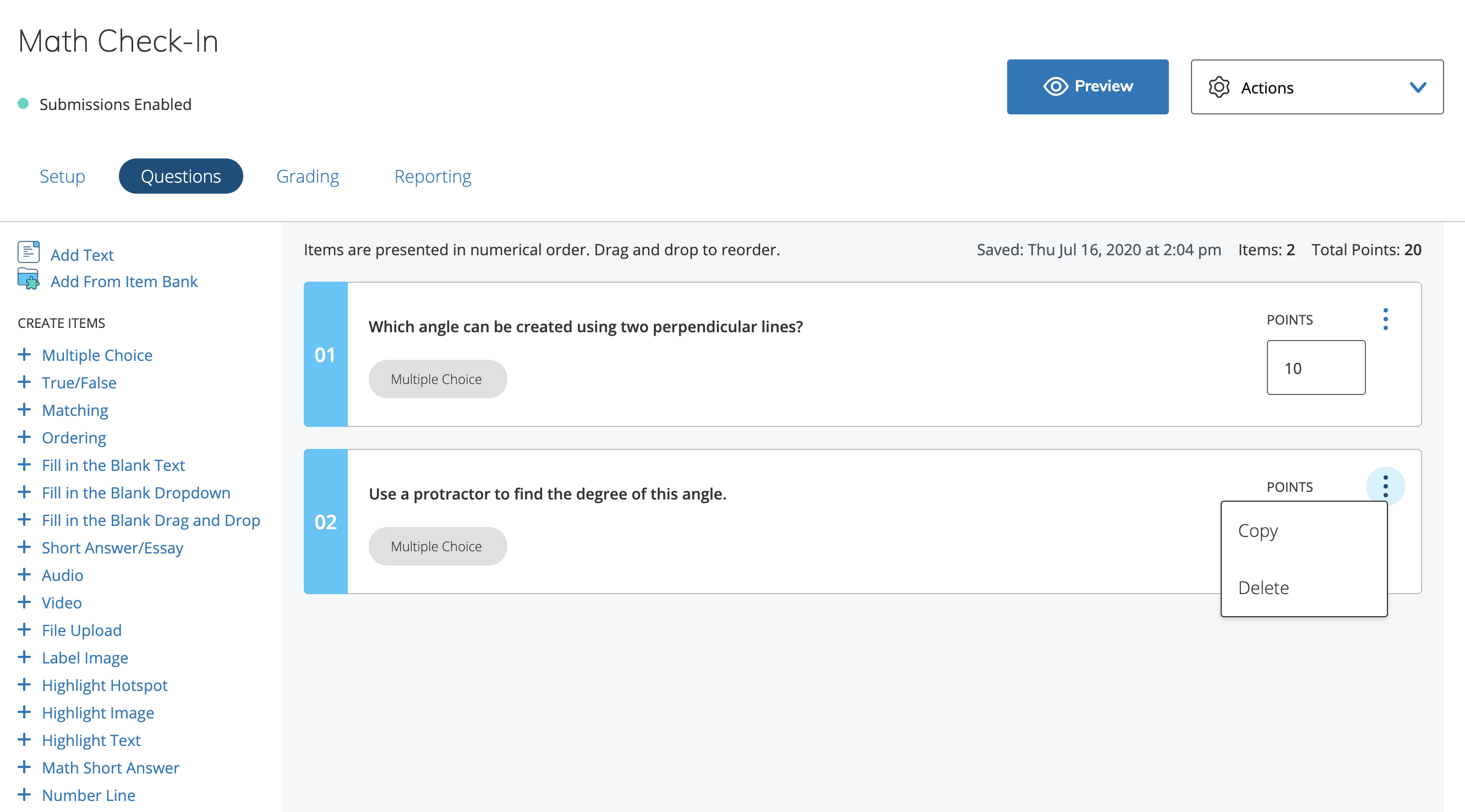
Hover over the More Options menu in each question and select an option.
|
More options |
Description |
|---|---|
|
Copy |
Creates a copy of the question in the assessment. The copied question’s name includes COPY, for example COPY – Test Question. |
|
Delete |
Removes the question from the assessment. Deleted questions cannot be restored. |
|
Edit |
Modify the number of randomized items to generate from an item bank and the points assigned to each item. |
Click Add Text to insert additional instructions anywhere in the assessment. For example, use text blocks to divide the assessment into sections and provide guidance for each section. Each question and text block appears on its own page for students during the assessment.