Overview
After students complete the assessment, you can grade their submissions from the Grading area.
You can grade the assessment in two ways:
-
By student
-
By question
-
To grade by question, refer to the article, Grade by question for assessments.
-
Grade by student
-
Open the assessment and click By Student from the Grading area.
-
Select the student submission you want to grade in the table. Alternatively, open the student’s assessment from the gradebook by clicking the puzzle piece icon in the cell for that student and assessment.
Instructors can also enter submissions on behalf of students using Observational Grading for Assessments.
By student table
The By Student area displays information about students and their assessment attempts.
-
Use the Filter menu to show all students or only those who haven’t submitted.
-
The total number of assigned students is displayed with the Students column label. Use the column list to sort by first name or last name, in alphabetical or reverse order.
-
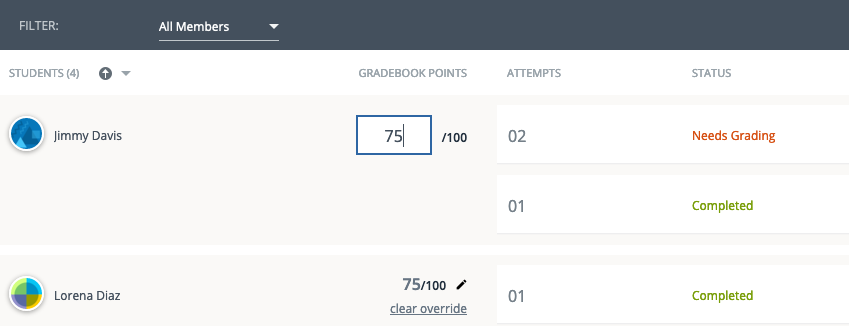
The Gradebook Points column shows each student’s score out of the total possible points.
-
A dash (—) is displayed for unsubmitted or ungraded attempts.
-
If multiple attempts are allowed, the score shown reflects the version selected in Final grade is determined by in the Student Settings area: Highest score or Last score. This is the score that appears in the student view and the course gradebook.
-
-
The Attempts column indicates the attempt number for each assessment, with the most recent attempt first.
-
The Last Modified column indicates the date and time the student last worked on the attempt. Helpful for resumable attempts.
-
The Elapsed Time column indicates the total time spent on the attempt.
-
Open the More options (three vertical dots) menu for a student to choose:
-
Unsubmit to move a submitted attempt back to In Progress so the student can continue working.
-
Submit to finalize an in-progress attempt and move it to Completed. The student can no longer resume the attempt.
-
Delete to permanently removes a student’s submission, which is useful if you want to allow a retake without changing attempt settings for the class. Deleted submissions cannot be restored.
-
If the total points set when creating the assessment differ from the combined points of all questions, scores are scaled automatically.
Example:
-
Assessment value: 100 points
-
Total question points: 90
-
Student score: 75/90
-
Gradebook displays: 83.3/100
You can override a score by clicking the value in Gradebook Points and entering a new score. Select Clear override to remove the manual entry.
Submission statuses
|
Submission status |
Details |
|---|---|
|
Scores pending |
The system is automatically grading objective questions. Most scores process within a few seconds. If processing exceeds 2 minutes, contact PowerSchool Support. |
|
In progress |
The student has started but has not submitted the assessment. |
|
Needs grading |
The assessment includes subjective questions that require instructor grading. |
|
Completed |
|
Grade a student attempt from the assessment
Click anywhere on a student’s submitted attempt to open it for grading. Add or adjust scores in the box that corresponds to the student responses.
-
Grade any subjective questions that require manual scoring.
-
Overwrite auto-scored questions.
-
Select clear override to remove a manual score. If the question already had an automatically calculated score, remove the override to revert to this score.
The Attempt Score field updates automatically as you add or adjust question scores.
-
The attempt score is the total points earned out of the points possible for that submission.
-
You cannot edit the attempt score directly.
-
To change a student’s attempt score, adjust the points for one or more individual questions.
-
To change a student’s overall assessment grade, update the Gradebook Points from the By Student view or the Course Gradebook.
-
If you update the correct answer setup after students have submitted an assessment, for example, by changing the correct answer, you can choose to automatically rescore existing submissions, so scores reflect the update.
Add feedback
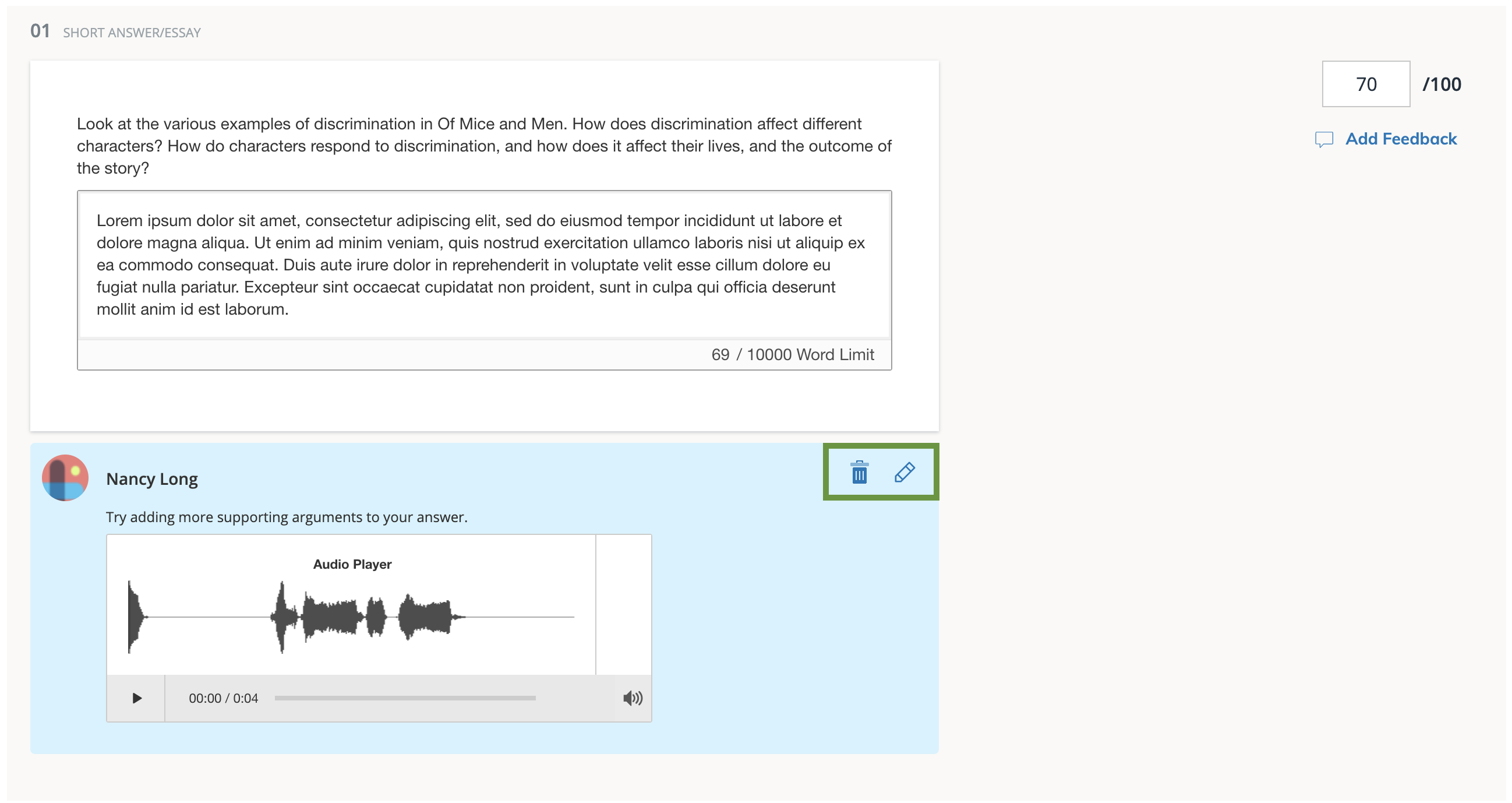
You can provide feedback on each student’s responses to help students improve their outcomes. Switch between tabs to include text, audio, and video feedback in the same response.
-
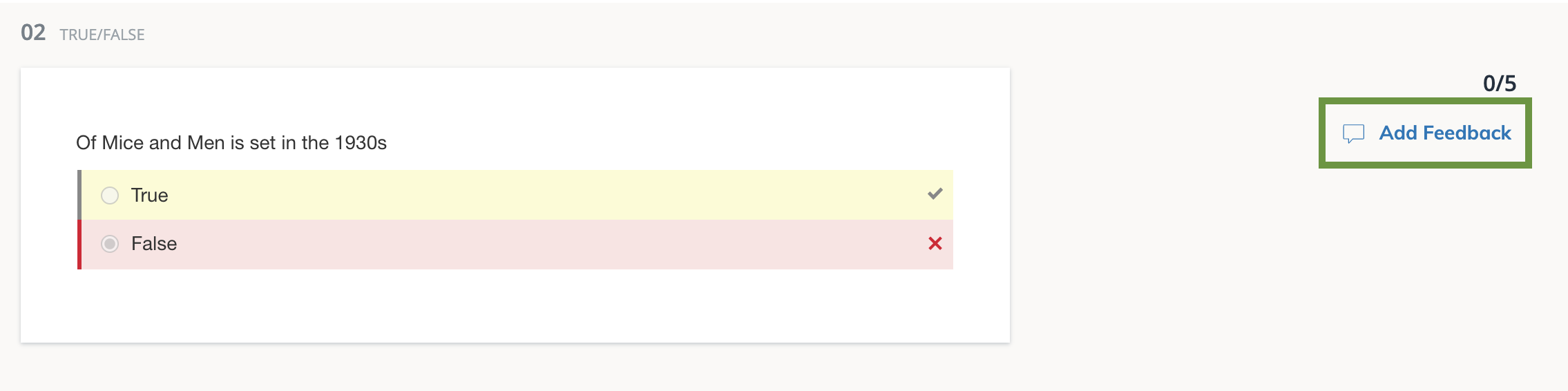
Click Add Feedback for an item to enter your comments.
-
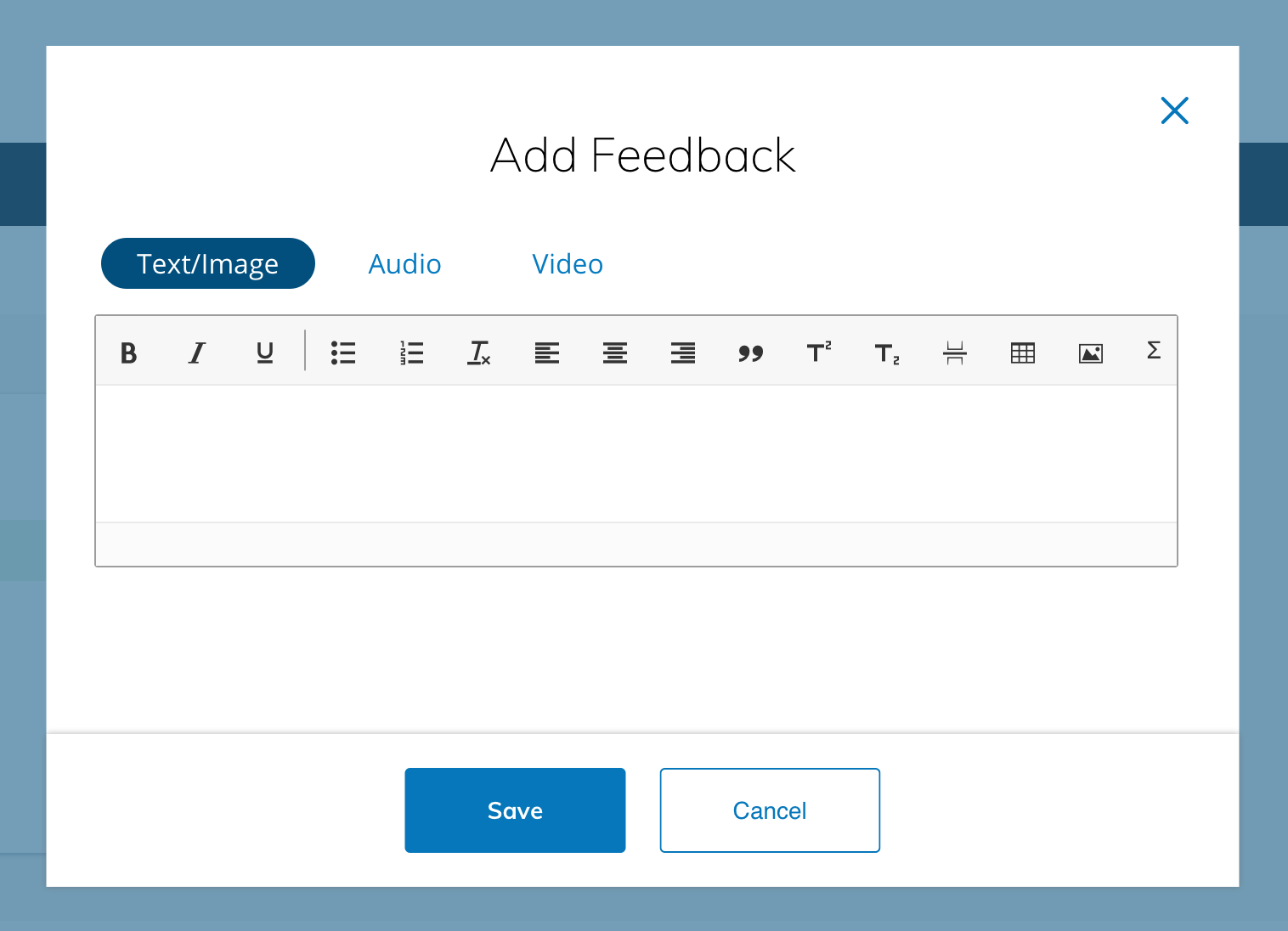
Choose how you’d like to leave feedback:
-
Text/Image – Use the rich text editor to add written comments and images.
-
Audio – Click Audio, and then select the Record to start recording.
-
Video – Click Video, and then select Record to capture video feedback.
-
-
After the feedback is saved, click the pencil or trash can icon to edit your comment or delete it.
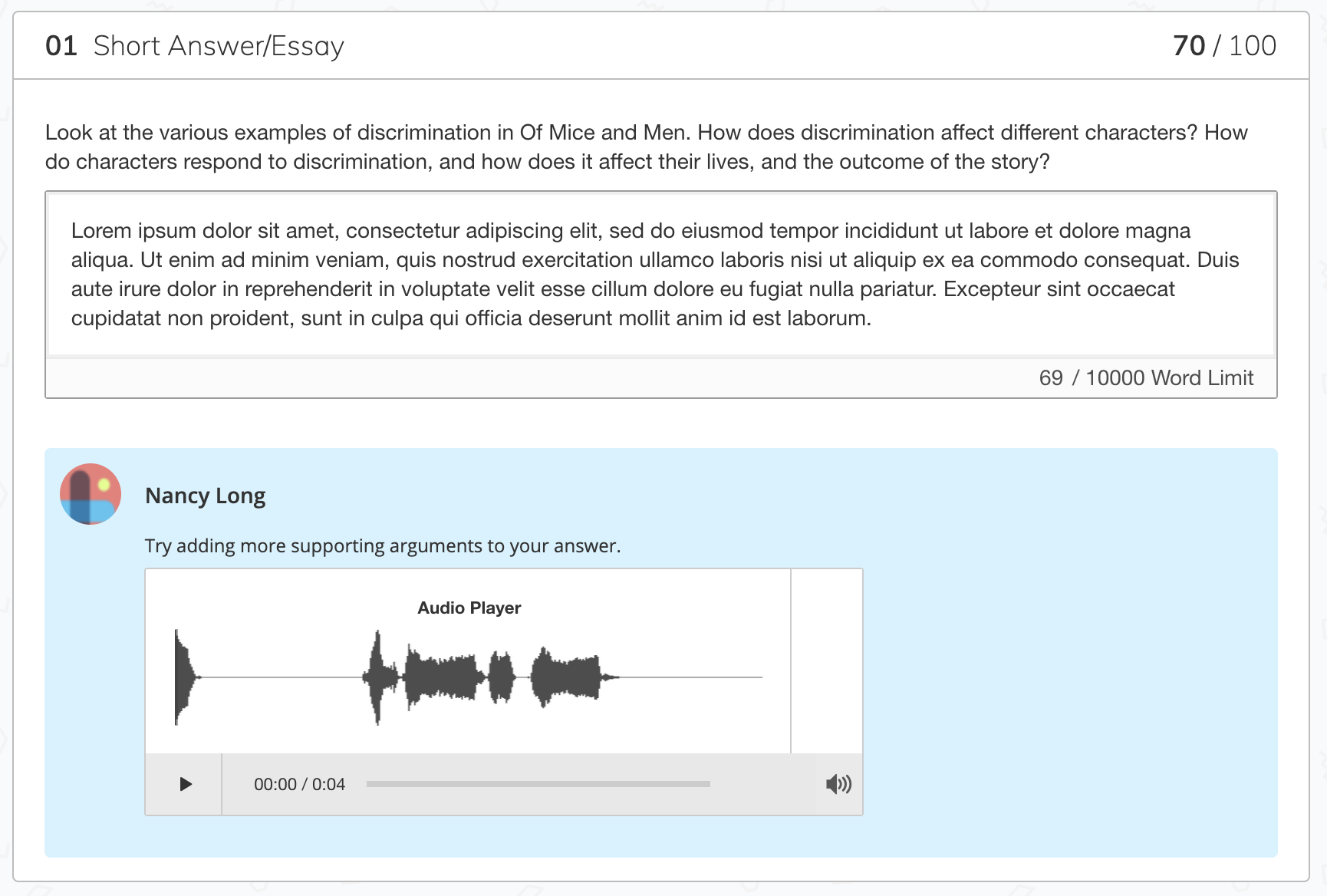
Student view
Students can access the feedback directly from their submission when Allow students to view results after an attempt is submitted is enabled in Student Settings.
Grading a student attempt from the course gradebook
From the gradebook cell for the assessment attempt in the course gradebook, you can perform several grading functions:
-
Click the score and enter a new value to overwrite the overall grade for the attempt.
-
An orange pencil indicates the score has been overridden.
-
Click the pencil icon to clear the override and restore the original score.
-
-
Click the puzzle piece icon to review the student assessment submission.
-
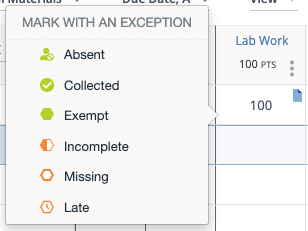
Click the flag icon to add an exception to the submission.