
Assessment setup
Use the Setup area to add assessment details and manage settings. Click Save to apply your changes.
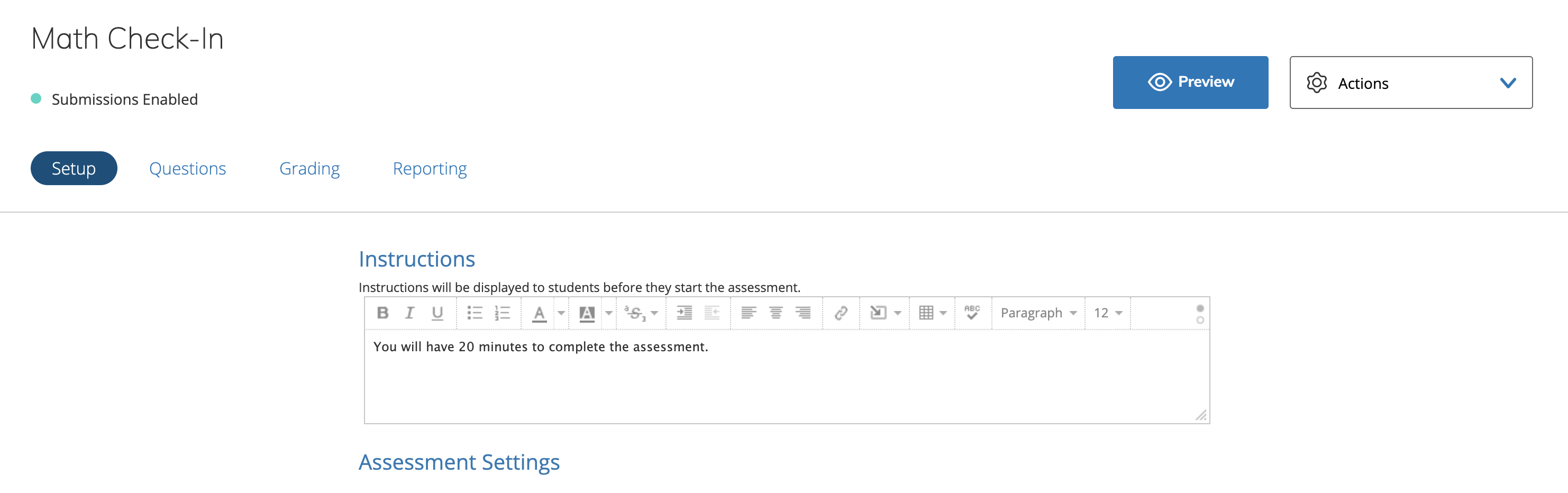
Instructions
Enter instructions that display to students before they start the assessment. Use the rich text editor to format the instructions and add additional components such as tables, images, LaTex symbols, and other options.
Assessment settings details
|
Assessment setting |
Description |
|---|---|
|
Assessment has a time limit |
Set a time limit for the assessment. If a student does not finish before the time expires, the assessment is automatically submitted with the answers completed. |
|
Assessment questions are randomly ordered |
Display questions in a different, randomly selected order for each student. |
|
Show possible points for each question during the attempt |
Show or hide each question’s point value while students are taking the assessment. |
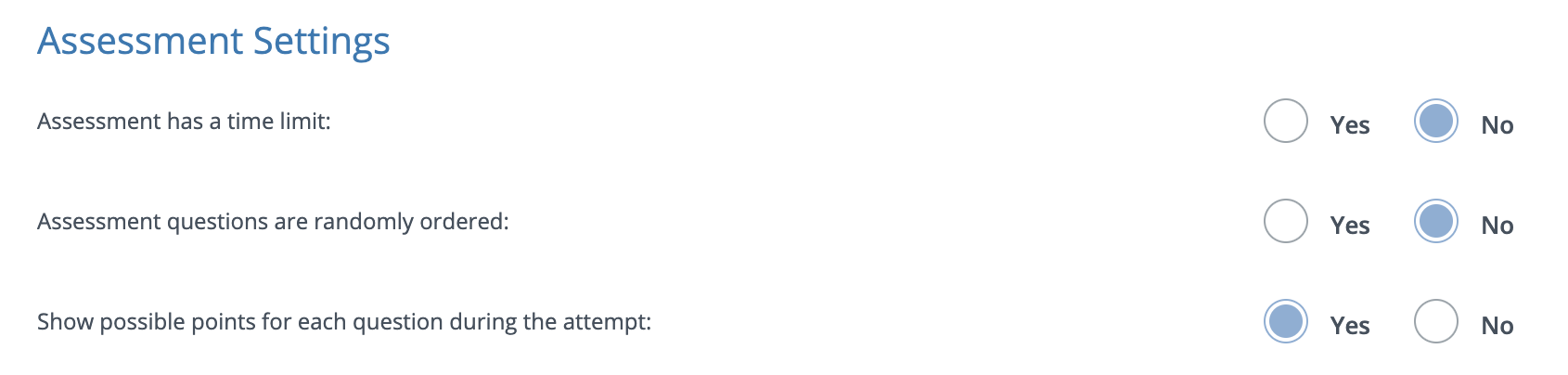
Changes to Assessment Settings apply to all future attempts and any attempts currently in progress. Changes do not affect attempts that have already been submitted.
If your organization uses Respondus LockDown Browser, you can require students to take an assessment using LockDown Browser.
Assessment toolbar details
|
Assessment toolbar |
Description |
|---|---|
|
Students can flag questions for review |
Allow students to mark questions they want to revisit during the assessment. |
|
Students can eliminate answer choices |
Let students cross out answer options to help narrow down the correct answer |
|
Students can use a calculator during attempt |
Provide a built-in basic or scientific calculator during the assessment. |
|
Students can use a ruler during attempt |
Provide a built-in ruler (6 inches or 15 centimeters) during the assessment. |
|
Students can use a protractor during attempt |
Provide a built-in protractor during the assessment. |
|
Students can use text to speech toolbar with screen masking during attempt |
Allow students to use Text to Speech and Line Reader/Screen Masking tools. This option is available only if your organization uses AMP. |
|
Students can highlight text |
Allow students to select and highlight text in multiple colors. |
|
Students can use a notepad |
Allow students to use a notepad to take notes during the assessment. |
To enable a calculator, ruler, or protractor for a specific question, rather than the entire assessment, refer to Question-level assessment tools.
Student settings details
|
Student setting |
Description |
|---|---|
|
Allow students to view results after an attempt is submitted
|
Controls whether students can review their assessment after submission.
|
|
Number of attempts a student can submit |
Set how many times students are allowed to attempt the assessment. |
|
Final grade is determined by |
If multiple attempts are allowed, choose whether the gradebook records the highest or most recent score. |
You can make changes to these settings at any time, and they will apply to past, in progress, and future assessment attempts.
For example, if you want to prevent students from reviewing correct answers until all assessment sections have been completed, set Allow students to view results after an attempt is submitted to No while students are taking the assessment. After all submissions are complete and grading is finished, change the setting to Yes with correct answers. Students can then review their results with the correct answers.