Overview
Students can access the assessment from anywhere they can access other graded materials:
-
The Materials list on the main Course page.
-
The Upcoming feed.
-
The Calendar.
-
The Notifications feed.
The student experience for assessments is also supported on the native Schoology mobile apps. Specific guides are available for iOS and Android users.
Students click Start Attempt to begin the assessment.
Taking the assessment
Students can navigate the assessment by:
-
Clicking question numbers along the bottom of the screen
-
Using the tab and arrow keys on the keyboard
Students may only have one attempt in progress at a time.
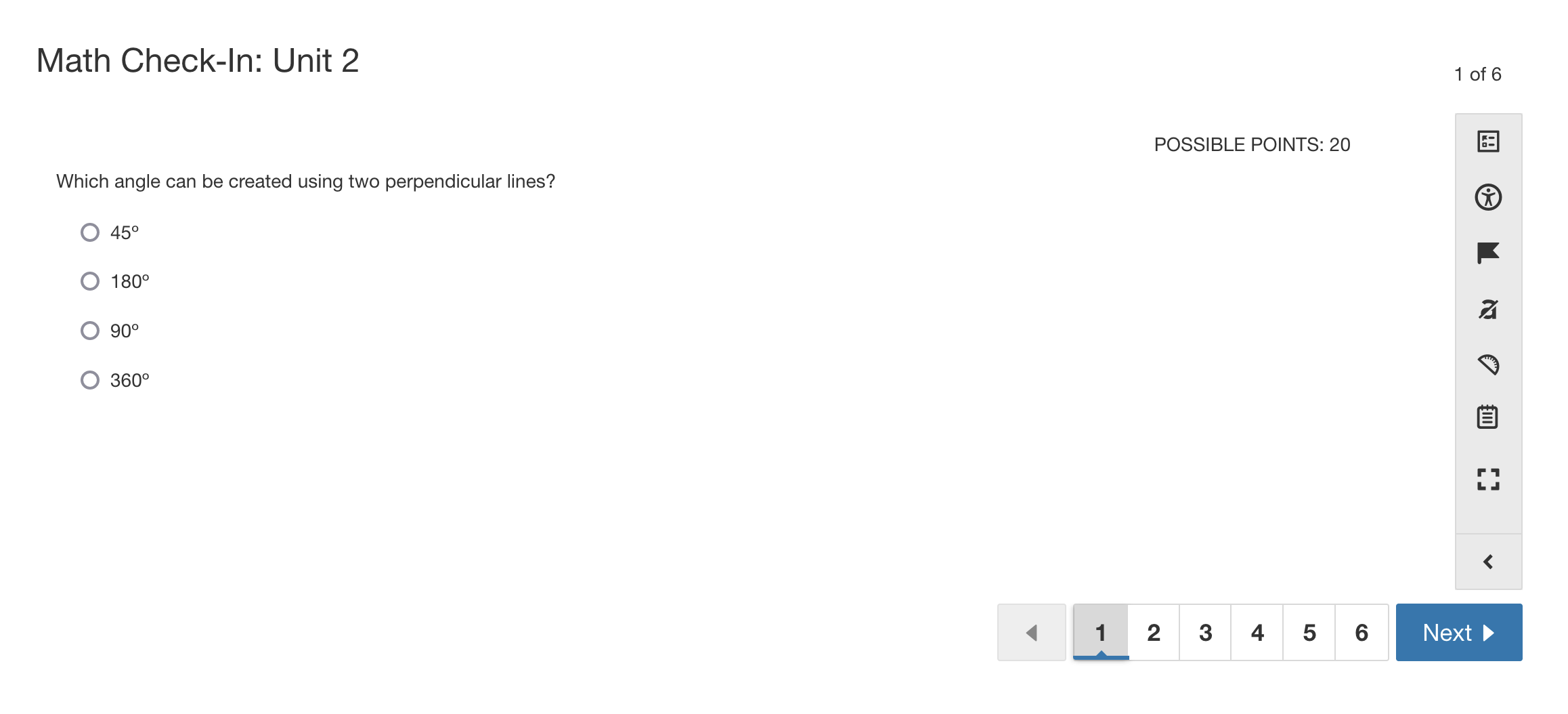
Depending on the question type, students can interact in different ways:
-
Drag and drop for ordering, matching, labeling an image, and more.
-
Rich text editor for short answers, essay questions, and more.
-
Math keyboards for math short answers.
-
Button selector for multiple choice, true or false, and more.
-
Drawing tool to highlight an image and more.
Each of these functions may also be completed using the keyboard’s tab, arrow, and enter keys.
As students answer questions, their work saves automatically. Students can submit completed attempts from the review screen, which students can open at any time:
-
Click the review icon from the margin menu.
-
Click Review in the navigation bar at the end of the screen.
Students can access additional accessibility features by clicking the accessibility icon, including:
-
Adjusting color contrast
-
Changing font size
Students can also click the Full Screen icon to display the assessment in full-screen mode.
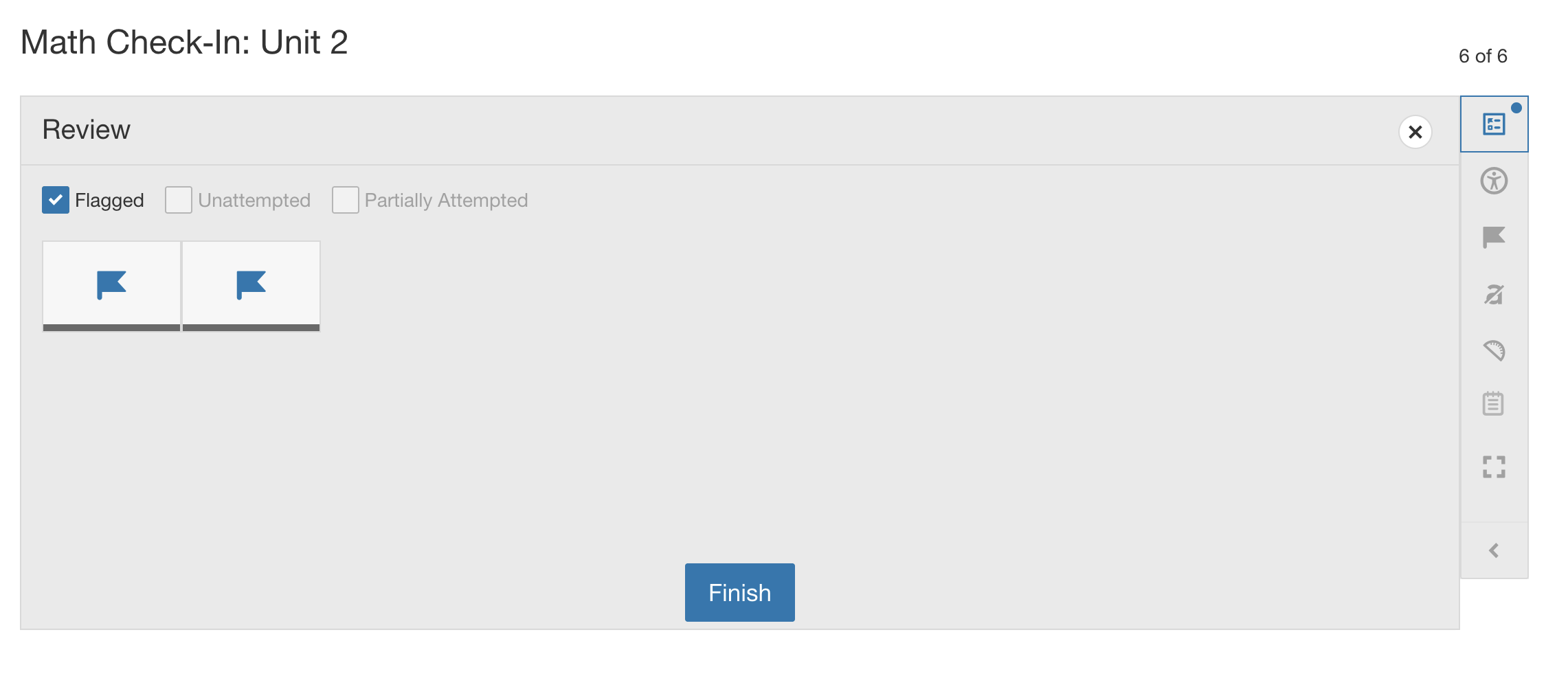
Students can flag questions to review them later:
-
Click the flag icon on any question to mark it.
-
Click the flag icon again to remove the flag.
-
Flagged questions appear on the Review screen when the Flagged box is selected.
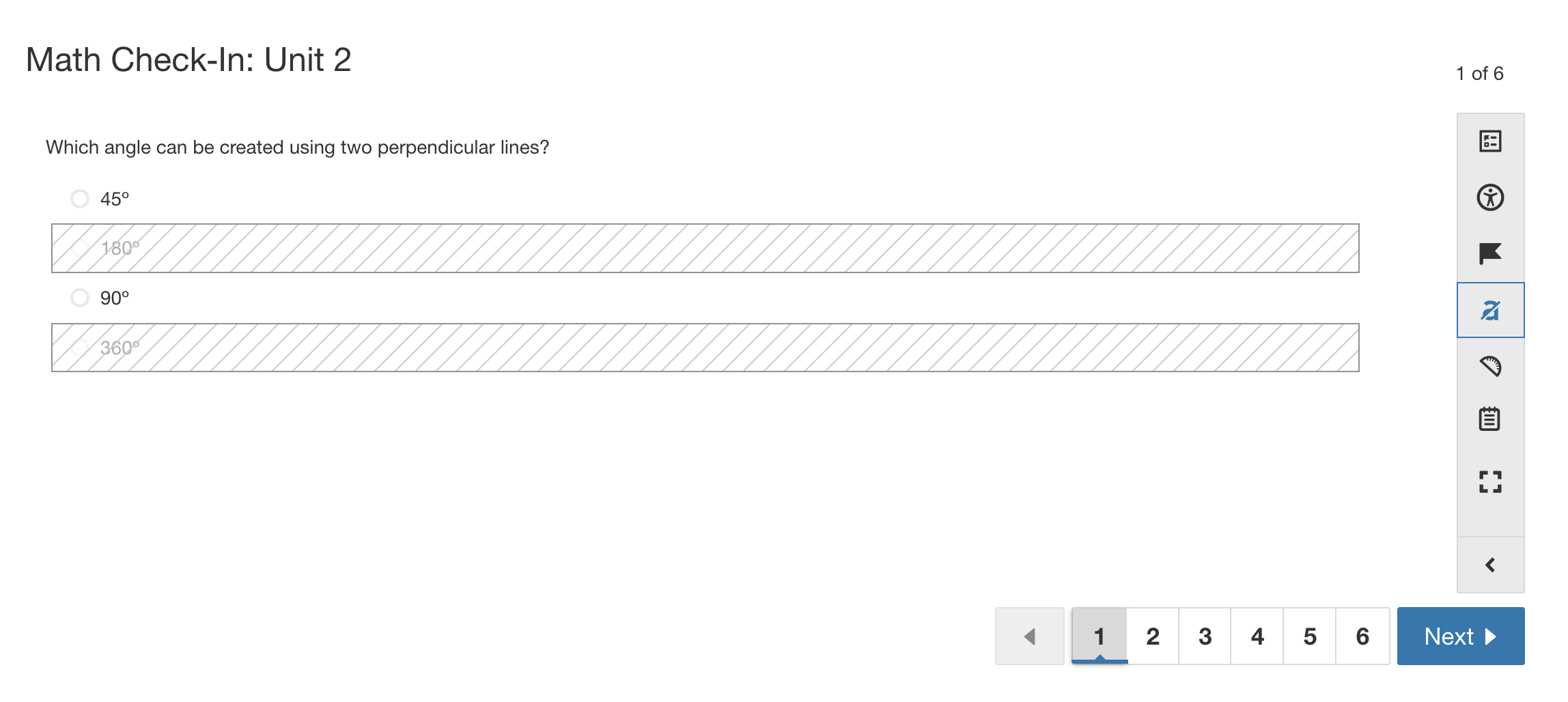
Students can use the Eliminate Choices tool to rule out incorrect answers:
-
Click the eliminate choices icon.
-
Click any answer choice to mark it as eliminated.
This helps students narrow down options and focus on finding the correct answer.
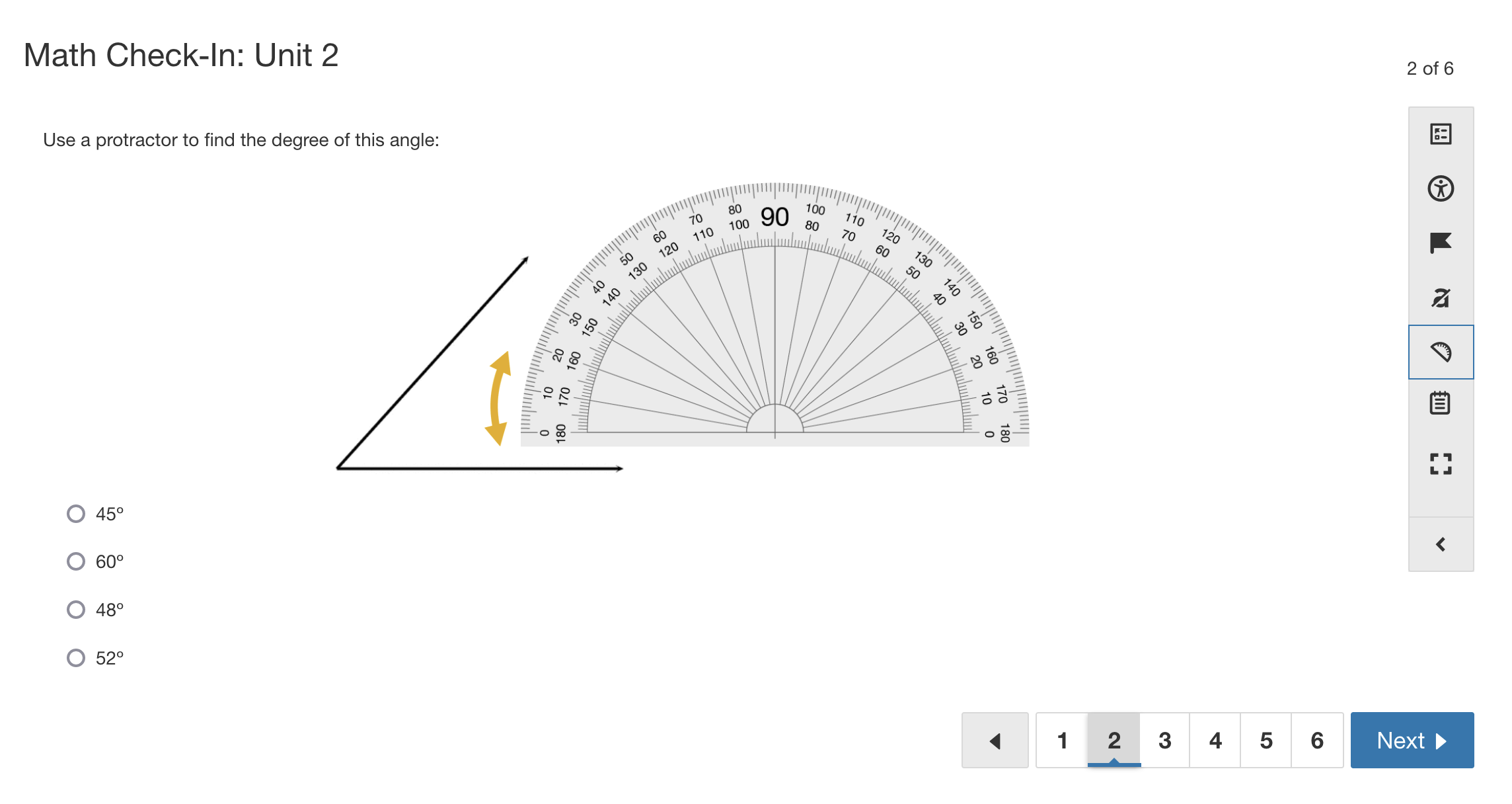
Students can use the protractor tool to populate the screen while attempting the assessment:
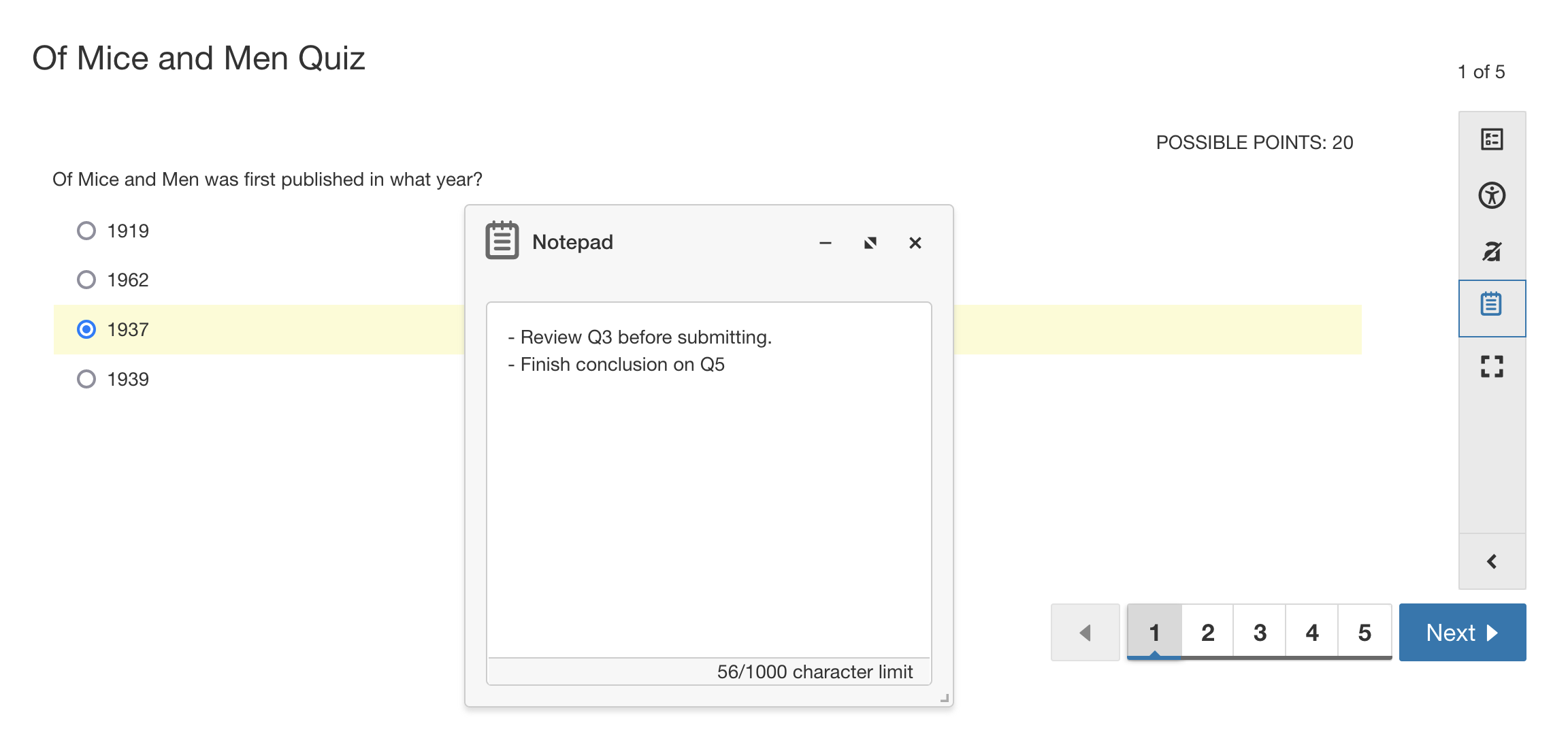
Students can use the Notepad tool to take notes during an assessment.
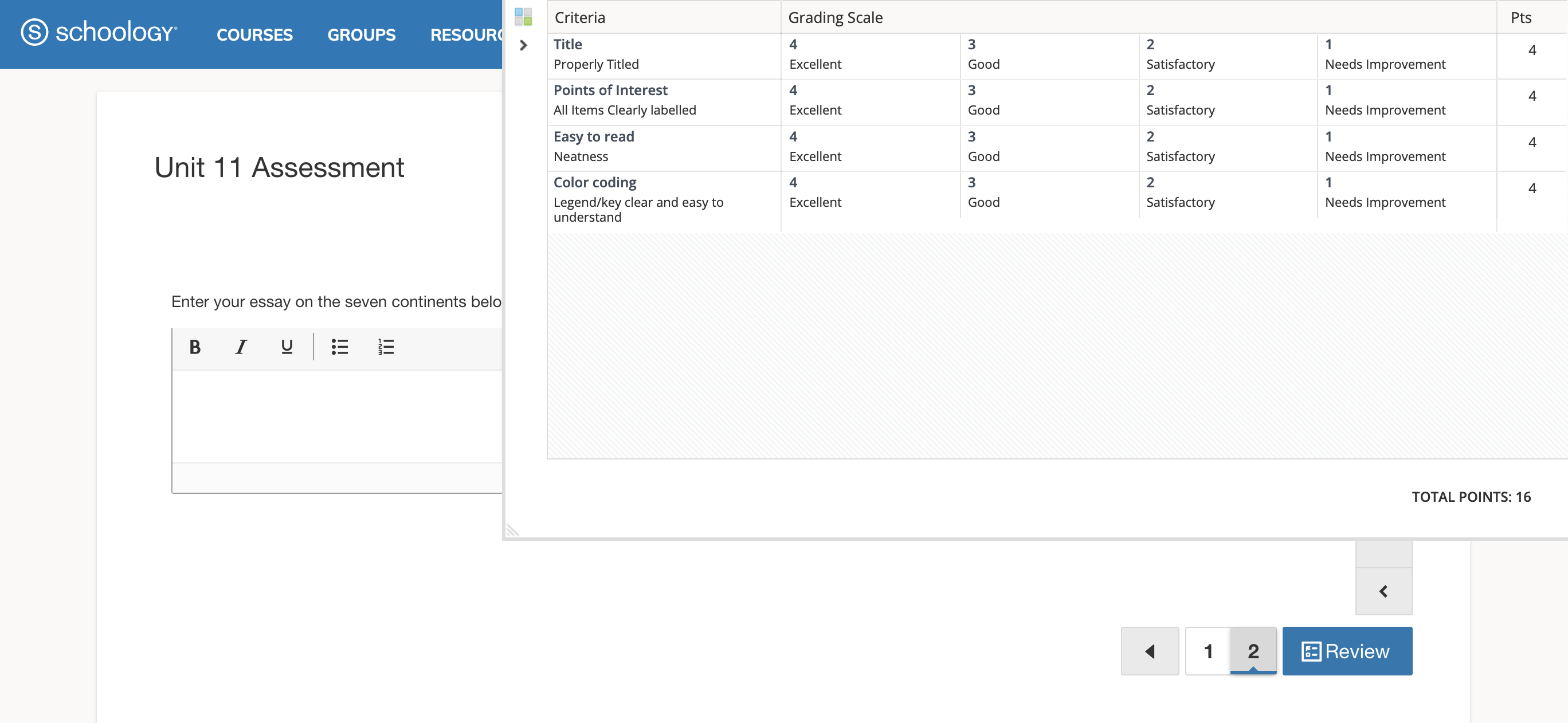
For subjective questions aligned with a rubric, the rubric icon and link are displayed in the margin so students can click to review it.
Review grades and submissions
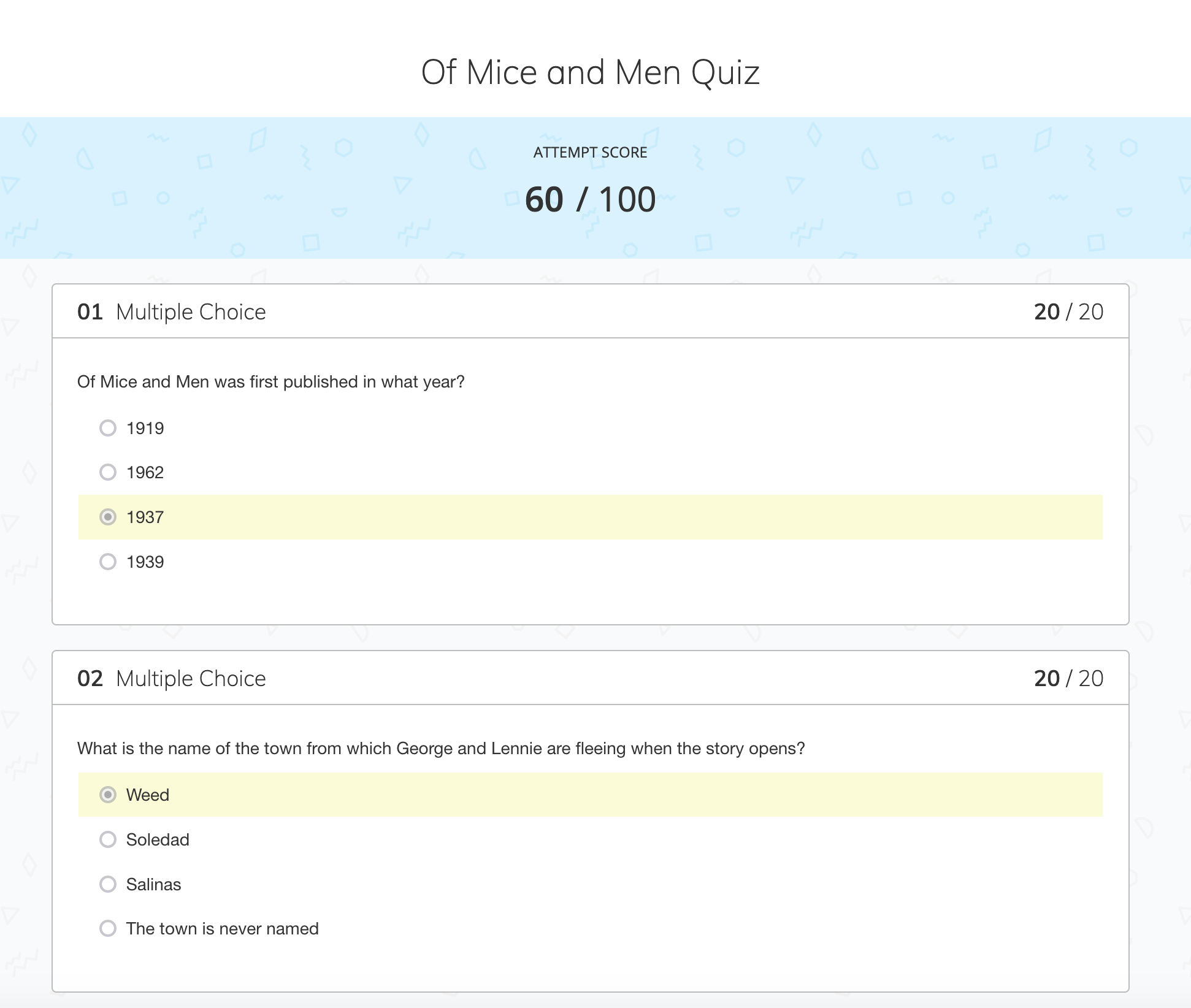
After students complete an assessment, grades for assessments without subjective questions (short-answer or essay-type questions) are displayed in the student's Grades area.
Additionally, students can review submissions from the assessments page. If multiple attempts are allowed, the number of submitted and remaining attempts displays to the student. For example, if you’ve allowed three attempts, the following message is displayed for students who have completed one attempt: You have made 1 of 3 attempts. You have 2 remaining. Students can only have one attempt in progress at a time.
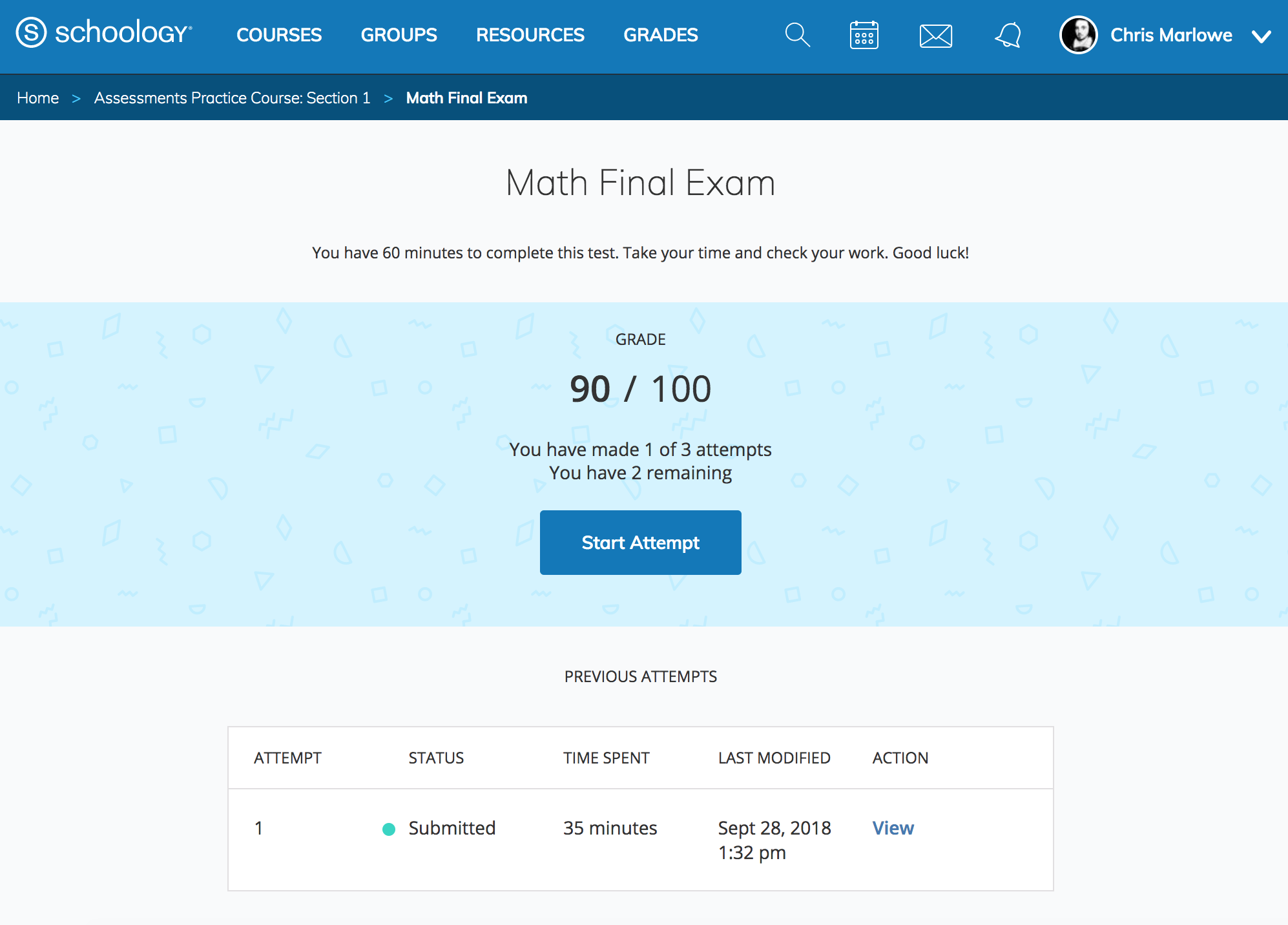
The Previous Attempts table displays all previously submitted assessments with the following details:
-
Attempt: The attempt number, with the most recently started attempt listed first.
-
Status: Shows In Progress or Submitted. The Needs Grading status is not displayed for students.
-
Time Spent: The total time spent on the attempt.
-
Last Modified: The date and time the student last worked on the attempt. This is especially helpful for resumable attempts, so students can see when they last made changes.
-
Action: If students have permission to view submissions, they can select View to open a completed attempt or Resume to open and continue taking an assessment in progress. Currently, all In Progress assessment attempts are resumable.
The submissions page displays the points earned out of the total possible points for each question and the total score earned for the assessment. This allows students to clearly see how their performance breaks down by question and overall.