Overview
Choose Google Assignments as your grading option if you want to grade and provide feedback directly in Google using Google rubrics and originality tools.
This grading option works best if you:
-
Use Google rubrics
-
Grade inside Google Assignments
-
Rely on Google’s commenting and originality tools
When using Google grading:
-
Completion rules are supported only for View the item and Score at least options.
-
Grades remain in draft status until assignments are returned.
-
Overdue items remain in the overdue panel until a grade is added.
-
Grades sync to the Schoology gradebook only after the assignment is returned.
-
Assignment locking is not supported.
Create a Google assignment with Google grading
Instructors can create a Google assignment and add files from their Google Drive to their course in Schoology.
-
Navigate to your course.
-
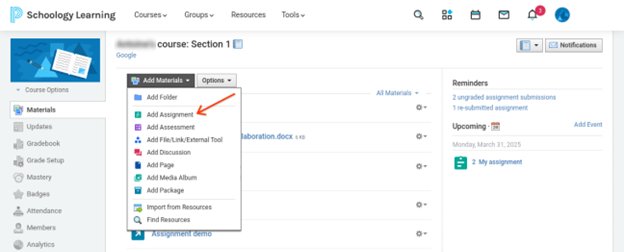
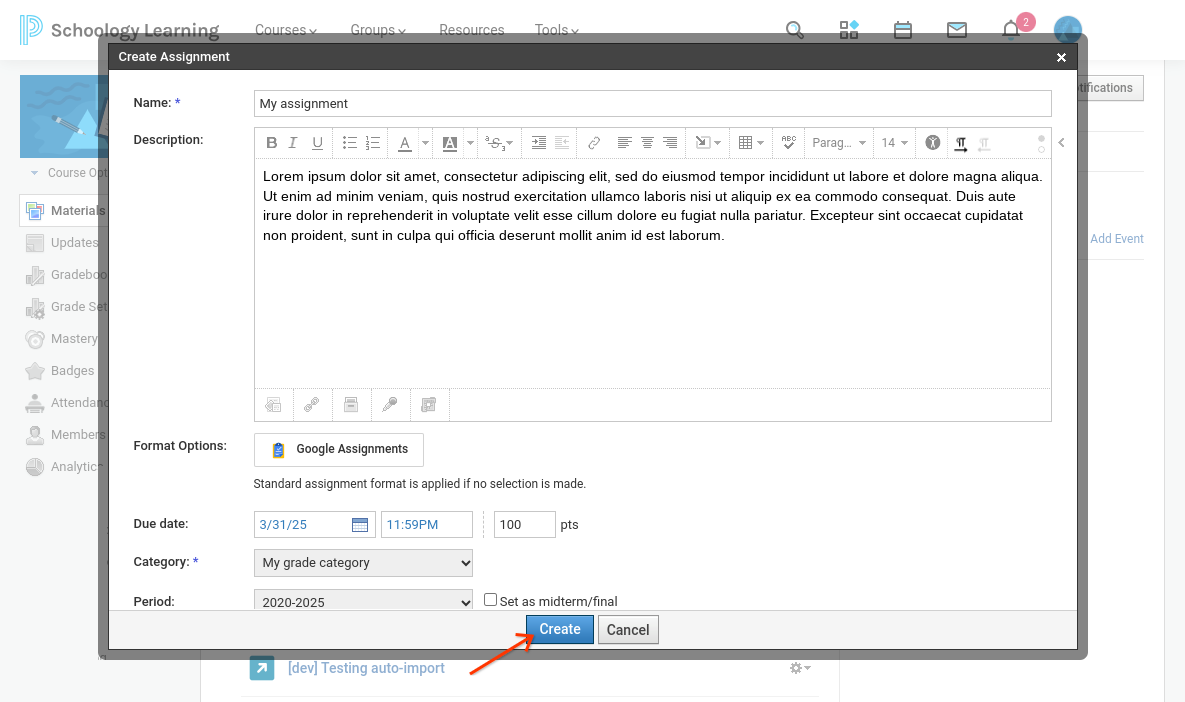
Select Add Materials and choose Add Assignment.
-
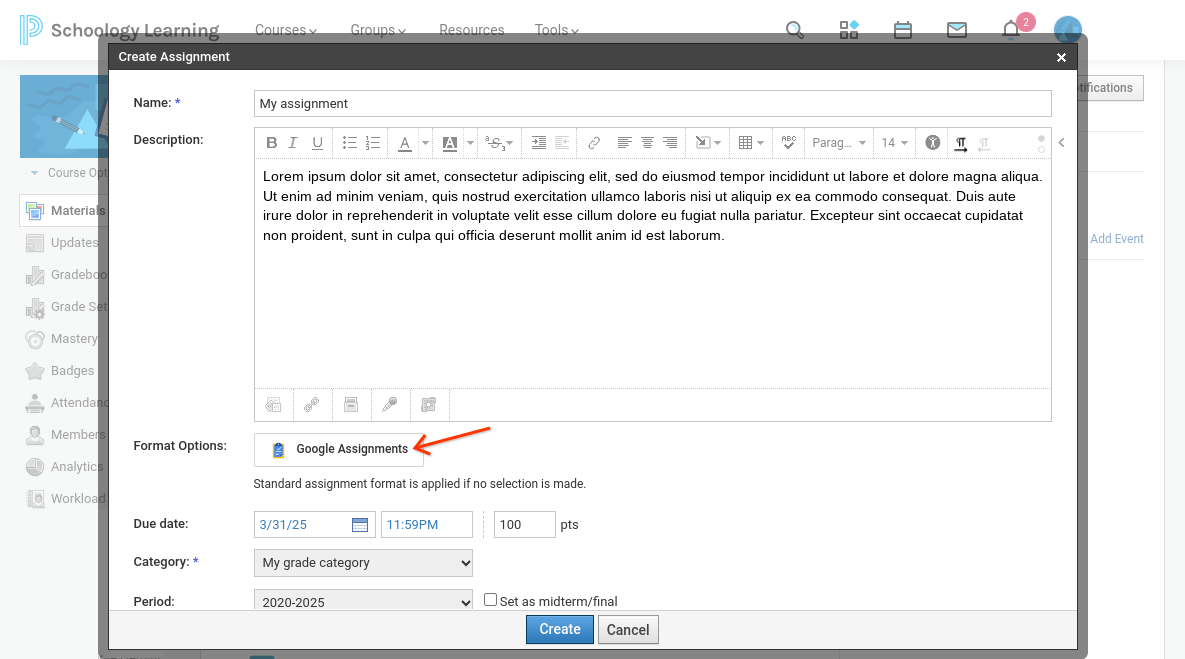
From Create Assignment, add the assignment details and click Google Assignments.
-
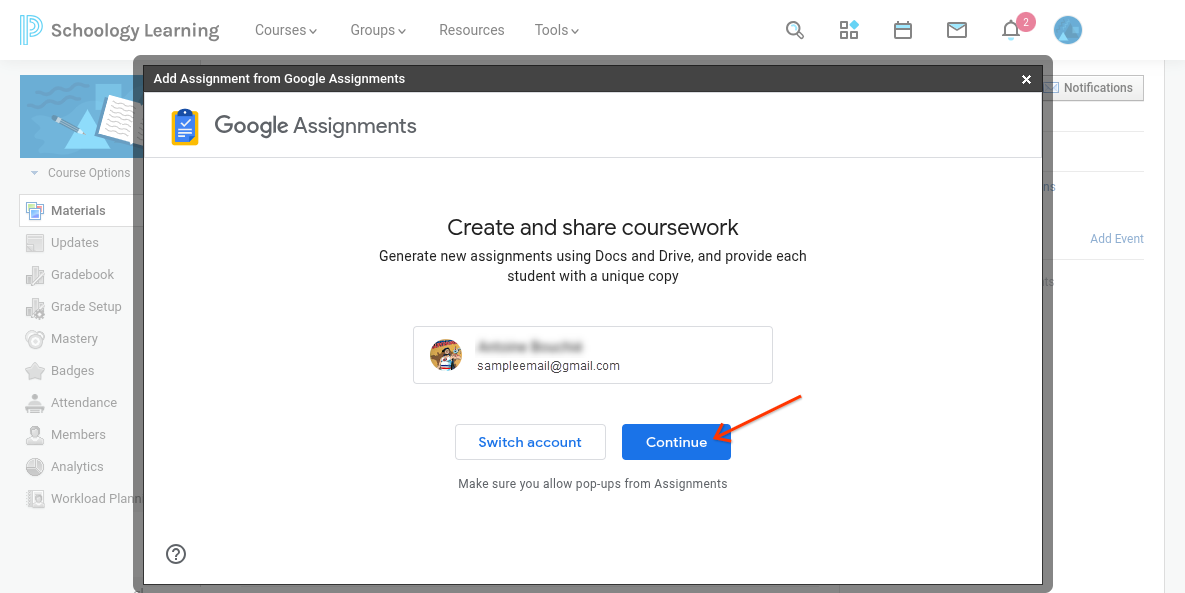
From Add Assignment from Google Assignments, confirm or switch your account, and then click Continue.
-
Sign in to your Google account if this is your first time using Google Assignments.
-
Ensure pop-ups are enabled on your browser.
-
Instructors and students must be logged into a Google account to work on and submit assignments using the Google Assignments app.
-
Third-party cookies must be enabled on the browser.
-
-
Configure the Google assignment.
-
Toggle Check plagiarism (originality) on or off. The level of your district’s Google subscription will determine the allowed usage of the plagiarism checker. Refer to Google's documentation on originality reports for more information.
-
Add Google Docs, Slides, Sheets, or Drawings for students to complete. Each student receives a copy of this file when they open the assignment. Students can then work on the assignment and submit it directly in Schoology.
-
Select Google Assignments as the grading option.
-
Click Create.
-
-
From Create Assignment, review the assignment details.
-
Set a due date to place the assignment in the course calendar and Upcoming area.
-
Select a grading category or scale.
-
The category defaults to Ungraded.
-
To learn more about grading scales, refer to the article Setting up your gradebook
-
-
Align the assignment to a learning objective.
Choosing a Schoology rubric will not have an impact on the rubric used in Google Assignments when grading. The recommendation is to not choose a Schoology rubric when using this grading option.
-
-
Click Create to create the assignment. The assignment is now listed in the Materials section and is displayed in the Reminders area of Upcoming.
Google Drive folder hierarchy
The first time you create an assignment using the Google Assignments app, a new folder titled Assignments automatically generates at the root level in your associated Google Drive. With each new assignment you create, new folders populate automatically with the following hierarchy:
-
A new folder for the course and section named CourseName: SectionName is added to the Assignments folder.
-
A new folder with the assignment name for its title is added to the course/section folder.
-
Each time a student makes a copy of the file, it is added to the Assignments folder. The file name is the name you gave it with the student’s name appended to the beginning.
-
For example, if you created a new assignment called Literary Review in Section 1 of a Language Arts course, the folder structure would be Assignments, then Language Arts: Section 1, then Literary Review.
-
If course member, Sofia Roberts, creates a copy of the file, it is named Sofia Roberts - Literary Review and placed in the Literary Review folder. You and your students should not delete any folders or files created via the Schoology integration.
-
-
A Templates folder is also generated in each course folder in your Google Drive. This folder contains a copy of all your original documents attached to Google assignments. Do not edit the files in this folder.
-
Instructors can move files out of the associated folders in Google Drive. This does not affect the file permissions.
Manage Google assignment settings in Schoology
After creating a Google assignment, you can manage the assignment settings and access submissions directly in Schoology.
After a single student in a class opens a Google assignment and creates their assignment copy, changes made to the original document will not be reflected in the student’s copy. A snapshot is created so all students in the class receive the same assignment. However, if no student in a class has created their own copy, the entire class will see the changes when they open the Google assignment.
From the course materials page, select the assignment’s gear icon to update settings that apply to the Schoology gradebook.
-
Changing the title of the assignment is only reflected in Schoology. The Google assignment will not display the updated title.
-
Rubrics created in Schoology are not supported for Google assignments.
Instructor workflow in Google Assignments
From the assignment in Schoology, select the assignment title to open it in Google Assignments.
In Google Assignments, instructors can:
-
Review all student submissions.
-
Enter grades.
-
Apply Google rubrics.
-
Leave inline comments.
-
Review originality reports.
-
Return submissions individually or in bulk.
Return work and sync grades
-
Select a student submission in Google Assignments.
-
Enter a grade and leave feedback.
-
Return the assignment.
After the assignment is returned:
-
The grade syncs to the Schoology gradebook.
-
A copy of the graded file is saved to both the instructor’s and the student’s Google Drive.
Student view (Google grading)
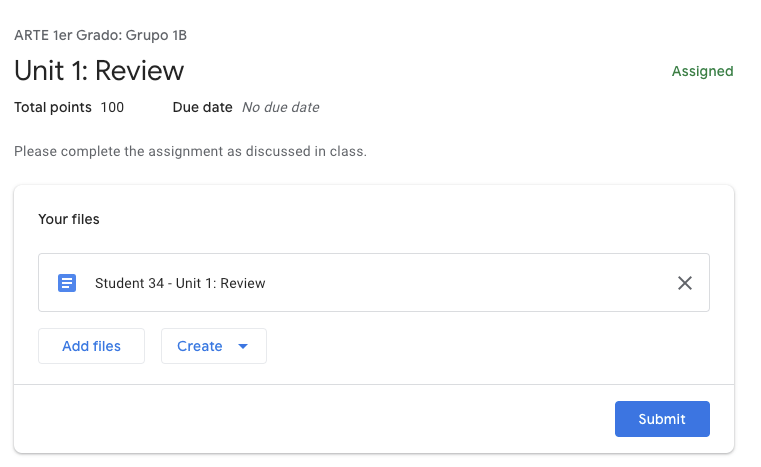
The student’s view of Google Assignments displays the total points, due date, and any attached files. Students can open the assignment to work on and submit the file.
-
Students must be logged in to their Google account to access the assignment.
-
Third-party cookies must be enabled on the browser.
Student experience in Google Assignments
Each student receives a unique copy of the assignment, shared with the instructor for review and grading. Google Assignments automatically creates and manages folders in the student’s Google Drive—these files and folders should not be deleted. Students own their files, instructors retain edit access during review, and students regain edit access when work is returned.
Students accessing a Google assignment can:
-
Open it in Google Assignments to work on and submit the file.
-
Add files to the submission.
-
Create a new Google Document, Sheet, or Slide.
-
Remove files attached to the assignment, including files added by the instructor.
To review a Google assignment:
-
Select the Google assignment from the course materials page.
-
Click Open to attach and submit to open in Google Assignments. A copy of the assignment is automatically saved to your Google Drive account to work on.
-
Select the file title from Your Files.
-
Make any edits or changes before submitting.
Submit assignments
-
From your files, click Submit.
-
Review the files attached and click Submit to confirm.