
Student experience overview
Students taking a test in Schoology using Respondus LockDown Browser can access the test, quiz, or assessment from the Course Materials page. When a student opens the test, they are prompted to launch LockDown Browser to take and submit it.
LockDown Browser functions like a standard web browser but with several features inactive, including browser menus and the URL field. Only the back, forward, stop, and refresh buttons are available. The content and design of the test will be displayed similarly to Schoology, but students’ ability to navigate or use other browser tools is restricted.
LockDown Browser is supported on Chromebooks using a Chrome Extension in kiosk mode, and on iPads or mobile browsers if the latest LockDown Browser app is installed and the Allow students to take this exam with an iPad setting is active. Instructions for deploying the Chromebook version are available in the administrator area at http://Respondus.com.
Begin the exam
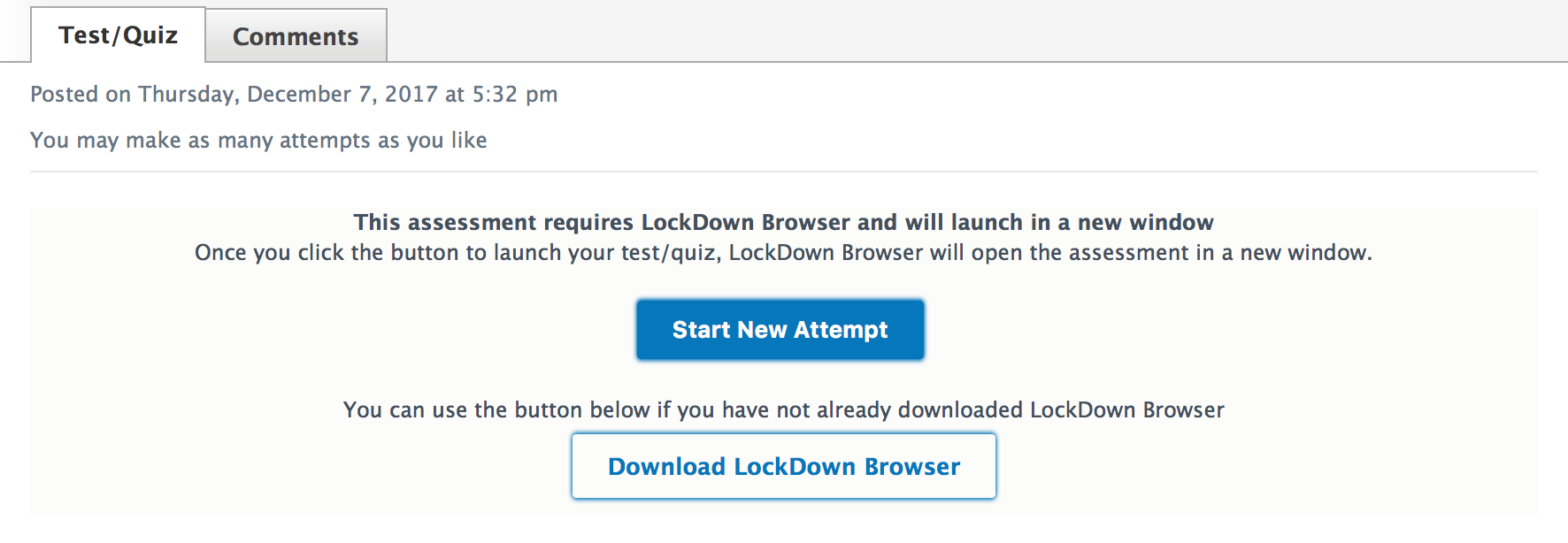
When an instructor requires Respondus LockDown Browser for a test, quiz, or assessment in Schoology, students must download and install the browser before starting the exam. Tests and quizzes that require LockDown Browser display the following message:
-
This assessment requires LockDown Browser and will launch in a new window.
Students can download the browser from the Download LockDown Browser link on the exam’s Instructions page. This link uses the download URL configured by the system admin in the app’s Custom Parameters.
After the LockDown Browser is installed, students can click Start New Attempt to display the test in a new window and complete it using LockDown Browser.
If other applications are running on the student’s device when they click Start New Attempt, a warning will be displayed listing the blacklisted applications. The student can select Kill these applications to close them and continue launching the exam in Respondus LockDown Browser.
If a student experiences network issues or a power outage and cannot connect to the LMS, a browser timeout error may occur during the exam. In this case, the student should use the Student Exit feature and resume the exam later, after the connection is restored.