
After students complete an assessment, grades for assessments without subjective questions (short-answer or essay-type questions) are displayed in the student's Grades area.
Additionally, students can review submissions from the assessments page. If multiple attempts are allowed, the number of submitted and remaining attempts displays to the student. For example, if you’ve allowed three attempts, the following message is displayed for students who have completed one attempt: You have made 1 of 3 attempts. You have 2 remaining.
Students can only have one attempt in progress at a time.
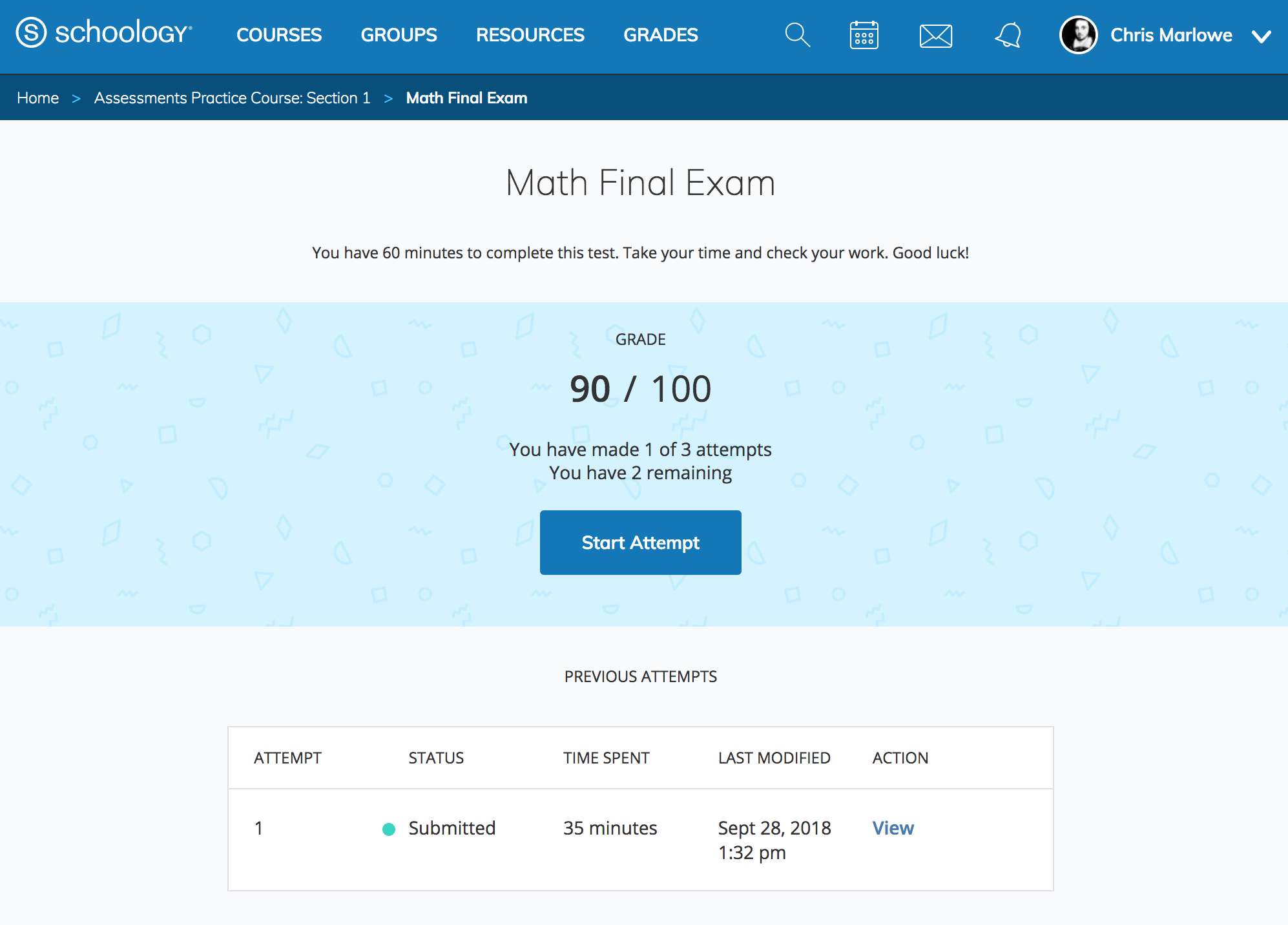
Previous Attempts table
The Previous Attempts table displays all previously submitted assessments with the following details:
|
Header |
Details |
|---|---|
|
Attempt |
The attempt number, with the most recently started attempt listed first. |
|
Status |
Shows In Progress or Submitted. The Needs Grading status is not displayed for students. |
|
Time Spent |
The total time spent on the attempt. |
|
Last Modified |
The date and time the student last worked on the attempt. Helpful for resumable attempts. |
|
Action |
If students have permission to view submissions, they can select View to open a completed attempt or Resume to open and continue an in-progress assessment. All In Progress assessment attempts are resumable. |
Review the submissions page
The submissions page displays the points earned out of the total possible points for each question and the total score earned for the assessment. This allows students to clearly see how their performance breaks down by question and overall.
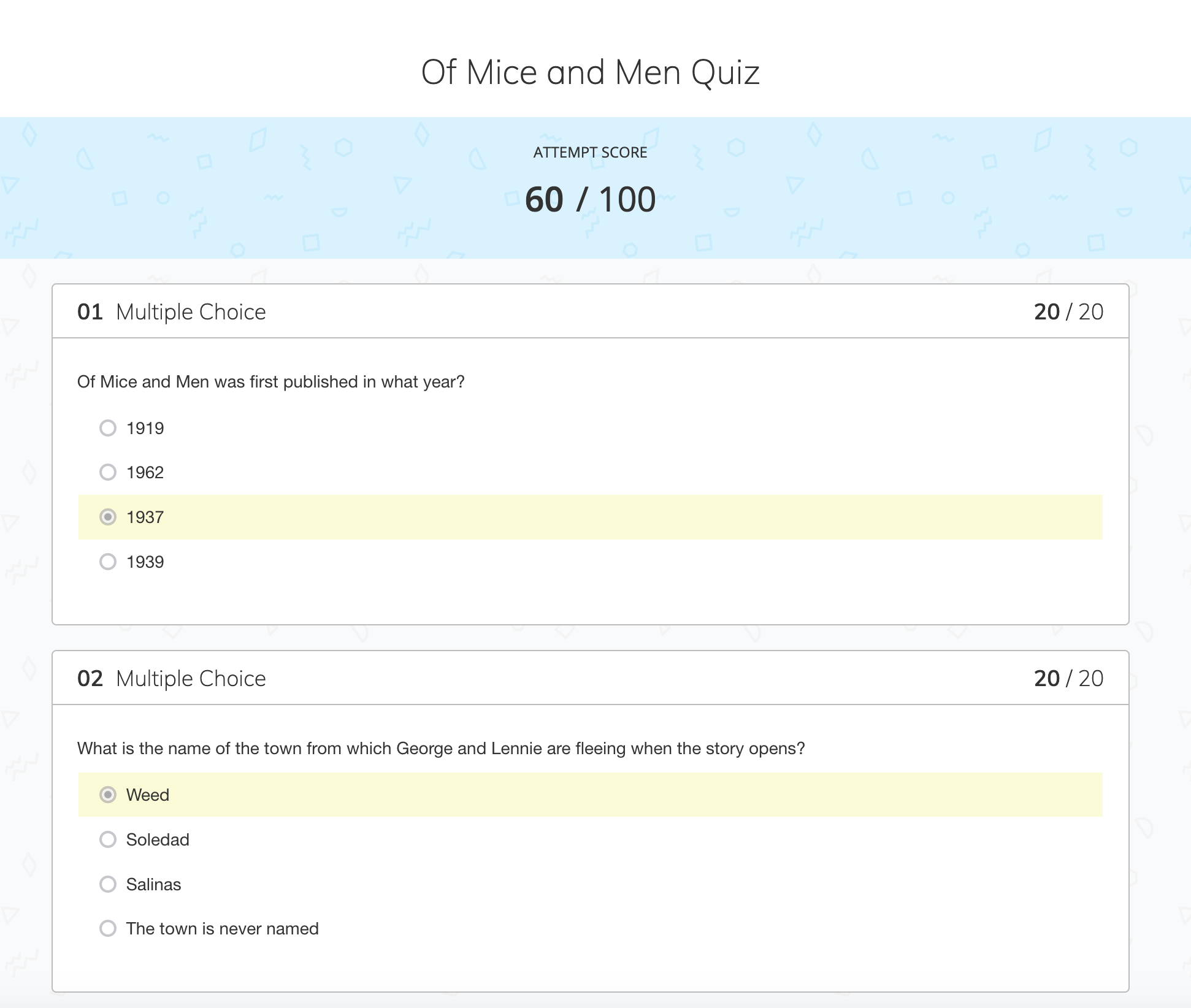
Students can review their submission details only when Allow students to view results after an attempt is submitted is enabled in the assessment's Student Settings.