
Score a student attempt from the assessment
Click anywhere on a student's submitted attempt from the By Student grading view to open it for scoring.
-
Grade any subjective questions that require manual scoring.
-
Overwrite auto-scored questions by entering a new value in the score box.
-
Select Clear override to remove a manual score. If the question already had an automatically calculated score, removing the override reverts to that score.
The Attempt Score field updates automatically as you add or adjust question scores.
-
The attempt score is the total points earned out of the points possible for that submission.
-
You cannot edit the attempt score directly.
-
To change a student's attempt score, adjust the points for one or more individual questions.
-
To change a student's overall assessment grade, update the Gradebook Points from the By Student view or the Course Gradebook.
-
Rescoring: If you update the correct answer setup after students have submitted (for example, by changing the correct answer), you can choose to automatically rescore existing submissions so scores reflect the update.
Add feedback
You can provide feedback on each student's responses to help students improve their outcomes. Switch between tabs to include text, audio, and video feedback in the same response.
-
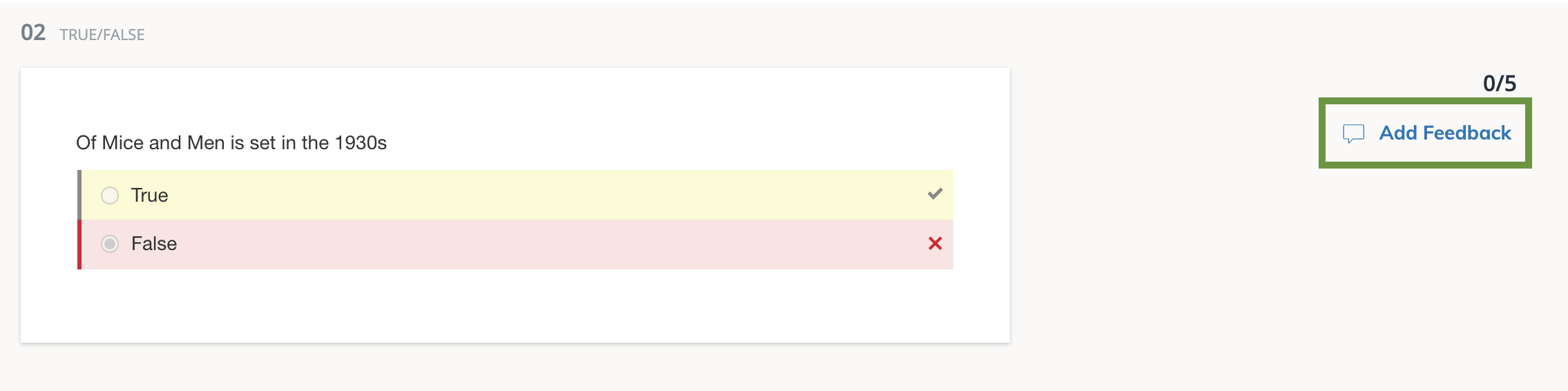
Click Add Feedback for an item to enter your comments.
-
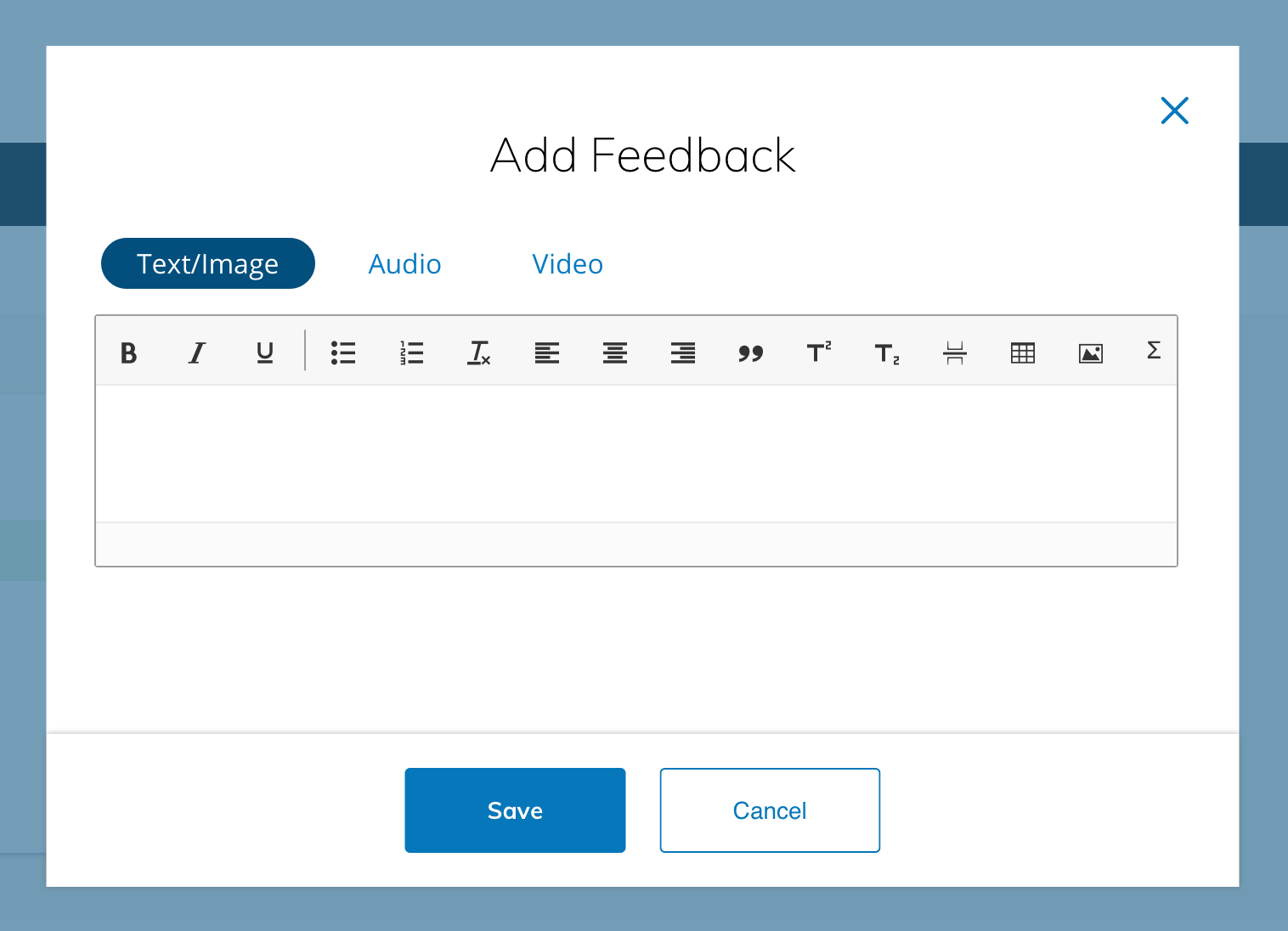
Choose how you'd like to leave feedback:
-
Text/Image — Use the rich text editor to add written comments and images.
-
Audio — Click Audio, and then select Record to start recording.
-
Video — Click Video, and then select Record to capture video feedback.
-
-
After the feedback is saved, click the pencil or trash can icon to edit or delete your comment.
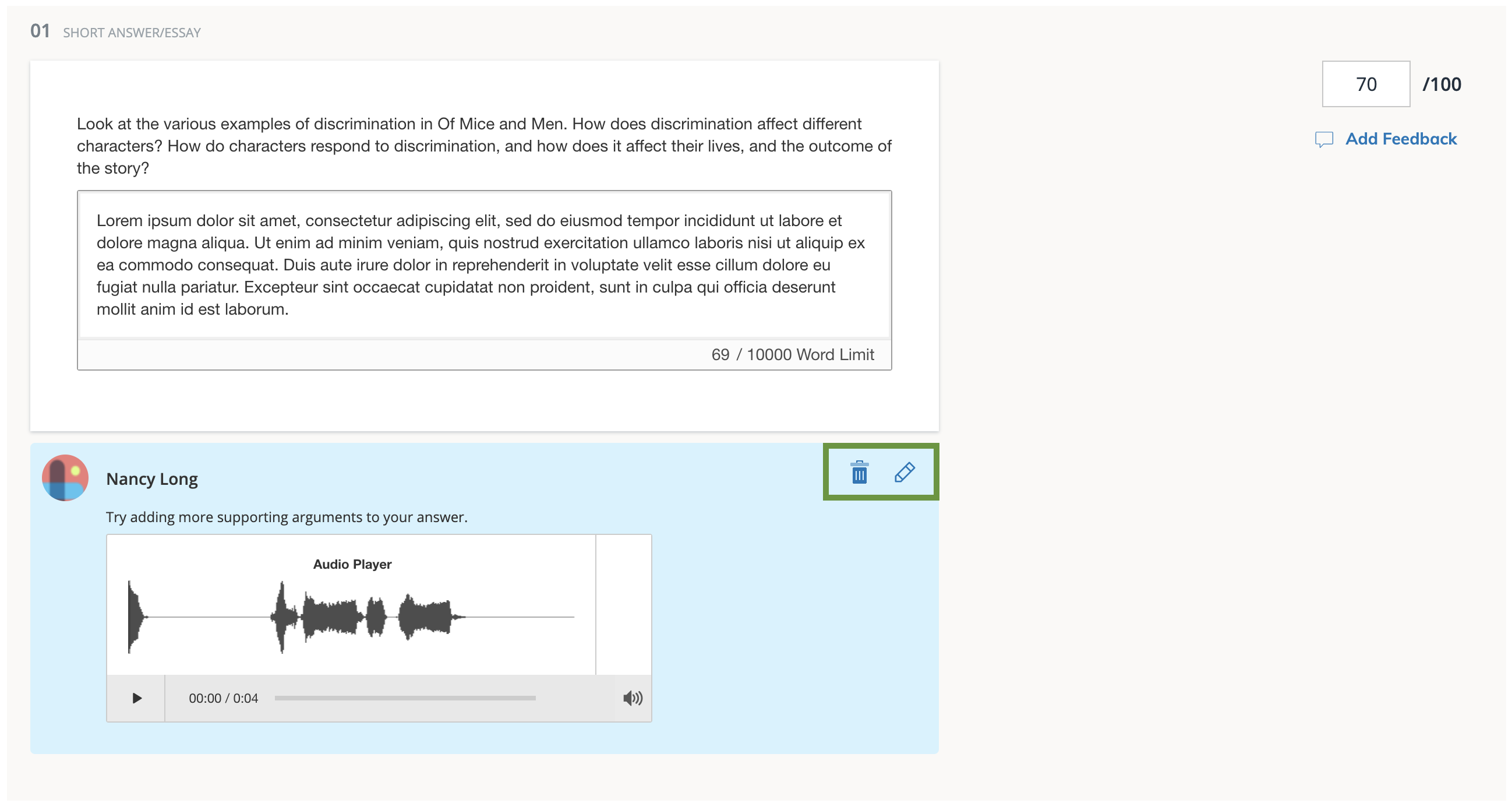
Student view of feedback
Students can access the feedback directly from their submission when Allow students to view results after an attempt is submitted is enabled in Student Settings.
Grade from the course gradebook
From the gradebook cell for the assessment in the course gradebook, you can perform several grading functions:
-
Click the score and enter a new value to overwrite the overall grade for the attempt.
-
An orange pencil indicates the score has been overridden.
-
Click the pencil icon to clear the override and restore the original score.
-
-
Click the puzzle piece icon to review the student assessment submission.
-
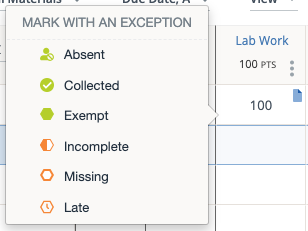
Click the flag icon to add an exception to the submission.
For an overview of the grading view, submission statuses, and overrides, refer to the Grade assessments page.