
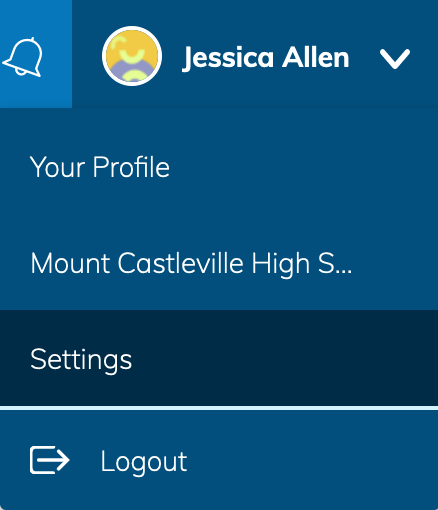
Your Account Settings enable you to set different preferences for your personal interface and how your account relates to other users. To get to Account Settings, click your name in the header and choose Settings.
Account info
Edit your name
Depending on the permissions enabled for your account, you can change the name you display to other Schoology users. Click your name in the header and choose Settings. The display names you can customize may include:
-
First Name: This field should already include the name with which you signed up for Schoology.
-
Preferred First Name: If your organization's system administrator has enabled this permission, you can choose a different name to display wherever your name appears, either by itself or in addition to the name in the First Name field.

-
Middle Name: This field may already be filled, though it is not required. You may also choose to have your middle name displayed on your account if the option has been enabled by your district.
-
Last Name: This field should already include the name with which you signed up for Schoology.
-
Username: This field is necessary for users who sign into Schoology using a Username. Users may sign up for Schoology with either a username or an email address.
Primary and secondary email addresses
-
Primary Email: This field lists the email address under which you are registered in Schoology. All designated Notifications are sent to this email address. You may also log in to Schoology using this email address.
-
Alternate Email: This field lists an optional, secondary email address. Notifications are also sent to this email address.
If you notice that you are not receiving email alerts when you would expect them, you may have an issue with your primary email that requires your attention. Check with your email provider to confirm any issues (for example, check if the emails are in your spam folder). If you continue to experience issues with receiving notifications, talk to your instructor or your Support Contact.
Timezone
If your Schoology account is not currently set to the correct timezone, you can correct it by scrolling through the drop-down menu.
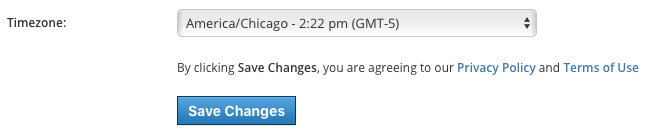
Once you have adjusted the settings, don’t forget to click Save Changes to complete.