
Overview
Since guardians have an account at each of the Schoology organizations in which their students are enrolled, you may have multiple Schoology accounts. For example, you may have one child enrolled in a high school in one district but another enrolled in a middle school in a different district, or one child in college and one in high school. To access all content from a single location, you can link the accounts to toggle between them.
By keeping both accounts and linking them together, you can access all content from a single location. This feature also allows each organization to manage your parent account settings appropriately, and to communicate with you separately.
If you have two children who attend different schools but are in the same Schoology Enterprise account – for example, one child in high school and one in middle school in the same district – you do not have to link accounts.
Link multiple accounts
-
From the account you want to be the primary account, click your name in the header and choose Settings.
-
From the Account Settings, navigate to Link Accounts.
-
Enter the Email or Username of the parent account at the other organization.
-
Enter the Password for the other account.
-
Select the school from the list.
-
Click Link Account.
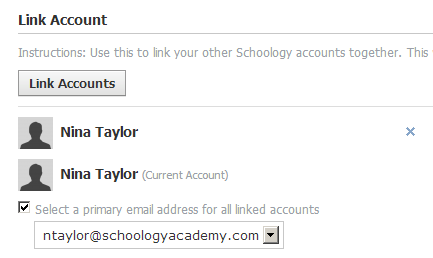
Select a primary email address for linked accounts
A list of your primary account and linked accounts is displayed in the Link Account area upon completion. If you have multiple primary email addresses for these accounts, enable Select a primary email address for all linked accounts, so email notifications for each linked account will be sent to your primary email address.
Review linked accounts
To display your linked accounts, click your name in the header.
-
The organization associated with each account displays with your name. Select your name and organization from the list to access that linked account.
-
Depending on the account selected, the associated student accounts will be displayed, along with the name of the associated organization. Select your student’s name to display their Schoology activity.
Unlink accounts
-
Click your name in the header and choose Settings.
-
From Account Settings, navigate to Link Accounts.
-
Click the X for the account to unlink. This removes the link to that account and the student associated with it.
-
Click Unlink Account.
You can only remove linked accounts. You cannot remove a primary account. After an account is unlinked, log in to the account using the respective login credentials.