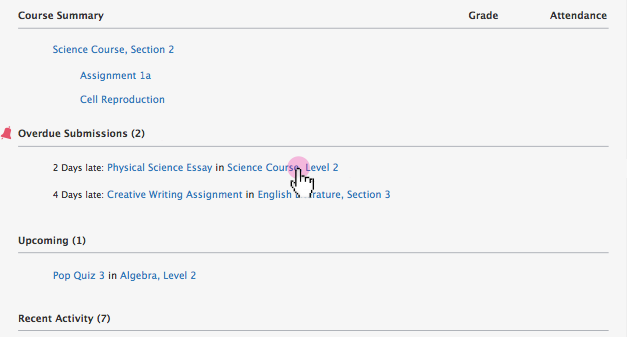
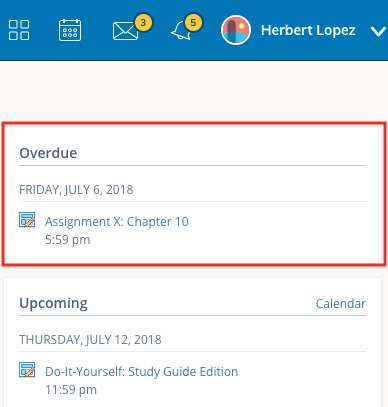
Overdue area
The Overdue area on the homepage displays a list of materials that were not turned in on time. It is displayed only when a student has at least one overdue item, with items listed from most to least overdue. This area is available on the homepage only and cannot be enabled at the course level.
In year-long courses with sub-periods, such as semesters, overdue items from earlier periods may continue to appear until the course is archived.
Notifications settings
To receive email or text alerts for overdue materials, turn on Course Materials Overdue in your Notifications settings. You can apply this to all courses or select Custom to choose specific ones. You’ll receive only one notification per overdue item.
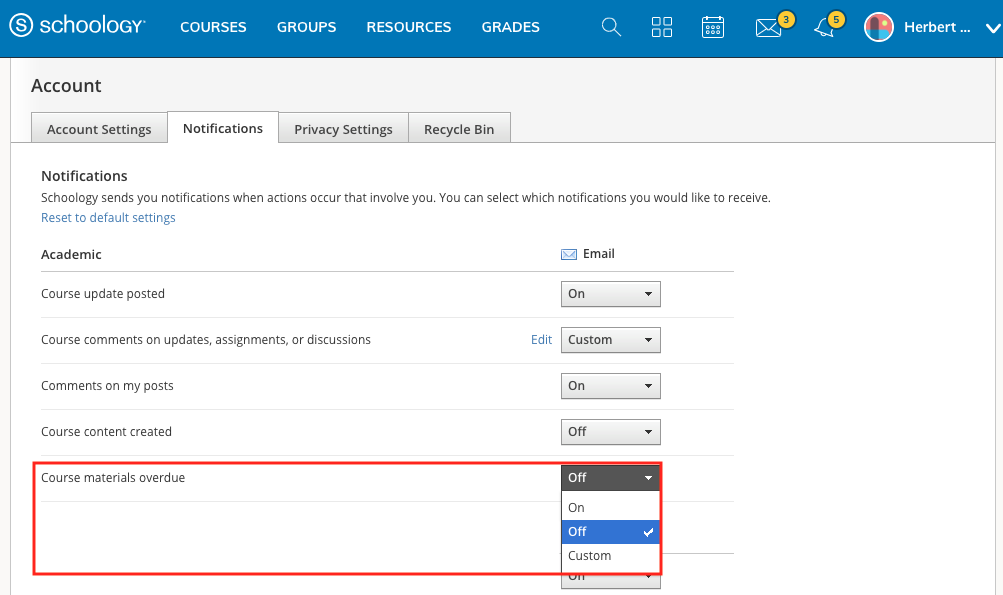
While the item may remain in the Overdue pane, students and guardians will receive only one notification per late material regardless of how long it remains unsubmitted.
Overdue item criteria
Course materials must meet the following conditions to display in the Overdue area, to generate Notification emails, or to be included in the Parent Email Digest.
-
You are displaying Materials to students. Hidden or unpublished materials are not included in the Overdue area.
-
You have enabled Submissions for assignments.
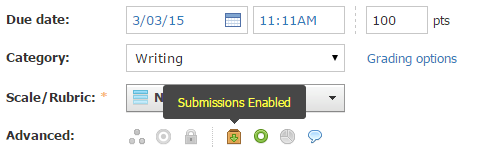
-
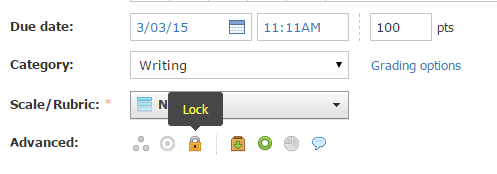
You have not locked Submissions for assignments.
-
You have assigned the course material to a Category.
LTI and External Tool materials with due dates do not generate overdue submissions because Schoology does not automatically detect submissions from external tools.
Remove overdue notifications
Overdue notifications are removed from the student's Overdue column when:
-
The student makes a submission.
-
The instructor manually enters a grade into the gradebook. For example, if the student completes an assignment or quiz on paper, instructors can enter the grade into the gradebook, which will remove the assignment or quiz from the Overdue area.
-
The instructor adds an Excused exception to the gradebook.
-
The course has become archived. After a course is archived, the associated materials are removed from Overdue Submissions.
-
The instructor clears the Enable Submission setting from the assignment, preventing overdue notifications from being displayed.
-
Assignment re-submissions, subsequent quiz attempts, and follow-up discussion posts do not appear in the Overdue area. Instructors can toggle the gradebook view to Needs Grading or Graded with New Submission to display these resubmissions.
The instructor marking an item as Incomplete does not remove an Overdue notification.
Review my student’s overdue coursework
Guardians can review their child’s work in the same Overdue area of the homepage. You can also enable Overdue Submissions Email to receive an email each time your student misses a due date. Overdue items will also be included in the Parent Email Digest, if enabled by the system admin.