
Overview
The Respondus LockDown Browser (LDB) is a custom browser that instructors can use to lock down their testing environment in Schoology. Using the app, instructors can require students to use the LDB when taking tests, quizzes, assessments, or managed assessments (AMP) in a Schoology course.
The Respondus LockDown Browser displays the test in full-screen mode and prevents students from navigating away from the assessment or navigating to other applications, such as the Internet or their notes, while the test is in progress. The browser also prevents copy and paste, right-clicking, screen capture, messaging, or printing.
The Respondus Knowledge Base provides instructions on how to push out the browser to a large set of machines. Additionally, the Respondus support team is trained in various types of software used for this purpose and can help admins with this step.
Students also have the option to download the LockDown Browser software directly from the launch page of their Schoology test.
Requiring the LockDown Browser on tests or quizzes does not affect any functionality available to instructors on Schoology. All Schoology test/quiz settings remain available, and the workflow for grading student submissions remains the same whether or not the LDB is required.
-
If your school or organization currently has a license for the Respondus LockDown Browser, your System Admin can install the Respondus app in your Schoology account.
-
If your school or organization currently has a license for the Respondus LockDown Browser, monitor, or both, visit the Respondus Help Center to review their Quick Start Guide for Instructors and Students.
Create an exam requiring Respondus LockDown Browser
After you have created the test/quiz or assessment in your course, you can require the Respondus LockDown Browser for it from the LockDown Browser Dashboard.
In courses with linked sections, a test, quiz, or assessment must be published in the master section to be displayed in the Respondus LockDown Browser Dashboard. If it is not published in the master section, it will not display. The Respondus settings follow the master section. As a workaround, you can make the item available to all sections, enable Respondus, and then hide it from the linked sections as needed.
All Respondus LockDown Browser settings must be configured in the master section. You cannot customize LDB settings for individual linked sections. To make a test accessible to specific students, use the Individually Assign feature as a workaround.
-
From the course, select the Respondus app to display the Respondus LockDown Browser Dashboard.
-
From the item title, choose Settings from the list.
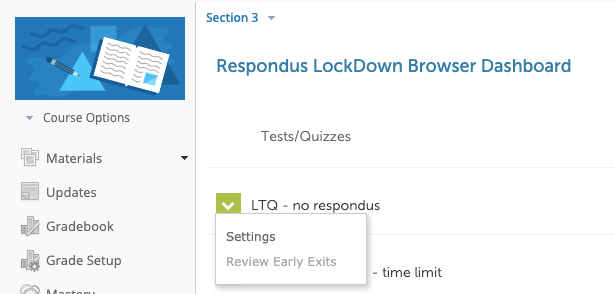
-
Select Require Respondus LockDown Browser for this exam.
If the app is uninstalled at the course or system level, all LDB requirements will be removed from the Test/Quizzes and Assessments in your Schoology courses.