
The Google Drive app is a new Resource App from Google, now available in Schoology from the App Center. Resource apps enable you to integrate third-party content directly into the Resource Center. This means that all of your personal, shared, public, and external instructional resources are consolidated in one place. With this integration, you can:
-
Access your Google Drive content from your Schoology Resources.
-
Add Google Drive content directly within Schoology and sync to Google Drive.
-
Add content from the Google Drive app to a course or resources.
-
Import your Google Drive content directly from within courses and groups.
-
Use as an alternative to the Google Drive Resource App from Schoology.
-
Control how users in your organization share Google Drive files.
-
Add your Google Drive content to updates, discussions, assignments, pages, and tests.
-
Accept submissions from students who are connected to Google Drive.
-
The Google Drive app by Google can be used as an alternative to the Google Drive Resource App by Schoology.
-
The Google Drive app is a separate app from the Google Assignments App by Google.
To use the Google Drive app, a System Administrator must install the app from the Schoology App Center. Contact the Support Contact at your organization if you do not see the option to use this app in your Resources.
How to Access the Google Drive App in Resources
The Google Drive app is installed and configured at the district level by a System Administrator. Once the app is installed and configured, the app is available in the Resource Apps area in your account.
-
Click Resources in the header.
-
Click Apps on the left menu.
-
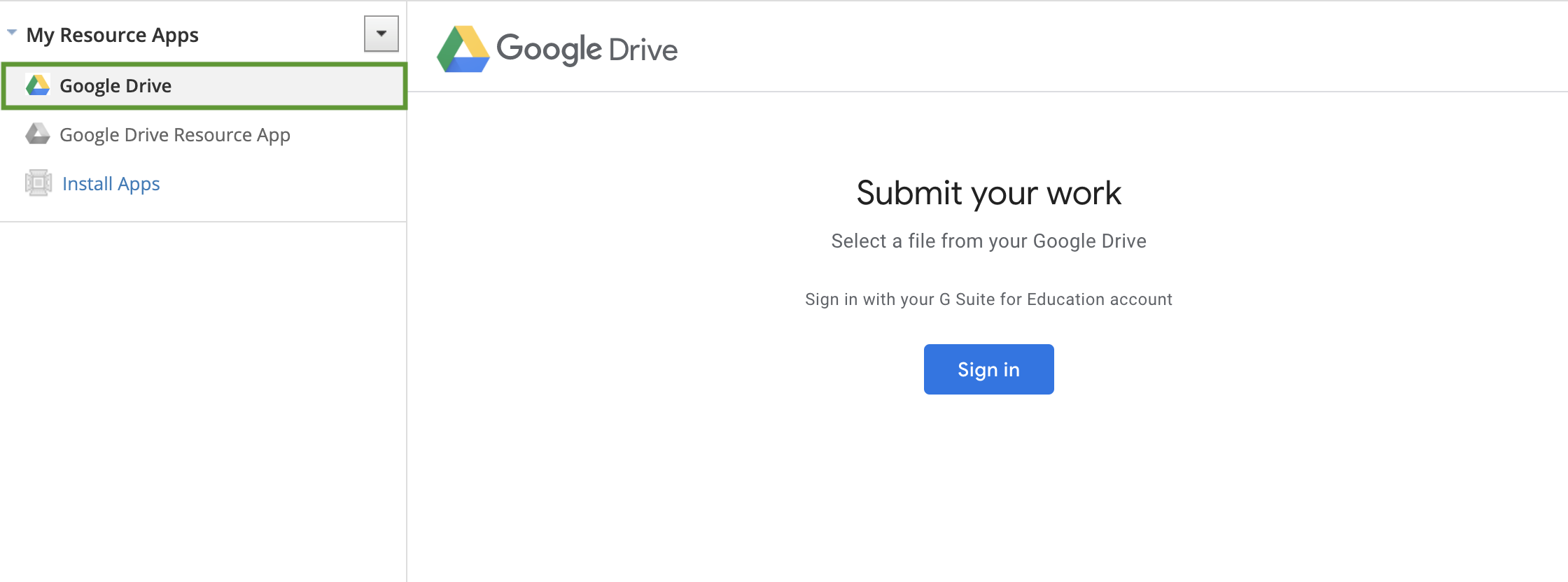
Select Google Drive app from the apps list.
-
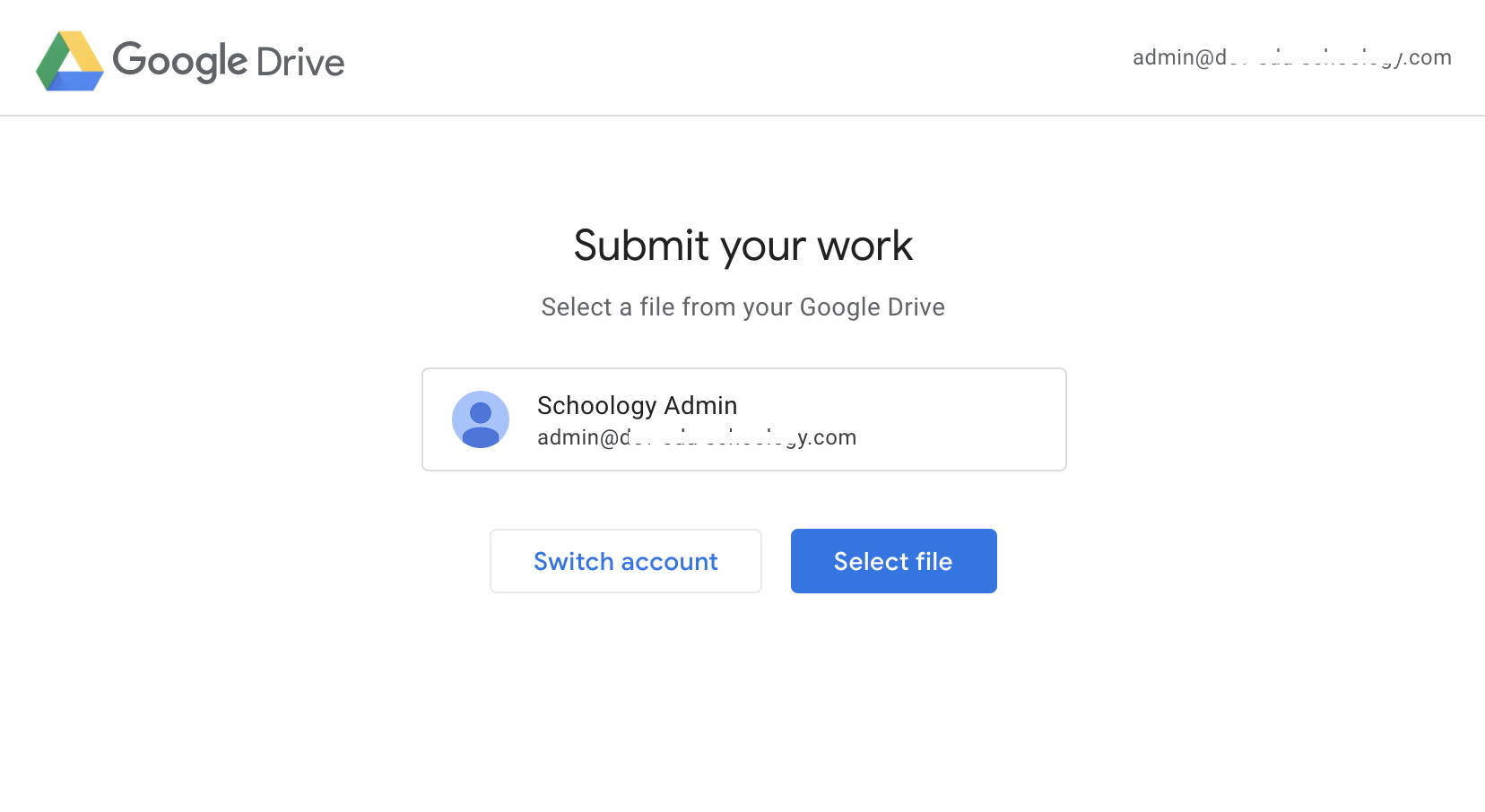
Sign in to your Google account if this is your first time using the Google Drive app. Otherwise, check the correct Google account is displayed. You can choose Switch account if you need to sign into a different Google account. Ensure pop-ups are enabled on your browser.
Add Google Content to a Course or Resources
To add files from your Google Drive to Schoology:
-
Open the Google Drive app by navigating to the Resources area of Schoology and select Apps from the left menu. Make sure you're logged into your Google account.
-
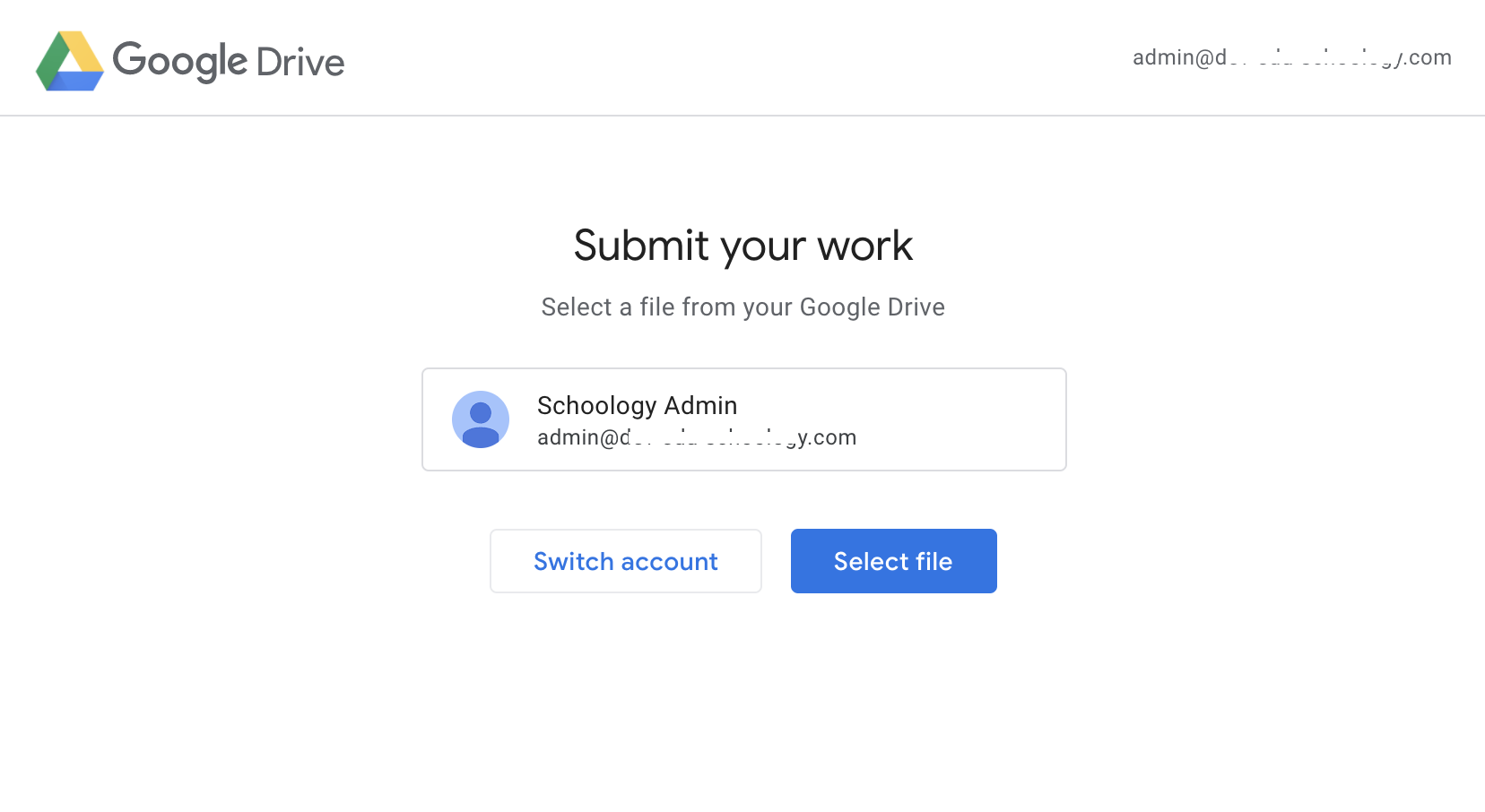
Click Select file from the homepage.
-
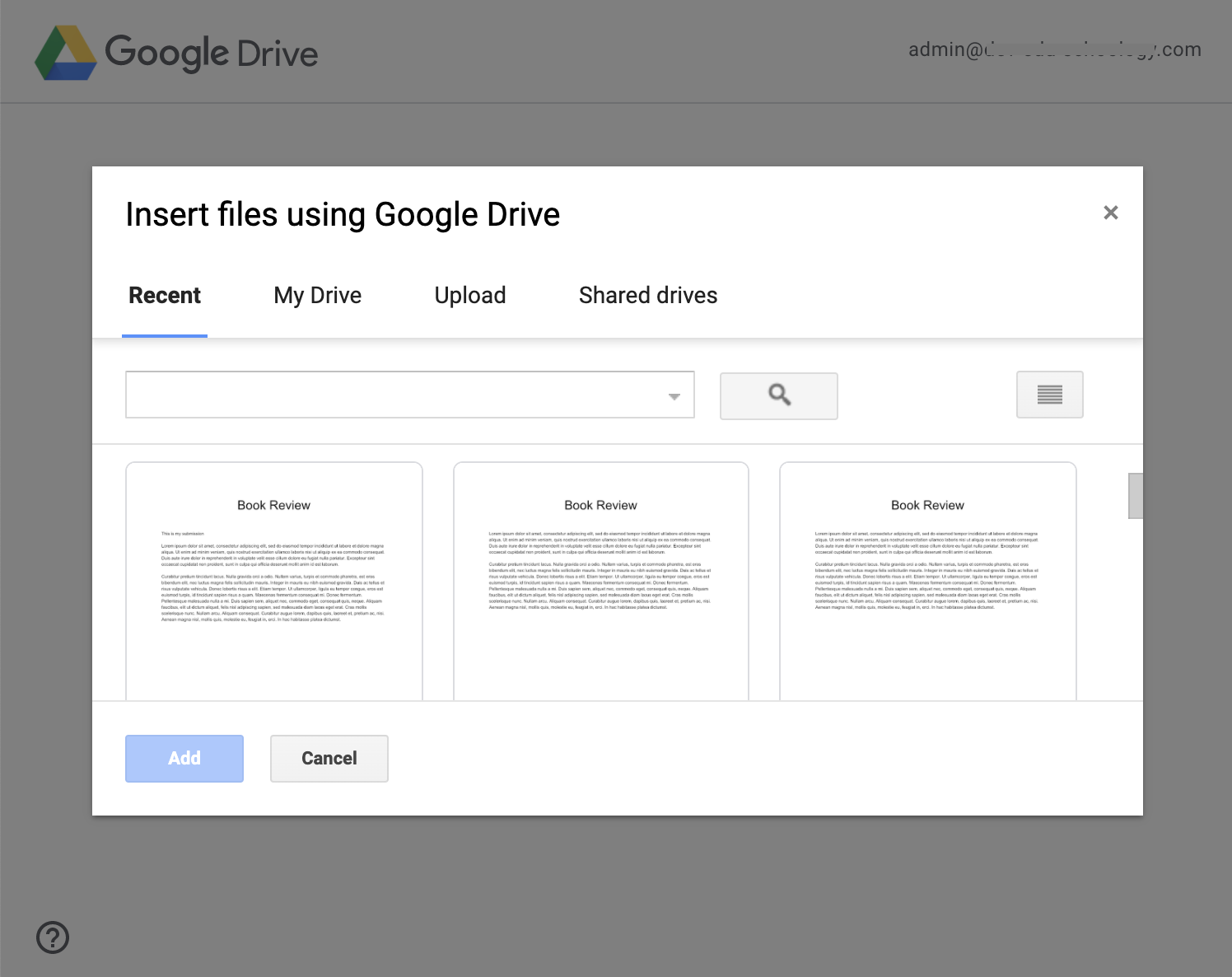
Select from among the options to add a Google document, spreadsheet, presentation, or drawing. Enter words or phrases in the Search field to filter your results. Items matching your search terms populate automatically in the results list.
You may only select one file at a time.
-
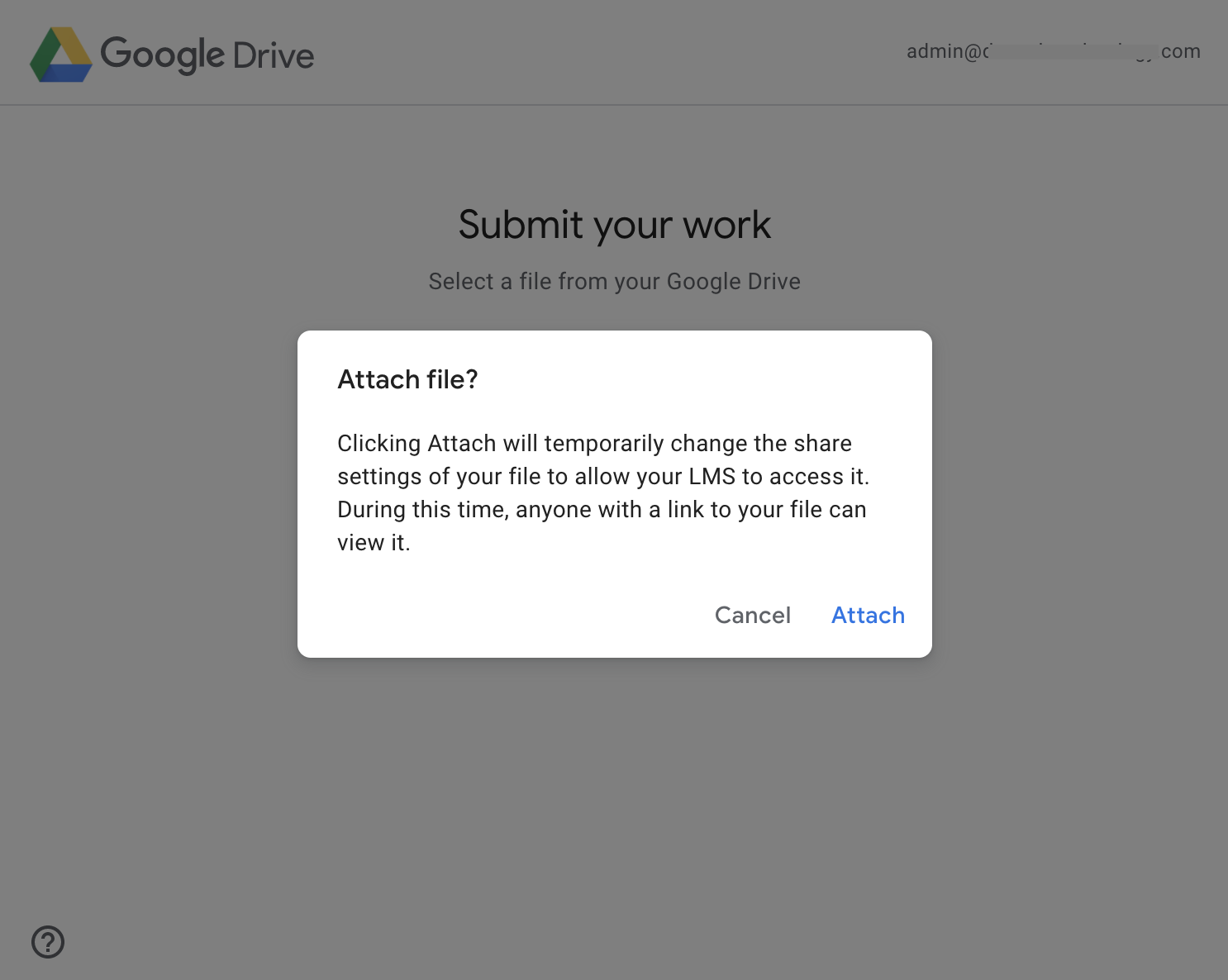
Click Add and then Attach.
This will temporarily change the share settings of your file to allow Schoology to access it. During this time, anyone with a link to your file can view it.
-
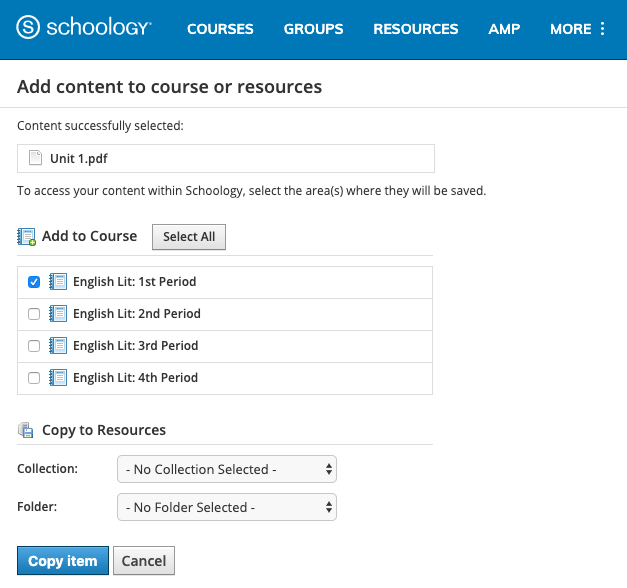
Once you’ve confirmed to add a file, you can choose to Add to Course or Copy to Resources and select the course or resource collection to add the file to.
Files may be added to collections in your Personal Resources or Group Resources.
-
Click Copy item to confirm.
-
Files may not be embedded or added as a link or private link, only a static file. You can view this copy of the resource directly in Schoology, but any changes made to the item in Google Drive are not reflected in the course.
-
Files cannot be edited or deleted from within the app. They must be deleted or edited directly in Google Drive.