
Turnitin is a plagiarism-prevention tool that helps you check student work for unoriginal content. If your school has a license, you can configure it using the Turnitin LTI app in your Schoology Enterprise account. The app supports the Turnitin Originality Report and GradeMark features and lets you enable many features from the item in your Schoology course.
If you’re migrating from the legacy Turnitin API app, content does not transfer to the new LTI app. it is recommended to complete the transition at the end of a term or school year. Contact Turnitin for details about accessing legacy content.
Install the Turnitin LTI app
-
Click the App Center icon and select App Center.
-
Find Turnitin in the list of apps.
-
Click Install LTI app.
-
Select I Agree to continue with installation.
-
Select Add to Organization to install for your district or Install for Me to install for your account only.
-
From Organization Apps, select Configure for the Turnitin LTI app.
-
Enter the Consumer Key and Shared Secret provided by Turnitin upon purchase of the license.
-
Click Save settings.
-
From Organization Apps, click Install/Remove for the Turnitin LTI app.
-
Select All Courses. Additionally, select Course admins only if you want instructors to have access to Turnitin within a course.
-
Click Submit.
Create Turnitin materials
-
Select Add Materials and then choose Add File/Link/External Tool to add a course item that syncs with Turnitin.
-
Select External Tool.
-
Select Turnitin LTI from the Tool Provider list.
-
Enter a Title to display to your students.
-
Select Enable Grading and configure the grade settings, including Points, Due Date, Category, Scale, and Period.
-
Click Submit.
Configure the Turnitin settings
After adding the external tool to your Materials page, select the item title to display the tools and configure the item's Turnitin settings. Optionally navigate to the Assignment Inbox or the Settings tab.
|
Setting |
Description |
|---|---|
|
Title |
The title you entered when adding the external tool to your Materials page |
|
Instructions |
Instructions you want your students to follow when completing the assignment |
|
Max grade |
The max grade value should match the Points field from Create External Tool to ensure the item is calculated the same way in Schoology as in Turnitin |
|
Start date |
The date when students can begin submitting to the item in Turnitin By default, the day on which the item was created in Schoology |
|
Due date |
The date after which students can no longer make submissions |
|
Feedback release date |
The date when students can review grades and comments in GradeMark |
|
Allow submission of any file type |
Allows any file type to be submitted |
|
Optional settings |
Additional settings for the material |
The Title, Max Grade, and Due Date are automatically populated from the information provided when creating the item.
Optional settings
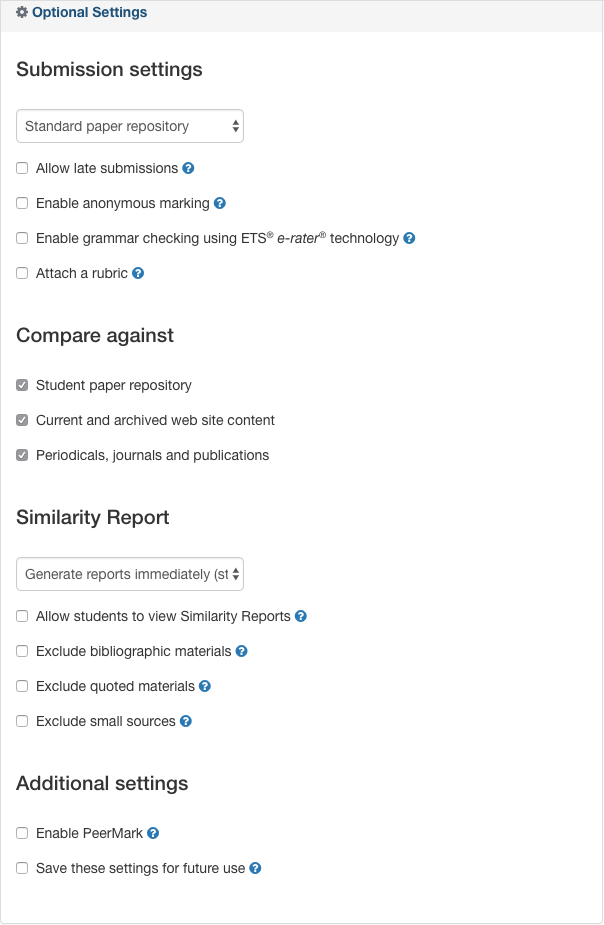
Expand Optional Settings to review and activate additional functionality offered by the Turnitin LTI Tool.
Student submissions
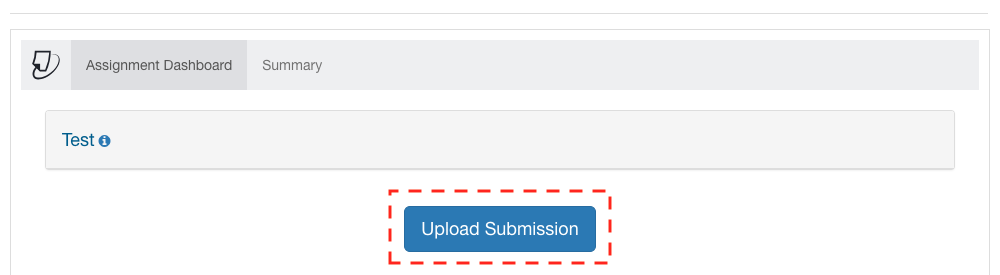
Students can submit by selecting the title of the external tool from the course Materials page, which launches the Turnitin Assignment Dashboard. Then, click Upload Submission to make a submission.
Grading
Instructors can enter scores directly in the Turnitin document viewer. Clicking outside the score field saves the grade automatically. The grade entered in the Turnitin document viewer will update in the Assignment Inbox within the Turnitin external tool in your Schoology course, as well as in the Schoology Gradebook.