
Overview
MyPowerHub is designed to make managing guardian accounts simple and efficient—no matter how your district handles contact information. Whether you use student contacts, legacy contacts, or a custom configuration, there is no need to make changes—MyPowerHub supports all methods, ensuring a smooth experience.
Web Access
MyPowerHub uses Web Access accounts to ensure guardians can securely review student data.
This approach ensures:
-
Your current contact management process remains intact.
-
Student data is shared only with authorized individuals.
-
Duplicate records can be identified and managed effectively.
Guardian criteria
Since MyPowerHub requires an active Web Access account for parents, the required contact data is always available in PowerSchool SIS, regardless of whether you use student contacts (unlimited contacts), legacy contacts, or custom contacts.
Districts often use custom indicators such as relationship type, emergency contact, legal guardian, custody, or lives with. Because these indicators vary and don’t guarantee the contact should have access to student data, MyPowerHub applies a conservative approach.
A guardian must meet all three conditions:
-
The contact is active in the student record.
-
The contact has a Web Access account that is enabled.
-
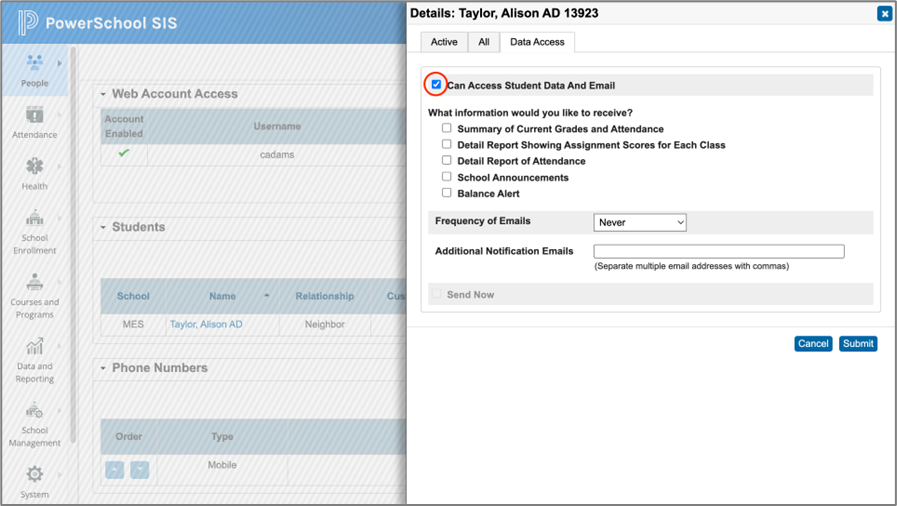
The contact has Data Access enabled for the student.
Create Web Access accounts for guardians
There are two primary methods:
-
Self-registration using unique Access Keys for each student
-
Admin-created accounts (preferred)
Self-registration
This method allows parents to create their own accounts and associate students using Access IDs and passwords provided by the district.
This method often results in duplicate contact records because matching logic requires an exact match for first name, last name, and email address.
-
From PowerSchool SIS, generate an Access ID and Access Password for each student.
-
Send the Access ID and Access Password securely via email, letter, or the school portal.
-
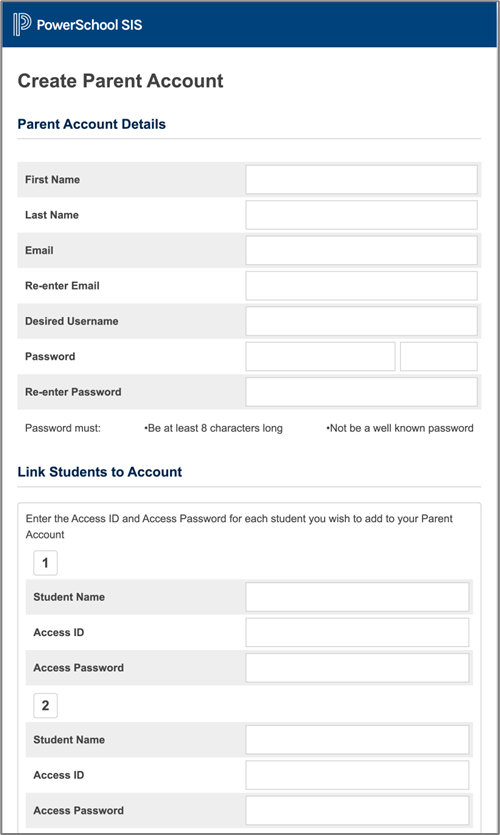
The parent goes to the SIS public portal, selects Create Account, and then clicks Create Account.
-
The parent enters their account details.
-
The parent links students by entering the Access ID and Access Password for each student.
-
The parent receives an email verification link and must verify within 24 hours.
-
After verification, the parent logs in to the SIS public portal. MyPowerHub shortcut appears in the navigation menu.
Admin-created accounts (preferred)
Admins create accounts using the parent’s email address. Parents reset their password upon their first login.
Accounts can be created individually or in bulk. After accounts are created, grant Data Access to the appropriate students.
Create accounts individually
-
From PowerSchool SIS, search for the guardian contact record.
-
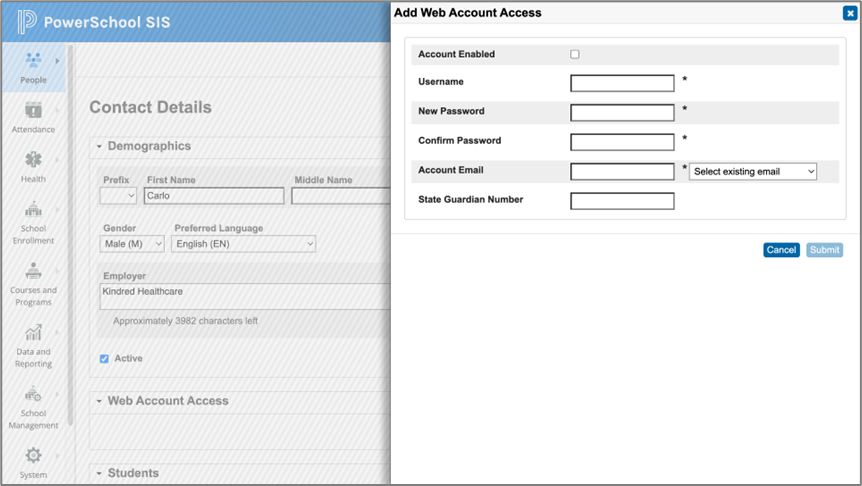
From the Contact Details, add a Web Access account.
-
Use the parent’s email address to create the account.
-
Assign a temporary password for the parent.
-
-
After the Web Access account is created, grant Data Access to the students that the parent needs to access.
Create accounts in bulk
-
Use the Data Import Manager to add and associate parent contacts with students.
-
Activate Parent Portal access by configuring:
-
Parent and student access
-
Navigate to the Configure Parent and Student Access page.
-
Select General.
-
Enter the information.
-
-
Access accounts
-
Navigate to the Guardian and Student Account Access page.
-
From Access Keys, select Enable Parent Access and Enable Student Access.
-
Either manually assign or auto-assign the guardian account keys information.
-
Click Submit.
-
-
These settings can also be applied via mass import.
-
-
Send an email or notification to parents with the portal URL.
-
The parent logs in and resets their password.
-
After resetting their password, the parent logs in to the SIS public portal. The MyPowerHub shortcut is displayed in the navigation menu.
Manage duplicate accounts
Duplicate records often occur when using Access IDs and Passwords for self-registration. Matching logic requires exact matches for:
-
First name
-
Last name
-
Email
If any field differs, a new contact record is created.
While cleanup is not required for MyPowerHub, districts may choose to consolidate records for consistency across systems.
Merge duplicates
-
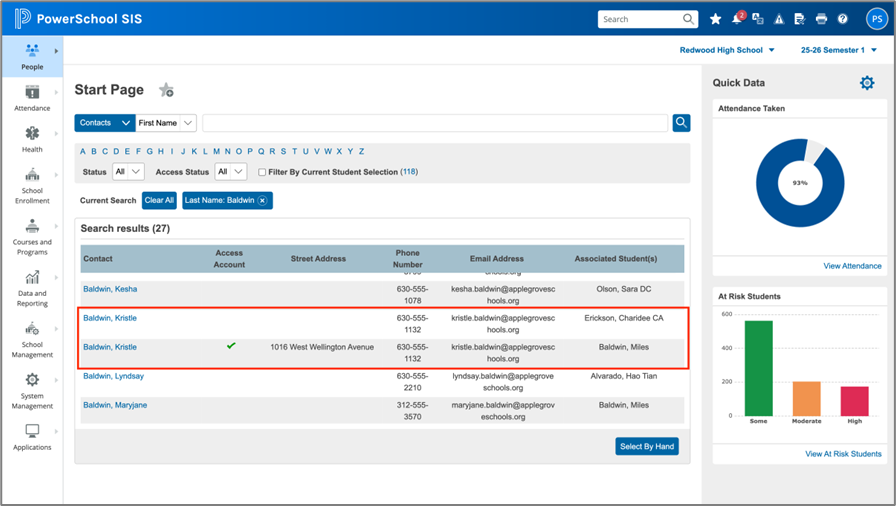
From the PowerSchool SIS Start Page, search for the guardian.
-
Click Select By Hand.
-
Select duplicate records.
-
Click the action arrow.