
Add Google Content from Directly Within a Course
To add Google Drive files from within your course:
-
Click Add Materials, or point your cursor in the location on the materials page where you want to add the resource and click the dotted green line that displays.
-
Click Import from Resources to open your Resources collection.
-
Click Apps and open the Google Drive app.
-
Click Select file and select a file from your Google Drive to add to the course. Enter words or phrases in the Search field to filter your results. Items matching your search terms populate automatically in the results list.
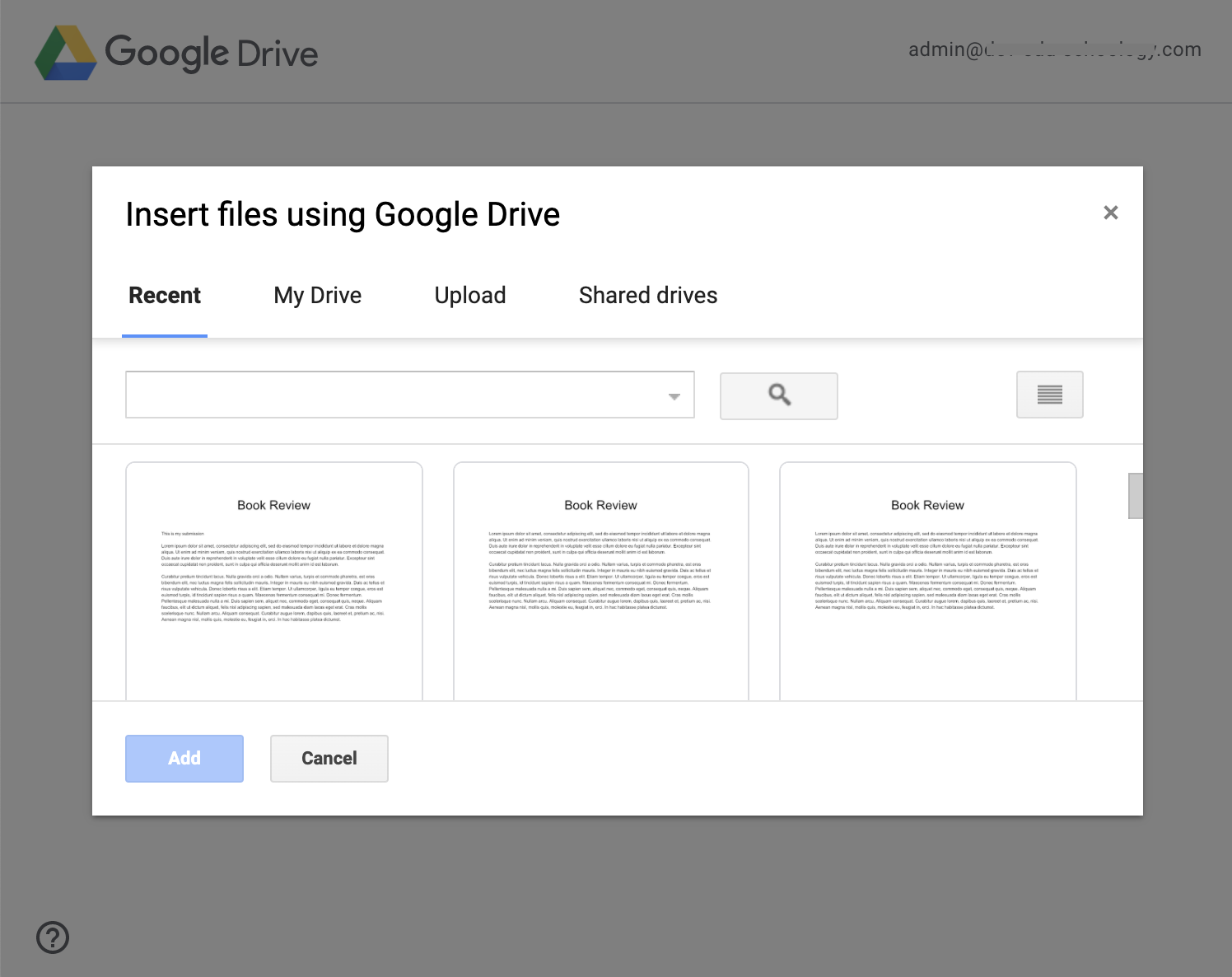
-
You may only select one file at a time.
-
Files may not be embedded or added as a link or private link, only a static file. You can view this copy of the resource directly in Schoology, but any changes made to the item in Google Drive are not reflected in the course.
-
Files cannot be edited or deleted from within the app. They must be deleted or edited directly in Google Drive.
-
Click Add and then Attach.
This will temporarily change the share settings of your file to allow Schoology to access it. During this time, anyone with a link to your file can view it.
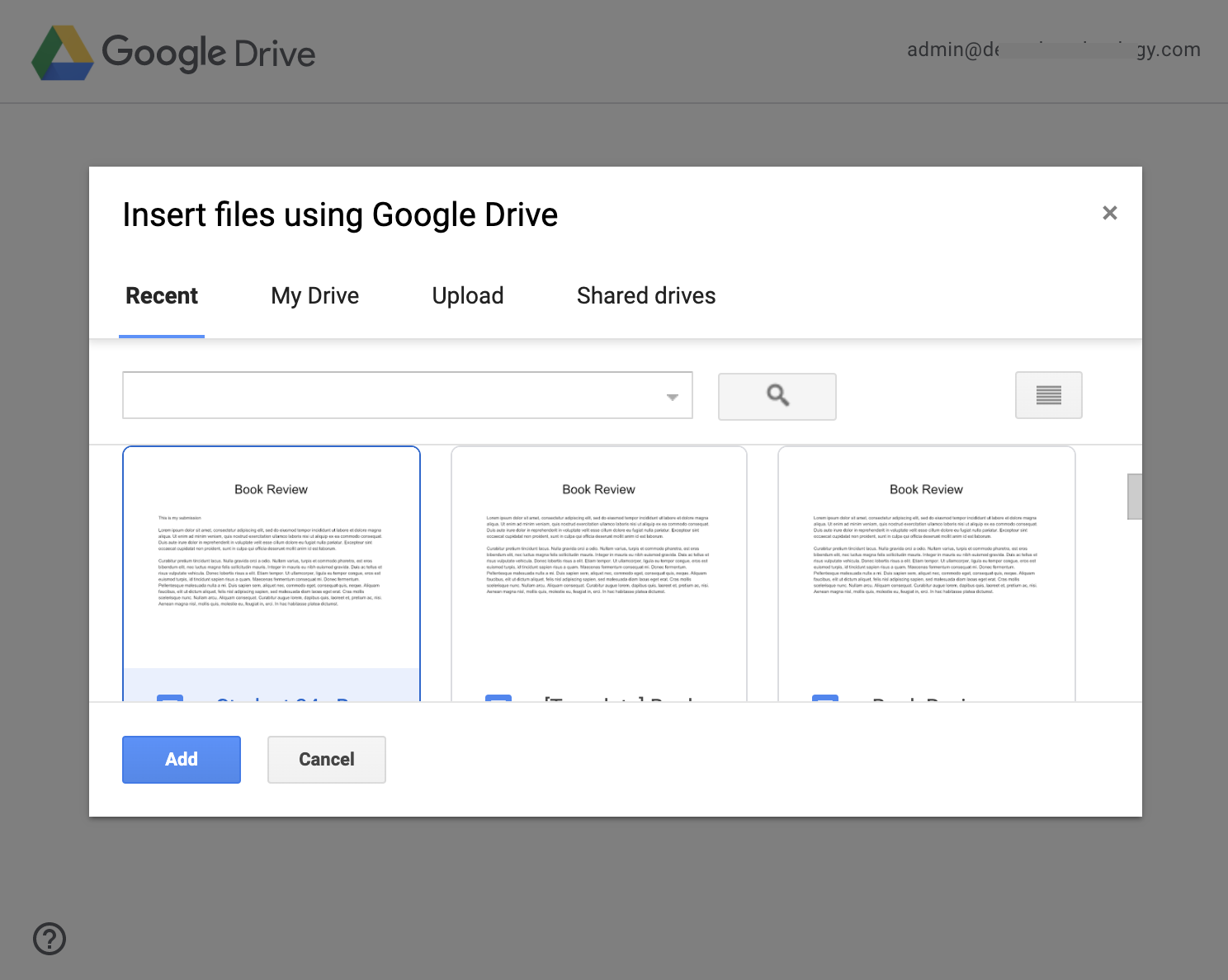
Attach Google Content to your Course Materials
You can attach items from your Google Drive directly to your assignments, test/quiz questions, discussions, pages, and folders using the Resource tool in the Rich Text Editor.
To attach a Google Drive item to a course material:
-
Click Add Materials and one of the material types mentioned above, or open an existing item in your course.
-
Along the bottom panel of the Rich Text Editor, click the Resource option to access the Google Drive app. This provides the options to import a Google Drive resource as a file to the material:
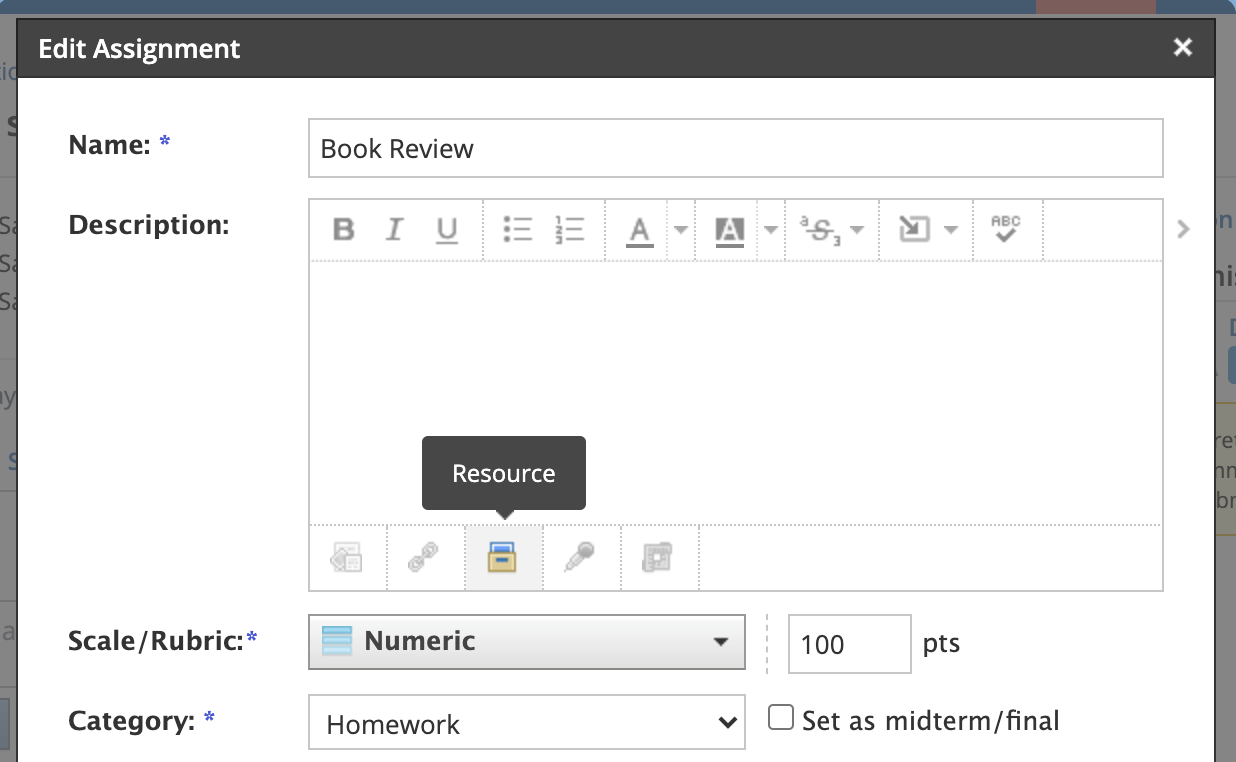
-
Click Apps from the left menu and open the Google Drive app.
-
Select the file from your Google Drive to add to the item. Enter words or phrases in the Search pane to filter your results. Items matching your search terms populate automatically in the results list.
-
You may only select one file at a time.
-
Files may not be embedded or added as a link or private link, only a static file. You can view this copy of the resource directly in Schoology, but any changes made to the item in Google Drive are not reflected in the course.
-
Files cannot be edited or deleted from within the app. They must be deleted or edited directly in Google Drive.
-
Click Add and then Attach.
This will temporarily change the share settings of your file to allow Schoology to access it. During this time, anyone with a link to your file can view it.
Students Adding Google Content to a Submission
Students can attach a file from their Google Drive directly within an assignment.
-
From the Submissions panel within the assignment, click Submit Assignment.
-
Select Resources from the Upload dialog window.
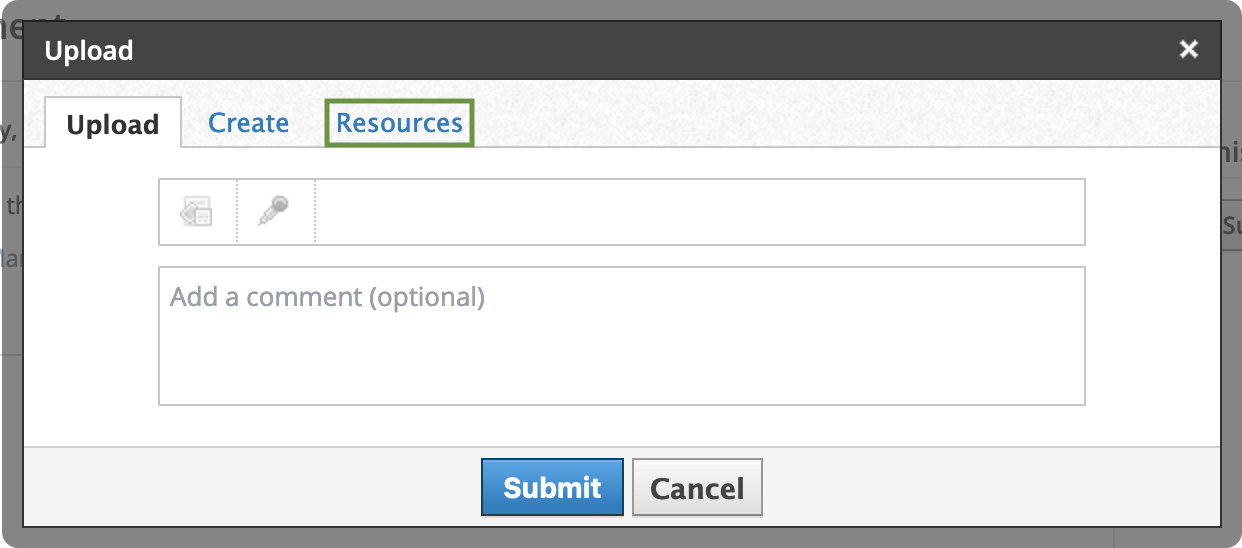
-
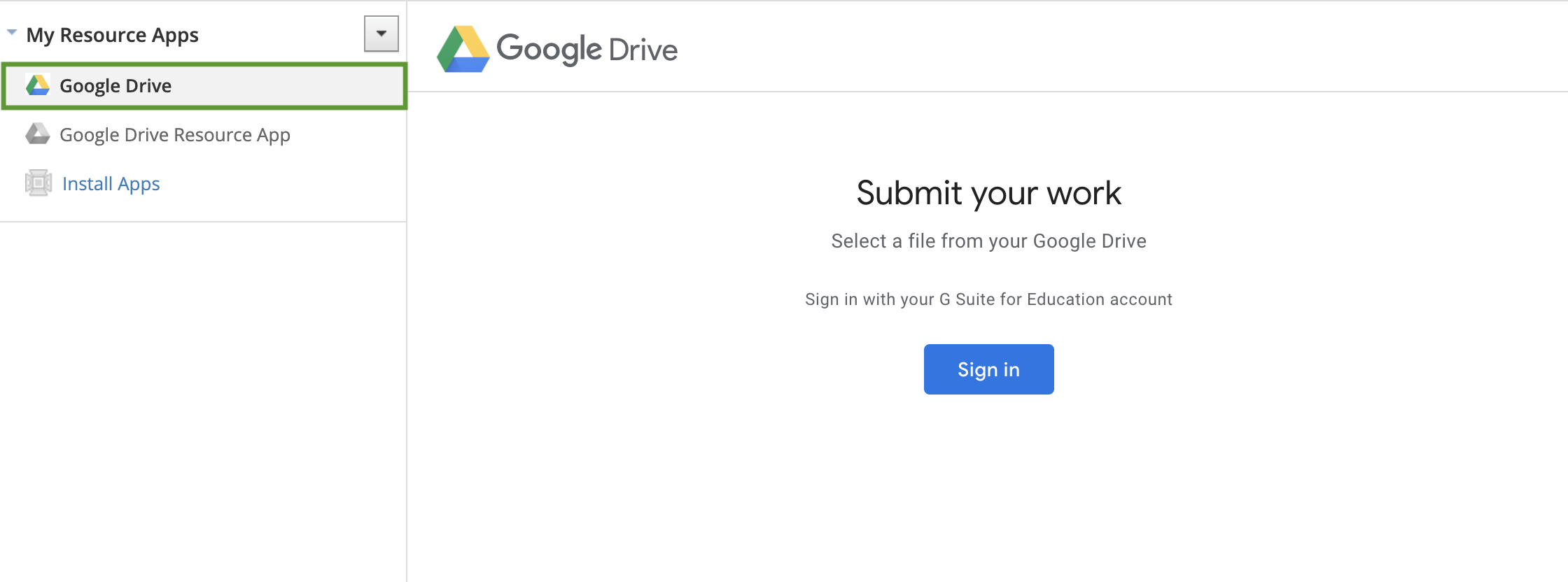
Click Apps from the left menu and open the Google Drive app.
-
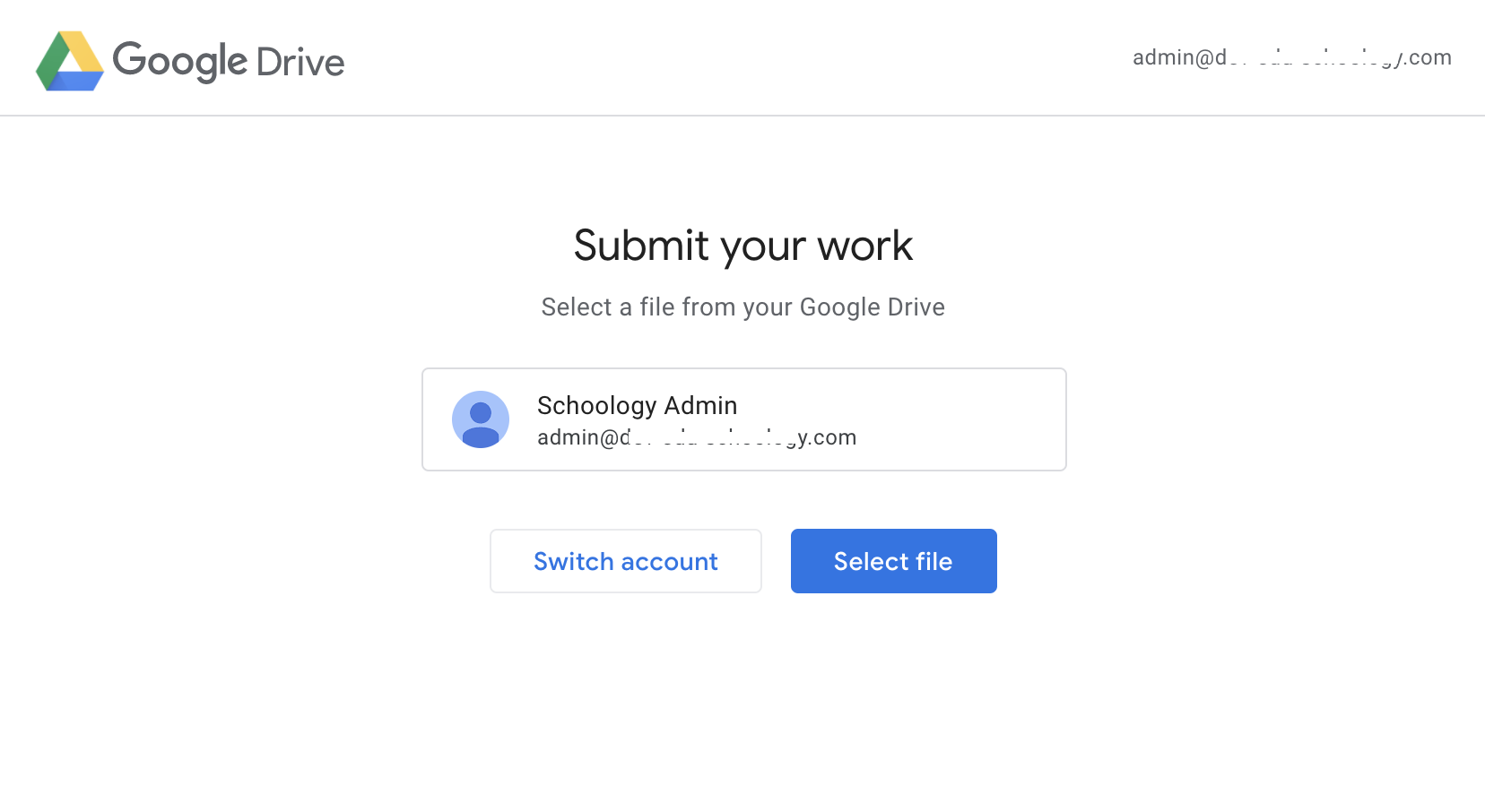
Sign in to your Google account if this is your first time using the Google Drive app. Otherwise, check the correct Google account is displayed. You can choose Switch account if you need to sign into a different Google account. Ensure pop-ups are enabled on your browser.
-
Click Select file and select a file from your Google Drive to add to your submission. Enter words or phrases in the Search field to filter your results. Items matching your search terms populate automatically in the results list.
-
Click Add and then Attach to confirm and send your submission.
Frequently Asked Questions
Can I have more than one Google Drive account integrated with my Schoology account?
-
No, you can only connect with one Google Drive account at a time in Schoology. Select the correct Google account when connecting to your Google Drive from the Google Drive app. You may switch to another Google account from the Google Resources apps but you can only be connected to one Google Drive at a time.
Can I edit or delete files in my Google Drive directly within Schoology?
-
No. Files cannot be edited or deleted through the Google Drive app. You should make any edits directly in Google Drive. You may edit or delete Google resources using the Google Drive Resource app by Schoology instead.