
Special Programs alerts
Special Programs alerts are displayed in the course Members area. These alerts help instructors identify students with educational plans, accommodations, or related documents that may affect instruction or assignments.
Different icons indicate the type of alert associated with a student:
-
Document icon — Indicates Special Programs documents are available for the student. These documents can be opened from the student’s profile.
-
Lettered or numbered icon — Indicates the type of Special Program associated with the student.
If alerts are displayed with a student’s name in Members, check the student’s Profile for any related Special Programs documents.
Review Special Programs alerts
-
Navigate to a course and select Members.
-
Locate alerts displayed with the student’s name.
-
Move the pointer over an alert to review the full text.
-
Select Special Programs to filter the list and display only students with alerts.
Create grading groups based on Special Programs
Use Special Programs alerts to help organize grading groups based on students’ educational plans. Instructors can filter for students in programs when creating grading groups.
-
Navigate to a course and select Members.
-
Click Organize members into Grading Groups.
-
Click Special Programs to filter course members to students with alerts only. Only one filter can be applied at a time.
-
Select the desired students and enter a Group Name.
-
Click Create Grading Group.
Students added to a special program after a grading group is created will not automatically appear in the group. Add these students manually if needed.
Review student documents
Instructors can access Special Programs documents on each student’s profile page. Use the Special Programs alert in Members to identify students with available documents.
-
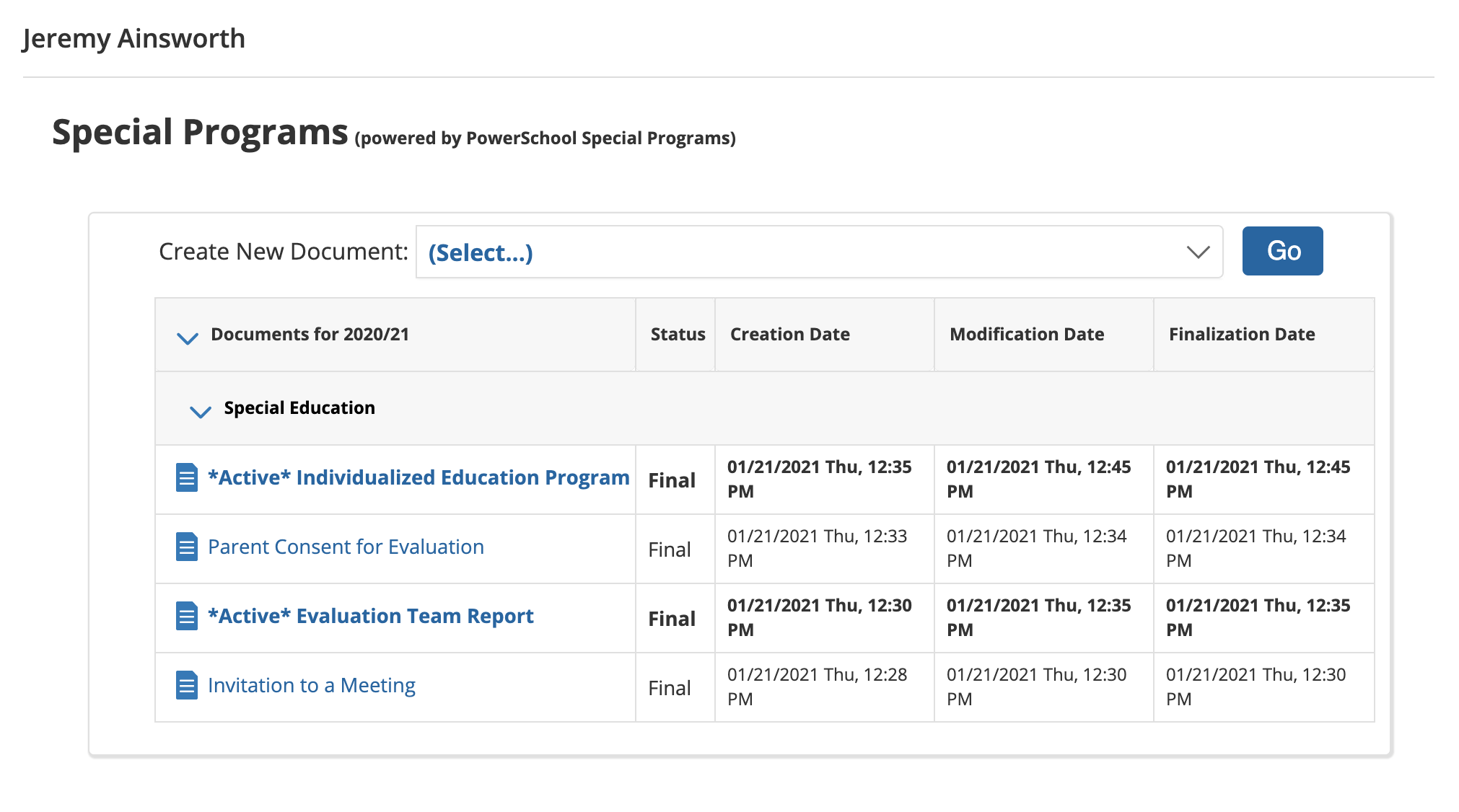
From the student's profile page, choose Special Programs from the profile picture list. The Special Programs Doc Viewer displays all available documents:
-
Select a document title to open it in Special Programs in a new browser tab. Make sure you’re signed in to Special Programs; otherwise, you may be directed to sign in.
-
Students and parents cannot access documents from the profile page. If a student attempts to navigate to the Special Programs area, the message No Special Programs Data Available is displayed.
-
Only instructors with the following permissions can access documents:
-
Access user profile app Special Programs
-
View user profile data for app Special Programs
-
Create a document
-
From the student's profile page, choose Special Programs from the profile picture list.
-
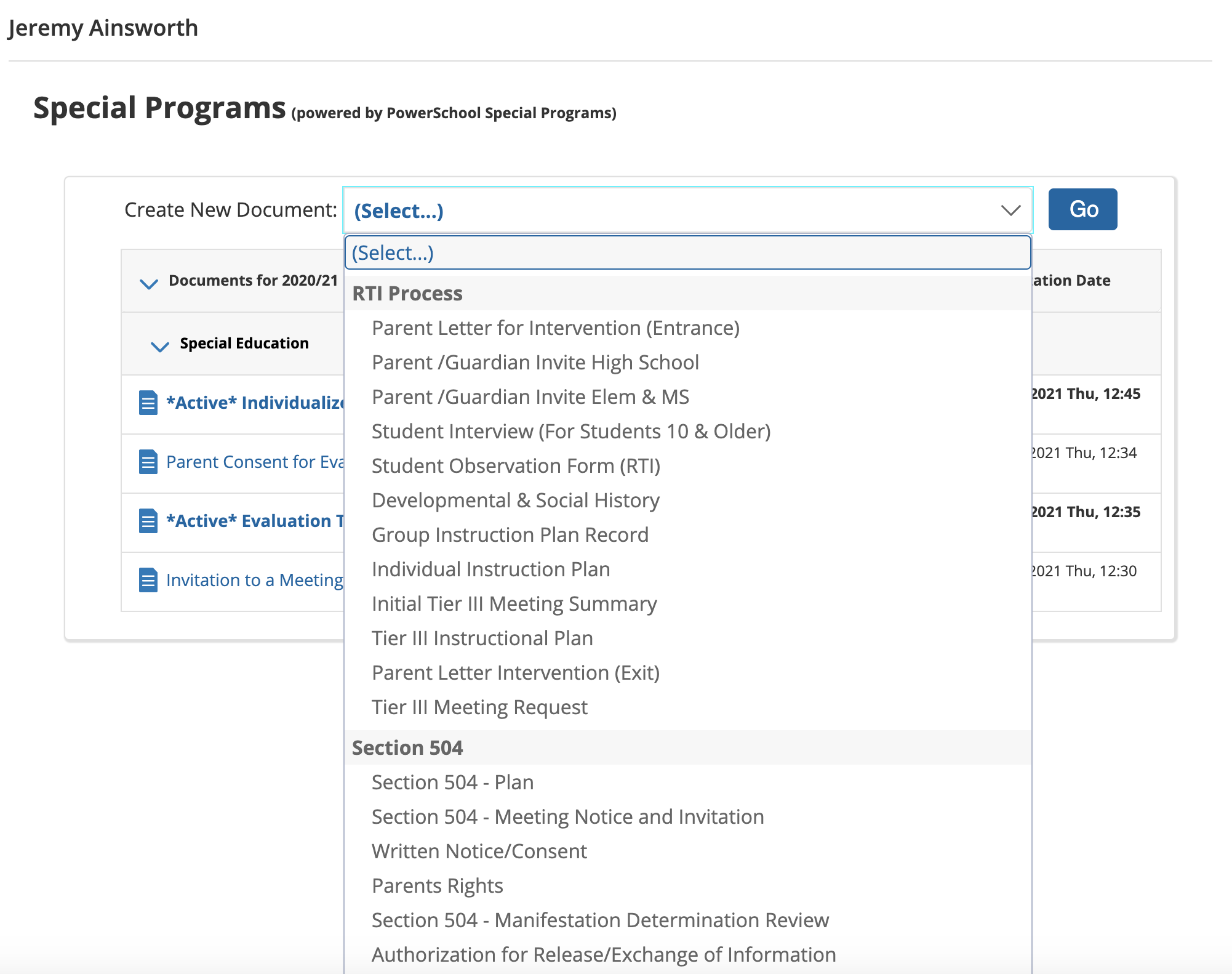
Click (Select...) From Create New Document, choose an option from the Select… list.
-
Select Go. You will be redirected to Special Programs, where you can continue creating the document.