AMP and Everway (formerly TextHelp) customers can enable Text-to-Speech and Line Reader/Screen Masking for both course assessments and managed assessments (AMP).
-
If you are interested in text-to-speech for course assessments, contact your Schoology representative to learn more about Everway (formerly TextHelp).
-
For instructions on customizing syntax and pronunciation for the text-to-speech reader, refer to Create questions for accessibility (text-to-speech).
Text-to-speech
Turn on text-to-speech
The text-to-speech toolbar, which also includes screen masking (line reader) functionality, is turned off by default on all assessments.
-
AMP admins can turn on the toolbar for managed assessments from the Settings menu. When this setting is on, any student starting or resuming the assessment will have access to the functionality.
-
Course instructors or assessment authors can turn on the toolbar for course assessments from the Setup tab. Students starting or resuming the assessment will then have access.
Use text-to-speech
Students can access text-to-speech functionality within the assessment. The toolbar is expanded by default when a student starts the assessment and can be collapsed by clicking the arrow icon.
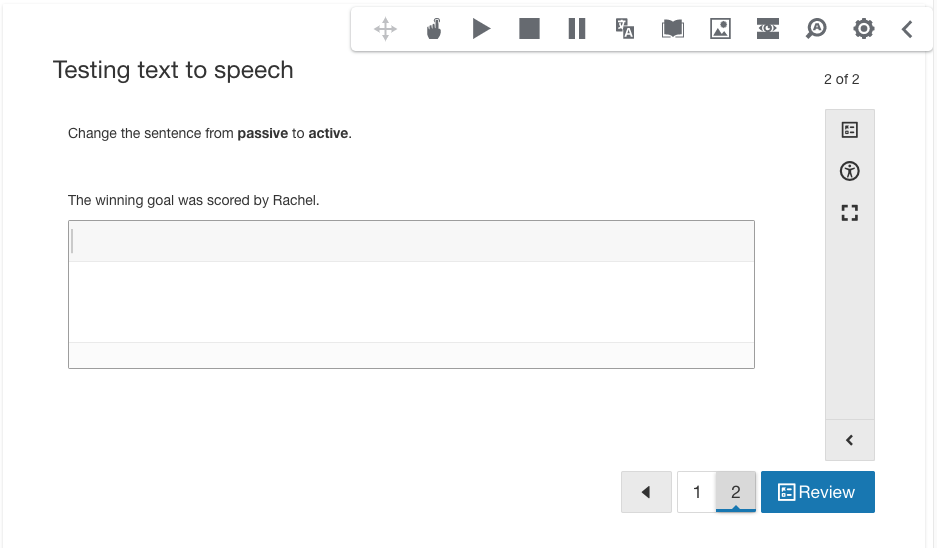
Toolbar options
|
Options |
Details |
|---|---|
|
Drag handle |
Move the toolbar anywhere on the screen. |
|
Pointer |
Click the pointer, and then select a location on the page to start reading from that point. |
|
Play |
Read from the start of the page or from a selected passage. |
|
Stop |
Stop the screen reader. |
|
Pause |
Pause or resume speech. Reading continues until the question, or passage with multiple questions, is fully read. |
|
Translate |
Highlight a word and click Translate to convert it from English to Spanish. The translation can also be read aloud. |
|
Dictionary |
Highlight a word and click Dictionary to display the definition. The definition can also be read aloud. |
|
Picture dictionary |
Highlight a word and click Picture Dictionary to display a pictorial definition. |
|
Screen masking (line reader) |
Shade portions of the page to guide reading. Refer to Screen masking (line reader) for details. |
|
Magnifying glass |
Enlarge text as it is read aloud. |
|
Settings |
Customize the text-to-speech experience. |
|
Collapse/Expand arrow |
Collapse or expand the toolbar. |
Student settings
Click the settings button to display the text-to-speech options that students can modify.
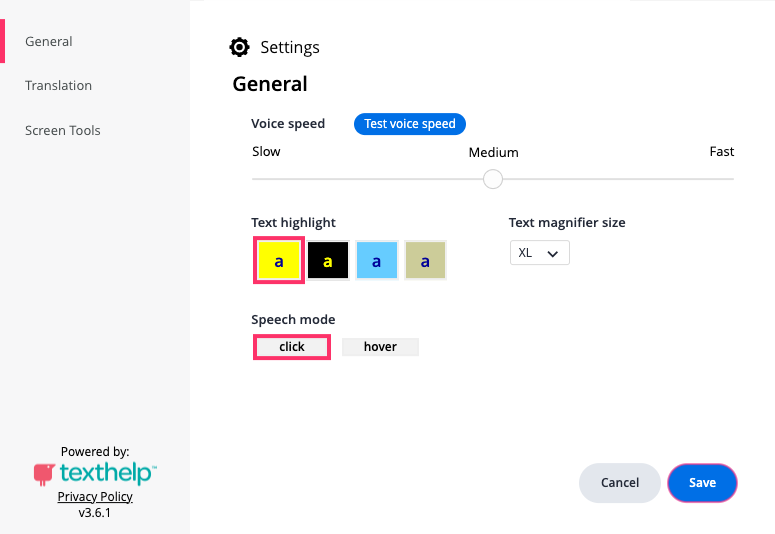
Student text-to-speech details
|
Settings |
Details |
|---|---|
|
Voice speed |
Controls how quickly words are read aloud. |
|
Text highlight |
Determines how words and sentences are highlighted during reading. Each option uses a background color and a text color. The sentence is highlighted in one color, and the word being read is highlighted in the other. |
|
Text magnifier size |
Controls how large the text becomes when the text magnifier is selected. |
|
Speech mode |
Determines how students start reading text aloud from any location on the page.
|
The default settings for every student are:
-
Voice speed: Medium
-
Text highlight: Yellow and navy
-
Text magnifier size: XL
-
Speech mode: Click
Changes to these settings do not persist across student sessions.
Images
Enter Alternative Text in the question editor if you want the image included when text is read aloud.
Embedded images will not be read by screen readers unless alternative text is provided.