
Review and search saved reports
-
Saved reports are only visible to the account that created them. Each AMP administrator must build their own reports.
-
Use the search field in the My Reports area of Managed Assessment Reports to find a saved comparison report.
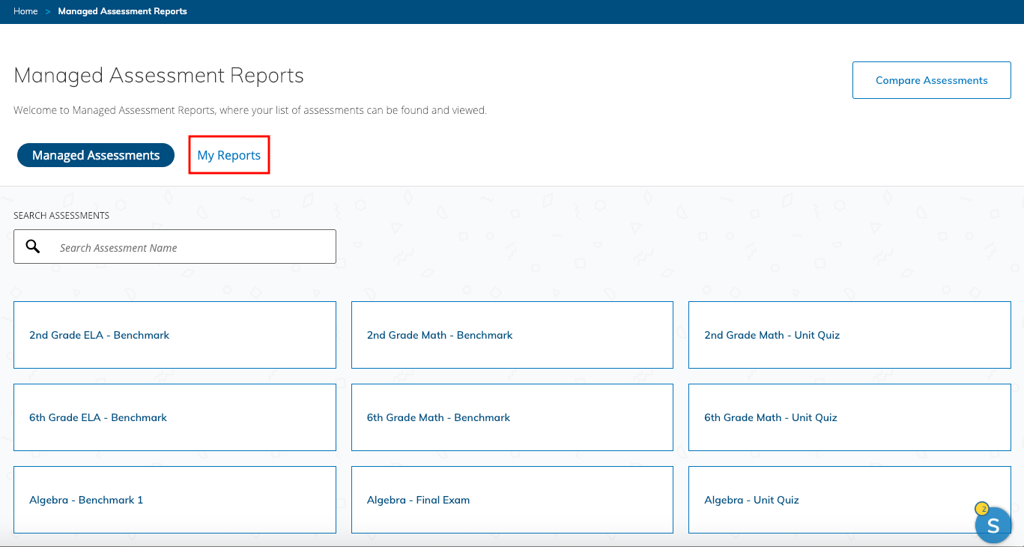
Edit a report
-
Select AMP and choose Assessment Reports.
-
Select My reports.
-
Find and select the report to edit.
-
Click Actions for the selected report and choose Edit.
-
Click the Next and Previous buttons to move through the steps and make your edits.
-
When viewing the edited report, click Actions and select Save to apply the changes to your saved report.
Print a report
-
Select AMP and choose Assessment Reports.
-
Click My Reports.
-
Find and select the report to print.
-
When the report opens, click Actions and choose Print. Check your browser’s print tool settings to adjust the formatting as needed.
Delete a report
-
Select AMP and choose Assessment Reports.
-
Click My Reports.
-
Find and select the report to delete.
-
When the report opens, click Actions and choose Delete.
-
Click Delete to confirm and delete the report.
You cannot export a report at this time.